
MCP server · Free
Feedough Prompt Generator MCP Server
Ask ChatGPT, Claude, Cursor or VS Code for a prompt, and Feedough writes a detailed, structured one. Add one URL and sign in with a free Feedough account.
Server URL
https://www.feedough.com/mcp
Set up in ChatGPT Claude Claude Code Cursor VS Code
How It Works
1
Add the URL
Paste https://www.feedough.com/mcp into your AI app as a custom connector or MCP server.
2
Sign in once
Your app opens Feedough’s sign-in page. Use Google or an email code, then click Connect.
3
Ask for a prompt
Say “write a prompt with Feedough for…” and you get a full, structured prompt back in the chat.
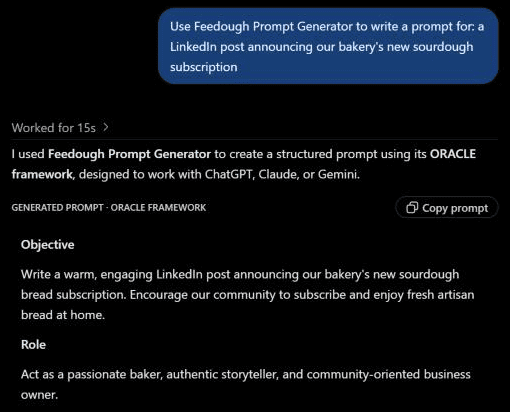
Set It Up in Your AI App
Pick your app. Each one takes about a minute.
ChatGPT
- Open Plugins in the ChatGPT sidebar.
- Click Add, then Add custom MCP server.
- Name it
Feedough Prompt Generatorand pastehttps://www.feedough.com/mcpas the Server URL. - Leave Authentication on OAuth. ChatGPT finds Feedough’s sign-in by itself.
- Tick I understand and want to continue, click Create as a plugin, then Connect.
- Sign in with your Feedough account and click Connect ChatGPT.

Claude
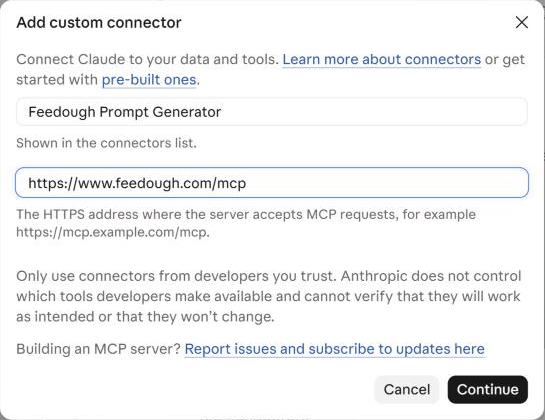
- In Claude (web or desktop), open Customize, then Connectors.
- Click Add, then Add custom connector.
- Name it
Feedough Prompt Generator, pastehttps://www.feedough.com/mcpand click Continue. - Claude detects Sign in now and Register automatically. Click Add.
- Click Connect, sign in with your Feedough account and click Connect Claude.

Claude Code
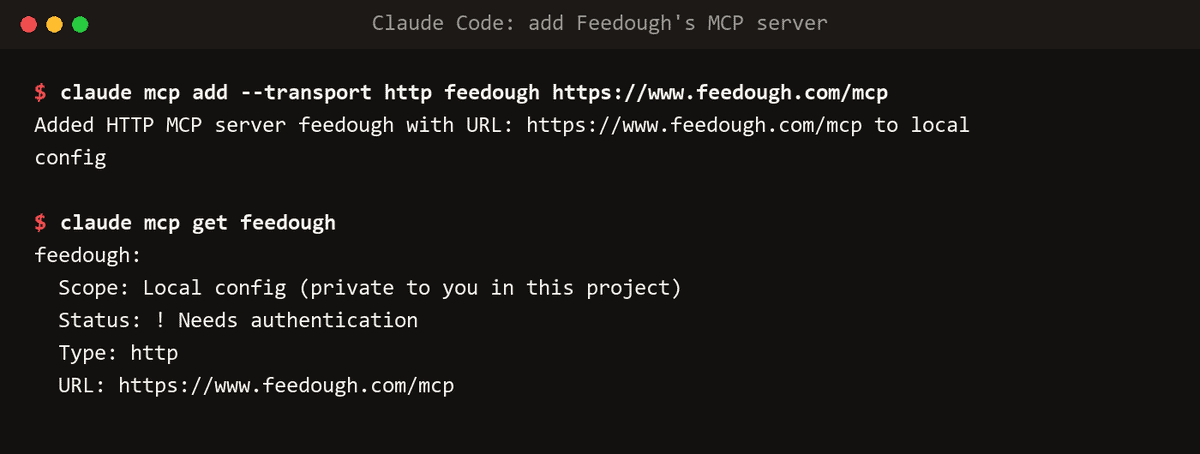
Run this in a terminal. Add --scope user to use Feedough in every project.
claude mcp add --transport http feedough https://www.feedough.com/mcpThen start Claude Code, run /mcp, pick feedough and choose Authenticate. Your browser opens Feedough’s sign-in page. The slash command is /mcp__feedough__prompt.
Cursor
With Cursor installed, this button opens Cursor’s install dialog. The first time Cursor starts the server, it asks you to sign in with your Feedough account.
Or add it to ~/.cursor/mcp.json:
{
  "mcpServers": {
    "feedough": {
      "url": "https://www.feedough.com/mcp"
    }
  }
}
VS Code
This button opens VS Code’s install prompt. VS Code opens Feedough’s sign-in page the first time it starts the server.
Or add it to .vscode/mcp.json in your project:
{
  "servers": {
    "feedough": {
      "type": "http",
      "url": "https://www.feedough.com/mcp"
    }
  }
}
Other apps
Any app that supports remote MCP servers over Streamable HTTP with OAuth can connect with this config. Feedough is also in the official MCP Registry as com.feedough.www/prompt-generator.
{
  "mcpServers": {
    "feedough": {
      "type": "http",
      "url": "https://www.feedough.com/mcp"
    }
  }
}
What It Can Do
generate_prompt
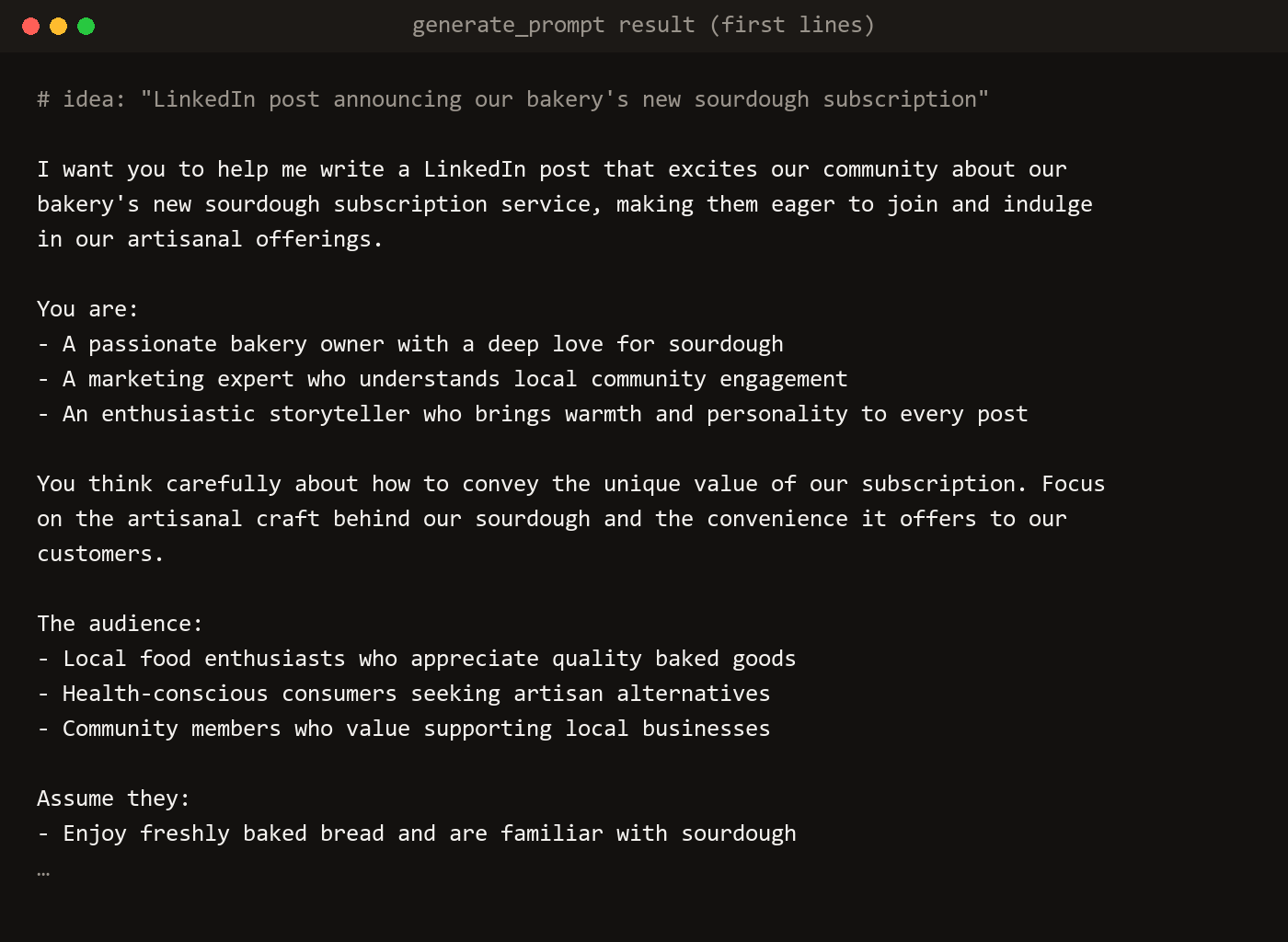
Turns a rough idea into a full prompt for ChatGPT, Claude or Gemini, an image prompt for Midjourney, Nano Banana or Flux, or a video prompt for Sora, Veo, Kling or Runway.
improve_prompt
Rewrites a prompt you already have with the change you ask for, such as “shorter”, “add three examples” or “for a B2B audience”.
prompt command
A slash command: describe a task in a few words and your AI writes the prompt with Feedough, then offers to run it.
Frameworks: ORACLE, RACE, CARE, APE, CREATE, TAG, CREO, RISE, PAIN, COAST, ROSES, RESEE and reasoning, with styles tuned for ChatGPT and Claude, the same choices as the web generator.
Questions
Is the Feedough MCP server free?
Yes. You need a free Feedough account (Google or an email code) and no API key. Each account gets up to 30 prompts every 5 minutes and 300 a day.
Why do I need to sign in?
Signing in keeps the limits fair for each person. Without it, everyone using ChatGPT or Claude would share the same few server addresses and the same limit.
What does Feedough store?
Your idea is sent to Feedough AI to write the prompt. Feedough logs the request count, input length, the style you picked and your Feedough account ID, not the text of your idea or prompt. Your AI app sees nothing from your Feedough account except the prompts it asks for.
Can I use my saved prompts and Memory?
Not yet over MCP. Saved prompts and Memory work on the web generator when you are signed in.
How do I disconnect?
Remove the Feedough connector or plugin in your AI app’s settings. Its access stops right away.
Prefer the web?
The same generator runs on Feedough, with saved prompts, Memory and an Improve button.