
Gone are the days when a notebook and a pen were the only tools needed to brainstorm an idea. Nowadays, ideas come in various forms – from text and images to videos and voice notes.
The traditional brainstorming methods simply can’t keep up with the demands of modern innovation.
This is where brainstorming tools help you. They let you toss around ideas, organise your thoughts, and work together – even if your team is spread across different parts of the world.
But with so many brainstorming tools out there, how do you know which tool is the right one for you? To help you figure this out, we’ve come up with a list of the 10 best brainstorming tools for all your brainstorming needs.
Rundown
- Best for creating mind maps: MindMeister, “A visual mind mapping tool that organises complex ideas into interactive mind maps with real-time team collaboration and task management capabilities.”
- Best for visual AI-powered brainstorming: FigJam, “Figma’s collaborative whiteboard with AI-assisted diagram generation, sticky notes, voting, and brainstorming templates designed for creative teams.”
- Best for AI-powered flowcharts and diagrams: Whimsical, “An all-in-one platform converting text descriptions into visual diagrams instantly, combining flowcharts, wireframes, and mind maps with startup-friendly pricing.”
- Best for team collaboration whiteboarding: Miro, “An online whiteboard platform enabling remote teams to brainstorm visually with sticky notes, drawing tools, real-time collaboration, and voting features.”
- Best for structured idea management: Ideanote, “A specialised platform to capture, organise, and prioritise ideas through custom workflows, team voting, and impact-based evaluation for innovation management.”
- Best for creating business diagrams: Lucidchart, “A drag-and-drop diagramming platform with AI-powered flowchart generation, real-time collaboration, and integration with Google Workspace and Microsoft Office.”
- Best for SWOT analysis and visual planning: Creately, “A diagram tool with auto-layout features for SWOT analysis, process mapping, and team collaboration with multi-device access and data integration.”
- Best for task-based brainstorming: ClickUp, “An all-in-one workspace combining digital whiteboarding with project management, enabling teams to convert brainstorm ideas directly into actionable tasks.”
- Best for visual project organisation: Trello, “A Kanban board system that organises tasks and projects into visual cards with team assignments, checklists, deadlines, and customisable Power-Ups for enhanced functionality.”
- Best for collaborative note-taking and planning: Notion, “A flexible workspace for centralising team notes, documentation, brainstorming sessions, and project planning with AI-assisted content creation and real-time collaboration.”
Recommended Brainstorming Tools
Best for creating mind maps
MindMeister
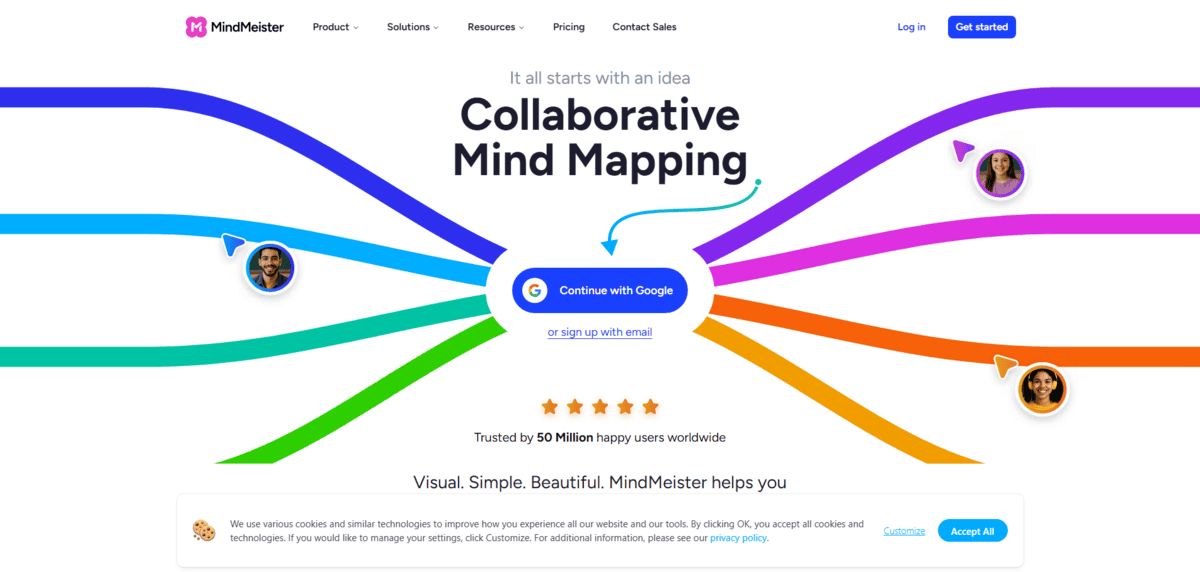
If you get overwhelmed by multiple ideas coming into your mind at once while brainstorming, MindMeister is the perfect tool for you.
It’s a brainstorming tool that helps you sort these ideas out and convert them into an organised mind map. With this tool, you can visualise your thoughts, connect them together and make interactive mind maps to break down any complex ideas.
It has several pre-made templates to help you get started, or you can just create a custom one that matches your needs. Other than that,
- Multiple users can work on the same mind map at the same time, so your team can brainstorm together even if everyone is in a different part of the world.
- You can turn ideas into actionable tasks directly within MindMeister. You can assign tasks, set deadlines, and track progress.
- The mind maps you make are stored in the cloud, so they’re accessible from any device with an internet connection. This way, you can keep your work organised and pick up where you left off, no matter what device you’re using.
- Once your mind map is complete, you can switch to presentation mode. This mode lets you showcase your ideas in a structured and engaging way, which is useful during pitch meetings or team presentations.
MindMeister is definitely a great tool for creating mind maps, but it’s got a few downsides. The free version limits how many maps you can make, which can be a problem if you’re handling more than one project.
Best for visual AI-powered brainstorming
FigJam
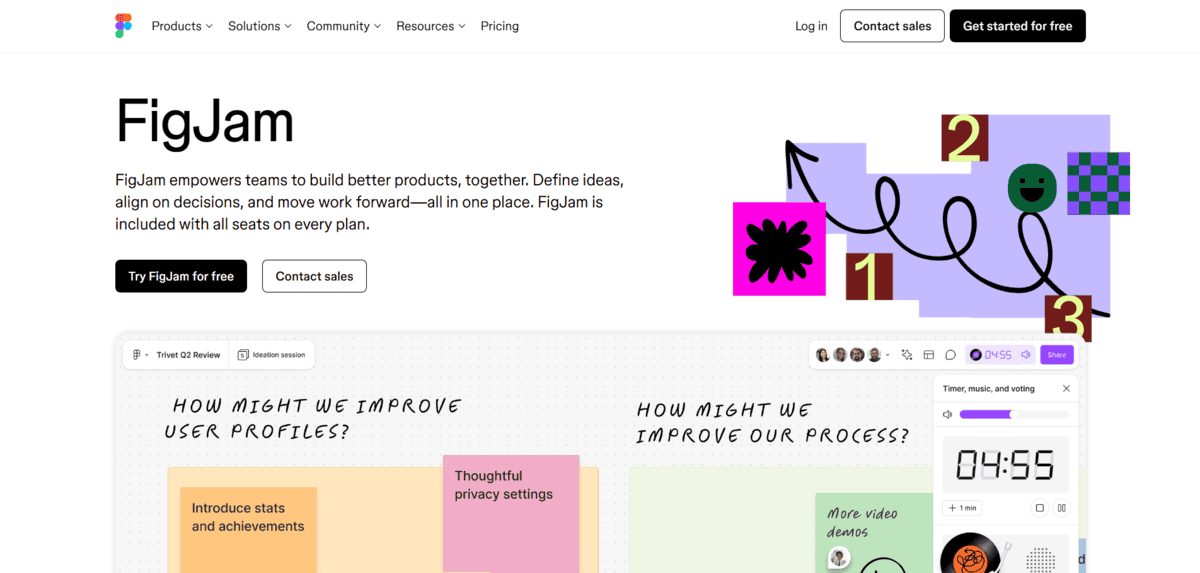
When your team is scattered across different time zones, and you need to transform rough ideas into visual diagrams quickly, FigJam is a strong option. Figma’s collaborative whiteboard is designed specifically for teams that want to brainstorm visually without needing design expertise.
FigJam brings real-time collaboration to the forefront, letting team members sketch, add sticky notes, and organise ideas simultaneously.
What makes it stand out is its AI-powered diagram generation. You can describe what you want in plain language, and FigJam converts it into visual flowcharts and diagrams automatically. This means your team can focus on ideating rather than wrestling with design tools.
- You can create sticky notes on the canvas to capture ideas, and your team can instantly vote on which ones matter most. This voting system helps prioritise ideas in real time, making it easy to identify top opportunities.
- With FigJam’s live cursors, you can see exactly where your team members are working on the canvas, making collaboration feel more connected even when everyone’s remote.
- Your brainstorming session can be exported as images or PDFs, so you can share polished visuals with stakeholders or keep them for future reference.
- Since FigJam integrates seamlessly with Figma, designers on your team can take brainstorming ideas directly into design projects without starting from scratch.
While FigJam is excellent for visual collaboration, there are some limitations to consider. The free version is fairly restricted, and to unlock collaborative features and templates, you’ll need a paid subscription. There’s also a slight learning curve if you’re not already familiar with Figma’s ecosystem, and setting up complex diagrams can take some practice.
Best for AI-powered flowcharts and diagrams
Whimsical
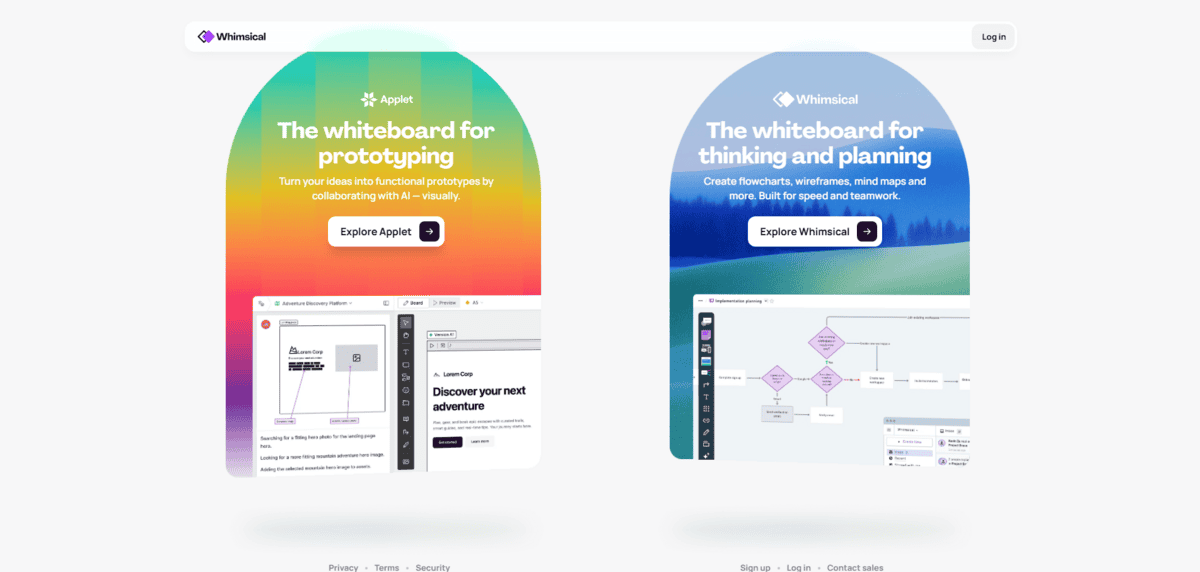
Whimsical is an all-in-one platform that converts text descriptions into visual diagrams. You can describe your process in plain English and watch it become a professional diagram in seconds.
Whimsical is built with startups in mind, offering affordable pricing that scales as your team grows. You can create flowcharts, wireframes, mind maps, and org charts all on the same platform. The AI handles the connections and layout automatically, so you don’t need design skills to look professional. This speed is invaluable when you’re in rapid iteration mode and need to document ideas quickly.
The platform includes templates for common startup workflows. Product development timelines, customer feedback loops, and team structures. The interface is clean and straightforward, designed to get non-designers creating diagrams in minutes.
- You can simply write out your process or idea, and Whimsical’s AI generates a fully connected flowchart with proper logic and structure automatically.
- The pre-built templates help you tackle common startup scenarios without reinventing the wheel each time you brainstorm a new project.
- Because Whimsical is startup-friendly, the pricing remains accessible even as you add team members and create more diagrams.
- You can edit diagrams freely after the AI generates them, customising colours, shapes, and layout to match your preferences or brand guidelines.
Whimsical does have some trade-offs. The free tier is limited in what you can create, so you’ll likely need a paid plan for ongoing use. While it’s great for quick diagrams, it may lack some of the advanced customisation options professional designers expect. If you need pixel-perfect control or highly complex visualisations, you might outgrow Whimsical’s capabilities.
Best for team collaboration whiteboarding
Miro
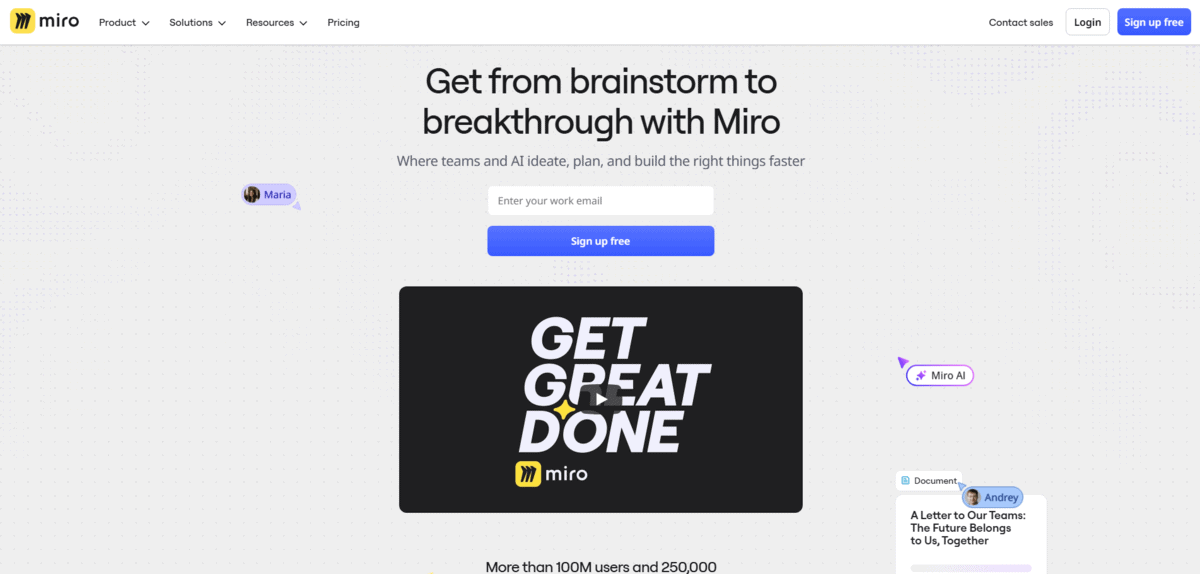
Miro is an online whiteboard platform that excels among brainstorming tools, allowing you to brainstorm, plan, and collaborate with your team regardless of everyone’s location. It’s like an online workspace powered by AI where you can share your ideas, plan projects, and work together in real time. You can sketch out concepts, create mind maps, and build flowcharts, all on the same platform.
There are many customisable templates available for different uses, like mind mapping, strategies and planning, customer journey mapping, etc., so you don’t have to start completely from scratch.
Other than the online whiteboard, there are many features that make brainstorming with your team easier:
- You can work with your team on the same board at the same time. You can see changes as they happen and keep everyone up to date.
- Like on a real whiteboard, you can put sticky notes on Miro’s board to write down ideas, draw diagrams, or highlight important things. You can use digital pens to easily sketch ideas or make quick notes.
- You can use it with video call tools like Zoom, so you can talk about and work on your board while seeing and hearing from your team. This helps connect brainstorming with communication, making your meetings more effective.
- If you need to decide something quickly, you can use Miro’s voting and polling tools to get your team’s opinions on ideas or solutions.
- Your Miro canvas can be as big as you need, so you won’t run out of space. This is very useful for big projects or when you’re working on a complicated project.
While Miro is a great tool for brainstorming and collaboration, it still has some drawbacks. There’s a free version, but it’s pretty limited. You’ll have to get a paid subscription to access all its features. And while it’s great for collaboration, things can get messy with everyone adding stuff left and right. Plus, if your board gets too big, it might start lagging, especially on older devices.
Best for structured idea management
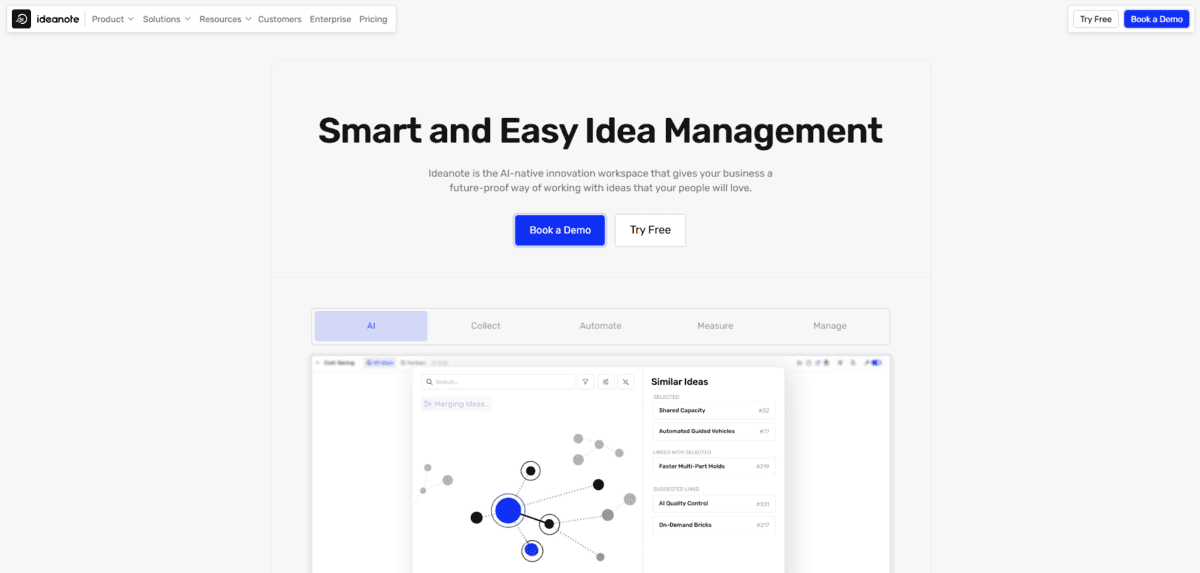
Ideanote
When your team is scattered across different locations, gathering everyone’s ideas becomes a real challenge. How do you collect thoughts from multiple people, sort through them all, and figure out which ones are actually worth pursuing? Ideanote solves this by creating a central hub where ideas flow in naturally, get organised systematically, and get evaluated fairly.
The core idea is simple: you set up challenges or prompts. For example, “What’s slowing down our customer onboarding?” and your team submits their ideas directly. But instead of everything piling up in a messy folder, Ideanote lets you structure the whole process from collection to decision-making.
Once ideas start coming in, you can move them through different stages that you create yourself. Maybe ideas start in “Submitted”, then move to “Under Review”, then “Feedback”, and finally “Approved for Execution”. This workflow keeps everything on track and makes sure ideas get proper attention at each stage.
Here’s where it gets powerful:
- You can accept ideas from anywhere. A mobile app, your web browser, or even directly through Slack. This removes barriers to contribution, so people don’t have to jump through hoops just to share an idea.
- Your team can rate, comment on, and vote for ideas they believe in. This turns individual submissions into a collaborative discussion where the best ideas naturally rise to the top.
- Built-in scoring tools let you rank ideas based on what actually matters to your business. Feasibility, potential impact, and alignment with goals. The tool does the math so you’re not stuck manually comparing everything.
- You get reports on how many ideas you’re getting, which ones are moving forward fastest, and which team members are contributing most. This data helps you understand your innovation pipeline.
While Ideanote is fantastic for managing an active idea culture, there are trade-offs to consider. The pricing can feel steep for small teams just getting started, especially as you add more people. Plus, there’s definitely a learning curve. Getting the most out of custom workflows and evaluation tools takes some exploration and trial and error. Smaller teams that just need something simple might find it overcomplicated.
Best for creating business diagrams
Lucidchart
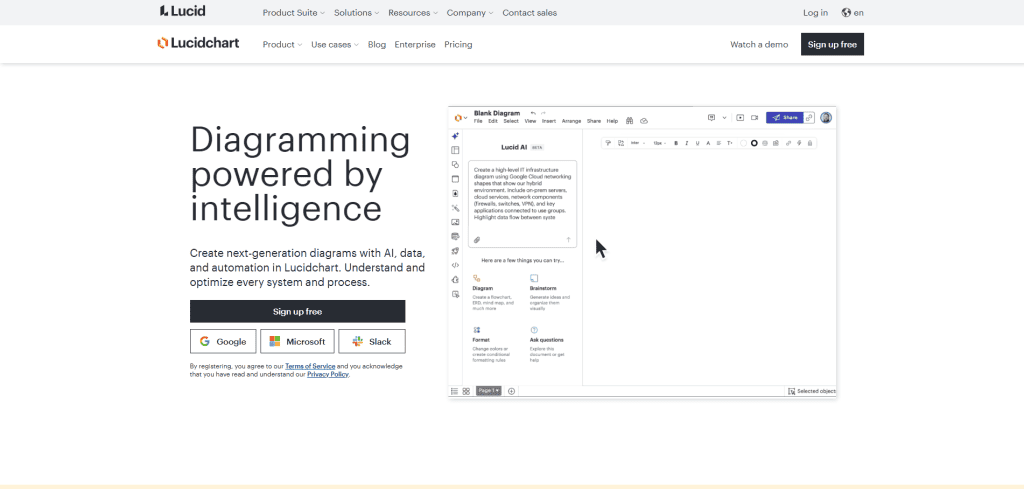
Lucidchart is a professional-grade diagramming platform designed for teams that need to create everything from simple flowcharts to complex business processes. It features a drag-and-drop interface that’s easy to learn, combined with AI-powered capabilities that can automatically generate diagrams based on your inputs. This makes it accessible for beginners while remaining powerful enough for intricate visualisations.
The platform offers an extensive library of shapes, symbols, and templates across different industries. Whether you’re mapping customer journeys, designing system architectures, or planning organisational structures, Lucidchart has pre-built templates to get you started.
Best of all, the AI can take a few inputs from you and create a functional flowchart in seconds, removing much of the manual work.
What sets Lucidchart apart for business teams is its collaboration features and integrations. Teams can work on the same diagram simultaneously, seeing changes in real time. When your diagrams are complete, presentation mode lets you walk stakeholders through complex processes step-by-step, making it ideal for meetings and pitches.
- You can work with your team on diagrams at the same time, with real-time editing so everyone stays aligned on the design.
- Lucidchart integrates directly with Google Workspace, Microsoft Office, and Slack, allowing you to embed diagrams into presentations, documents, or team communications instantly.
- The AI-powered features automatically generate flowcharts from your specifications, significantly reducing the time spent on layout and connections.
- Presentation mode transforms your diagram into a guided walkthrough, perfect for explaining complex processes clearly to non-technical audiences.
Lucidchart does have limitations. The free version is quite basic, and accessing advanced diagramming tools requires a paid subscription. Creating complex diagrams takes practice and familiarity with the platform. For simpler brainstorming needs, Lucidchart might feel over-engineered, and the learning curve can be steeper than more simplified alternatives.
Best for SWOT analysis and visual planning
Creately
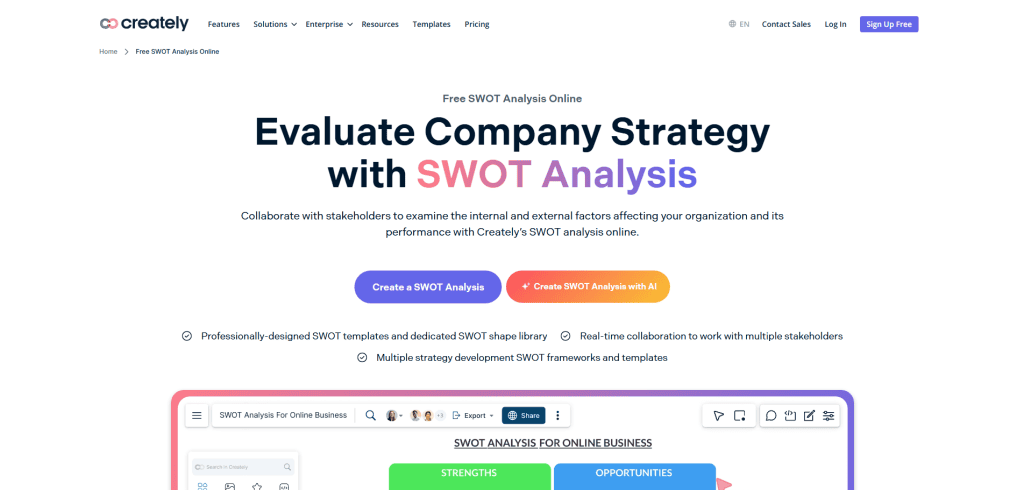
Creating a SWOT analysis is supposed to help you understand your business position, but when you’re staring at a blank page, it’s easy to get overwhelmed. Creately strips away the friction by turning SWOT analysis into a visual, collaborative exercise that your whole team can jump into.
You get a drag-and-drop canvas where you drop shapes, text boxes, and connections exactly where you want them. If you don’t want to design from scratch, Creately has ready-made SWOT templates. Just pick one that matches your situation, and you’ve got a starting point. From there, you fill in your strengths, weaknesses, opportunities, and threats across the four quadrants.
The real magic happens when your team starts collaborating in real time. Multiple people can add ideas to the same analysis simultaneously, no matter if they’re across the hall or across the globe.
As you work, Creately automatically adjusts and aligns your shapes, keeping everything clean and professional-looking without you having to manually fix the layout.
Here’s what makes the process smoother:
- The auto-layout feature keeps your diagram organised as you work, so you can focus on the analysis itself instead of fiddling with positioning and alignment.
- You can layer actual data into your SWOT framework. Pull in numbers, metrics, or other information that supports your analysis rather than just listing broad observations.
- Switch between the web version, desktop app, or mobile app as needed. Whether you’re at your desk or brainstorming in a coffee shop, your work stays accessible.
- It plays nicely with other tools you probably use. Connect it to Google Workspace, Microsoft Office, and other platforms to pull data in or share your analysis out.
Creately definitely simplifies SWOT analysis, but there are some limitations worth knowing about. The free version is restricted. You’ll likely need a paid plan to get the features that make the tool really shine. Also, when you’re working with particularly intricate diagrams or large-scale analyses, the performance can slow down a bit, especially on less powerful devices.
Best for task-based brainstorming
ClickUp
There’s always a gap between the brainstorming session and actual execution. You get great ideas flowing in a meeting, you map them out, and then… Everyone leaves, and nothing actually happens.
ClickUp bridges that gap by combining your brainstorming space with your project management system. It’s like having your whiteboard and your task tracker working together instead of fighting against each other.
Think of ClickUp’s whiteboard as your digital canvas. You can sketch ideas, add sticky notes, draw connections, and arrange things visually. Your teammates can jump in, add their own notes, move things around, and build on each other’s ideas all in real time. It feels natural and loose, the way brainstorming should feel.
But here’s the payoff: when an idea is ready to move forward, you don’t start over in a different tool. You convert it directly into a task right there in ClickUp. Assign it to someone, set a deadline, and add context. It’s all one continuous motion from “that’s a cool idea” to “this is getting done.” Boom. Your brainstorm actually leads to action.
You get some useful features that speed things up:
- Pre-designed templates jumpstart your brainstorming sessions, so you’re not staring at a blank canvas trying to figure out where to begin. These templates cover different brainstorming formats and scenarios.
- You can access the whiteboard from your computer, phone, or tablet. Inspiration strikes anywhere, and you can jump into collaborative brainstorming whenever it hits.
- The transition from brainstorm to execution happens instantly. Just capture an idea and turn it into an assigned, trackable task without leaving the platform.
- Your team can work together in real-time, seeing changes as they happen and building momentum around your best ideas.
Where ClickUp stumbles a bit is in the learning department. The platform is loaded with features, and for brand-new users, that can feel overwhelming. There’s a lot to explore before you find your groove, and you might feel lost at first while you’re figuring out what everything does and how to customise it for your needs.
Best for visual project organisation
Trello
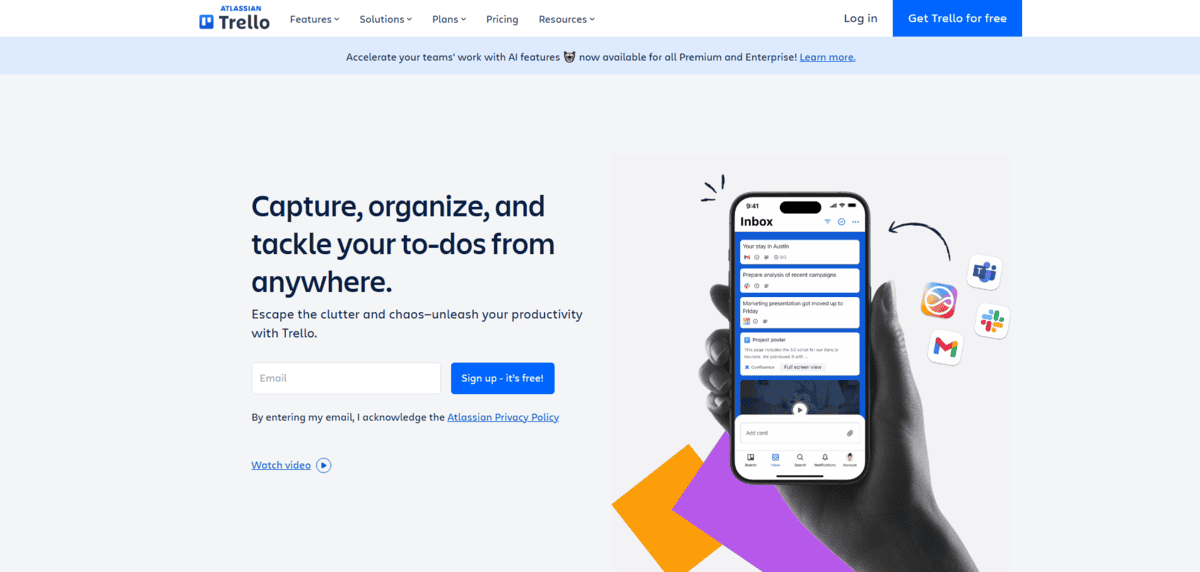
Trello is a versatile tool that you can use to manage your projects and organise tasks visually, and it also serves as one of the effective brainstorming tools for team collaboration. This structure makes it easy to break down projects into manageable parts and move tasks from start to finish.
You can use it for many things, like planning a product launch, running a marketing campaign, or just keeping track of daily tasks. It shows you clearly what needs to be done and who’s responsible for each task.
The best part about Trello is how simple it is to use. Even if you’ve never used a tool like this before, you can learn Trello quickly. The way it’s set up with boards, lists, and cards makes it easy to understand your work at one glance.
- You can easily move tasks between lists by dragging and dropping cards. This helps you see how your work is going.
- You can add your team to boards and give them specific tasks. This way, everyone knows what they need to do, and you can quickly see who’s doing what.
- You can make checklists for each task and set deadlines. This helps you keep track of what needs to be done and when.
- You can add files and pictures to your tasks and talk with your team right on the task card. This keeps everything you need in one place.
- You can add extra features called “Power-Ups” to make Trello work better for you. These can connect Trello to other tools you use or add new ways to view your work.
Trello is great for basic project management, but it might not be enough if you want to use it for complex projects. Working on large projects can get messy on Trello boards. Also, while many features are free, you’ll need to pay for Power-Ups to access more advanced functions, which can add up in cost.
Best for collaborative note-taking and planning
Notion
Do you find yourself jumping between multiple tools just to keep track of your brainstorming sessions, project plans, and team documentation? Notion is a flexible workspace that brings everything together in one place, making it perfect for startups that want to centralise their ideas and planning without juggling a dozen different apps.
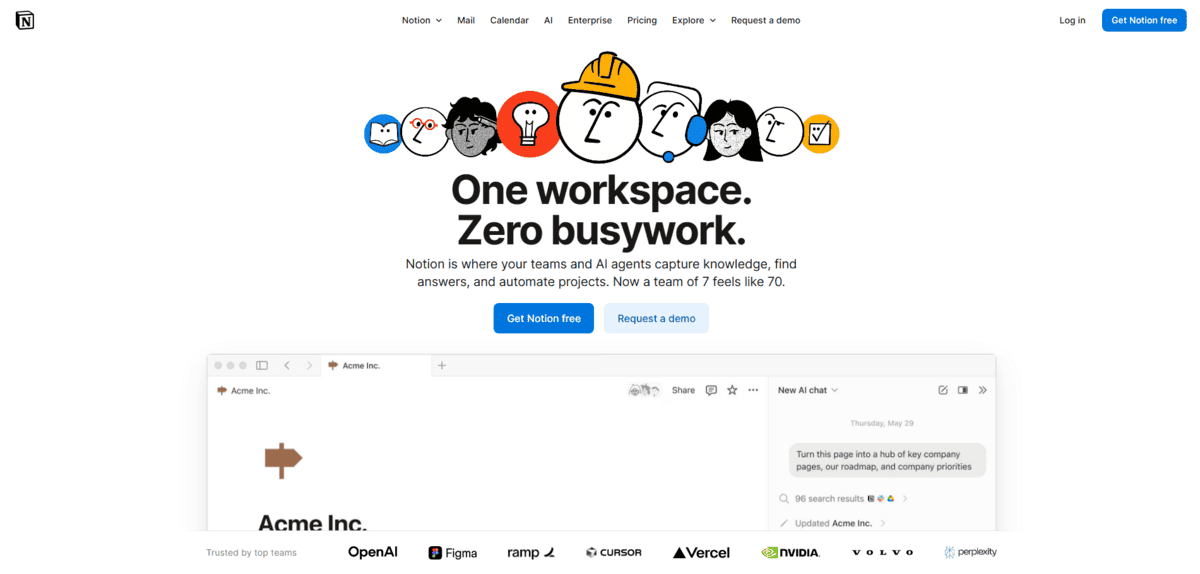
Notion works like a digital notebook that you can customise however you want. You can create pages for brainstorming sessions, add databases to track ideas, set up project timelines, and more. You can even build knowledge bases for your team, all within the same workspace.
What makes Notion particularly powerful for brainstorming is how flexibly you can organise your ideas. You’re not stuck with a specific format; you can mix text, images, videos, databases, and Kanban boards all on the same page.
- You can create linked databases that connect your ideas to projects, team members, and timelines. This way, when you brainstorm an idea, you can instantly link it to who’s responsible and when it needs to be done.
- Notion’s AI-powered writing assistant can help generate content, refine your notes, and even brainstorm alongside you. You can use it to quickly expand on rough ideas or flesh out incomplete thoughts.
- You can set up templates for recurring brainstorming sessions, making it easy to run consistent brainstorms with the same structure every time. This keeps your process standardised across teams.
- Real-time collaboration means multiple team members can work on the same page simultaneously, leaving comments and suggestions as they go. Everyone sees updates instantly, so you’re always on the same page.
- You can turn brainstorming notes into action items with assigned owners and due dates, bridging the gap between ideation and execution without switching tools.
While Notion is fantastic for centralising your brainstorming and planning, it does come with some challenges. The sheer flexibility can actually be overwhelming. You’ll need to spend time setting up the right structure for your team, and there’s definitely a learning curve.
If you don’t organise it well from the start, Notion can get messy and confusing. It also requires some customisation upfront before it really starts working for you, which might be more effort than some startups want to invest initially.
