
You know what kills productivity faster than anything else? Switching between twelve different apps just to get through your morning.
Your task list is in one place, your team chat in another, and good luck finding that file someone shared last Tuesday. The average worker toggles between apps 1,200 times a day, and frankly, it’s exhausting.
That’s why we’ve put together this list of 11 business communication tools that actually work together to streamline how you connect, collaborate, and get things done.
Each one solves a specific problem without creating three new ones. From managing projects to hosting video calls to collecting feedback, these tools cover the essential ways teams need to communicate without the chaos.
Rundown
- For Task Management: Asana, “Organise tasks, track progress, and collaborate on projects with AI-powered insights, automation, and real-time team communication in one centralised workspace.”
- For All-In-One Work Management: ClickUp, “Combine task management, documentation, goal tracking, and time tracking in a single customisable platform with extensive automation to eliminate tool sprawl.”
- For Simple Visual Project Management: Trello, “Create visual boards with lists and cards to manage projects, assign tasks, set deadlines, and collaborate effectively with flexible customisation options.”
- For Free Virtual Meetings: Google Meet, “Conduct HD-quality video calls for up to 49 participants with screen sharing, real-time captions, and easy scheduling directly from Google Calendar.”
- For Enterprise Video Conferencing: Webex, “Host secure, professional meetings with an AI meeting assistant, advanced recording, transcription, and enterprise-grade security features.”
- For Video Communication: Loom, “Record, share, and collaborate on videos with one-click screen capture, AI-powered summaries, and instant sharing to reduce unnecessary meetings.”
- For Enterprise Team Chat: Microsoft Teams, “Combine chat, video meetings, and file collaboration with seamless integration of Microsoft 365 apps and channel-based organisation for teams.”
- For Internal Team Communication: Slack, “Centralise team conversations, file sharing, and tool integrations with powerful search, custom notifications, and channel organisation for streamlined workflows.”
- For Feedback Collection: Typeform, “Create engaging conversational surveys with a one-question-at-a-time format, AI-powered insights, and conditional logic for higher completion rates.”
- For Sales and CRM Management: HubSpot CRM, “Manage customer interactions, track sales pipelines, automate follow-ups, and gain performance insights with email tracking and deal visualisation.”
- For Professional Business Presentations: Canva, “Design stunning presentations with drag-and-drop simplicity, millions of stock images, customisable templates, and brand consistency tools.”
Recommended Business Communication Tools
For Task Management
Asana
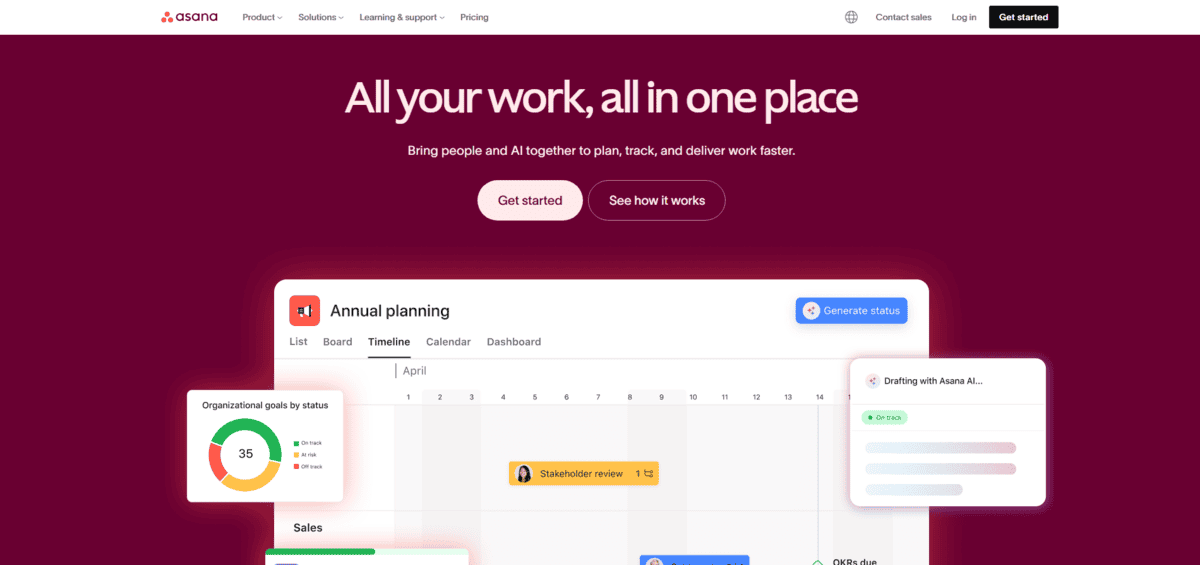
If your team struggles with scattered tasks and unclear priorities, Asana gives you a centralised workspace to organise everything. It’s built for teams that need more than just a to-do list.
You get task assignments, progress tracking, and team collaboration all in one place. Project managers especially love how it keeps everyone aligned without constant check-ins.
You can create tasks with detailed descriptions, assign them to team members, and set deadlines so nobody’s left wondering what needs doing. Plus, Asana’s AI teammates can automate repetitive workflows, answer questions about project status, and even reallocate work to help you hit goals faster.
- You can comment directly on tasks, tag teammates, and share files without jumping between apps; everything stays connected to the relevant work.
- You can integrate with tools like Slack, Google Drive, and Microsoft Teams to sync Asana into your existing workflow seamlessly.
- You can set up automation rules to handle routine actions like moving tasks between stages or sending status updates automatically.
- You can track project dependencies so you’ll know immediately if one delayed task threatens your entire timeline.
Asana works great for mid-sized to large teams managing complex projects, but new users often find it overwhelming at first. The interface has a learning curve, and small teams might feel it’s too robust for their needs. Also, the most powerful features, like advanced reporting and workflow automation, sit behind paid plans, which might not fit every budget.
For All-In-One Work Management
ClickUp
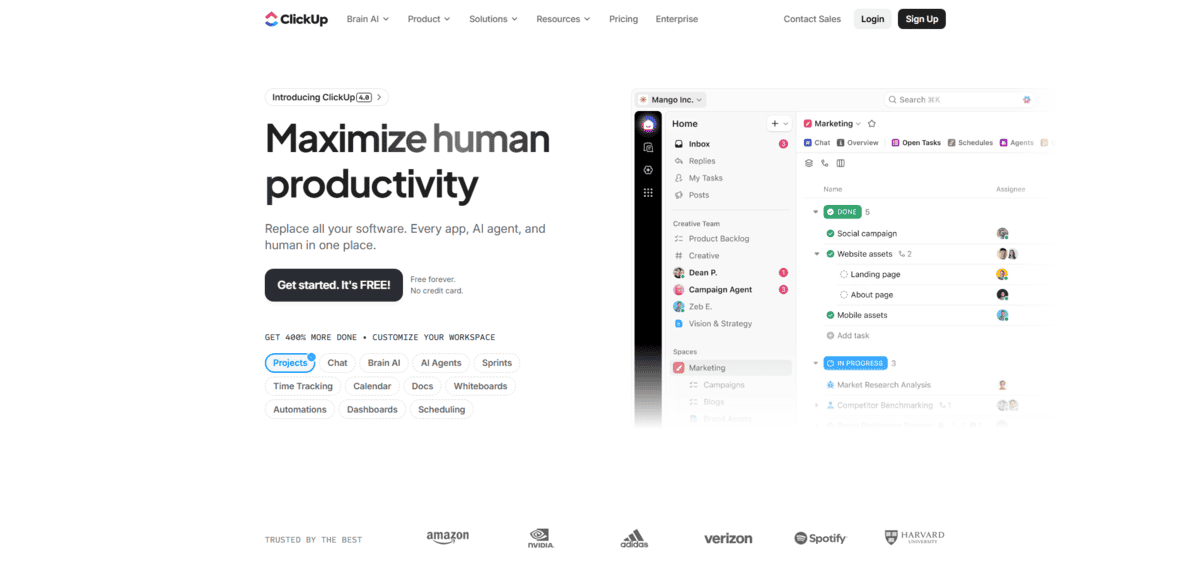
If you’re tired of juggling five different apps just to get work done, ClickUp consolidates everything into one platform. It’s designed to replace your task manager, document editor, goal tracker, and time tracking tool all at once. Teams dealing with “tool sprawl” find this especially helpful since everyone can finally work from the same system.
What sets ClickUp apart is its flexibility. You can customise nearly everything – views, workflows, fields, and automations – to match how your team actually works.
The AI features help you summarise information from connected apps like Google Docs and GitHub right within ClickUp.
- You can create custom automations to handle repetitive work like status updates, task assignments, or notifications based on triggers you define.
- You can switch between List, Board, Calendar, Gantt, and Timeline views to visualise work however makes sense for each project.
- You can set measurable goals and track progress automatically as your team completes related tasks and projects.
- You can track time directly within tasks to understand where hours go and improve future estimates for similar work.
- You can build wikis and knowledge bases alongside your tasks so documentation lives where the work happens.
ClickUp is incredibly powerful for teams managing complex workflows across departments, but that power comes with complexity. The learning curve is steep; expect to invest time getting your team up to speed.

For Simple Visual Project Management
Trello
Trello’s board-and-card system makes project management intuitive. It’s perfect for teams that want something they can start using immediately without training sessions or setup guides. You create boards for projects, add lists for different stages, and move cards (tasks) across as work progresses.
The simplicity is Trello’s biggest strength. You see exactly what everyone’s working on, what’s stuck, and what’s done. Small teams and solo users appreciate how quickly they can set up a workflow and start collaborating.
The flexibility lets you adapt Trello to almost any workflow. Whether you’re planning content, managing client projects, or tracking personal goals, the board structure just works. You can add details to cards, attach files, create checklists, and assign team members.
- You can customise boards with labels, due dates, and custom fields to track the information that matters for your specific projects.
- You can add Power-Ups to extend functionality with calendar views, time tracking, integrations with Slack or Google Drive, and hundreds of other options.
- You can break down complex tasks into smaller steps using checklists within cards to track detailed progress.
- You can set due date reminders so your team gets notifications before deadlines approach.
- You can invite team members to boards, assign them to specific cards, and use comments to discuss details right where the work lives.
Trello shines for straightforward projects and visual thinkers, but it has limits. The free version restricts how many Power-Ups you can use per board and limits automation runs.
It also lacks the advanced reporting and analytics you’d get from more robust project management tools. When projects grow large with hundreds of cards, boards can become crowded and harder to navigate efficiently.
For Free Virtual Meetings
Google Meet
Once your team has projects organised, you need a way to actually talk face-to-face without spending money on expensive video tools. That’s where Google Meet comes in.
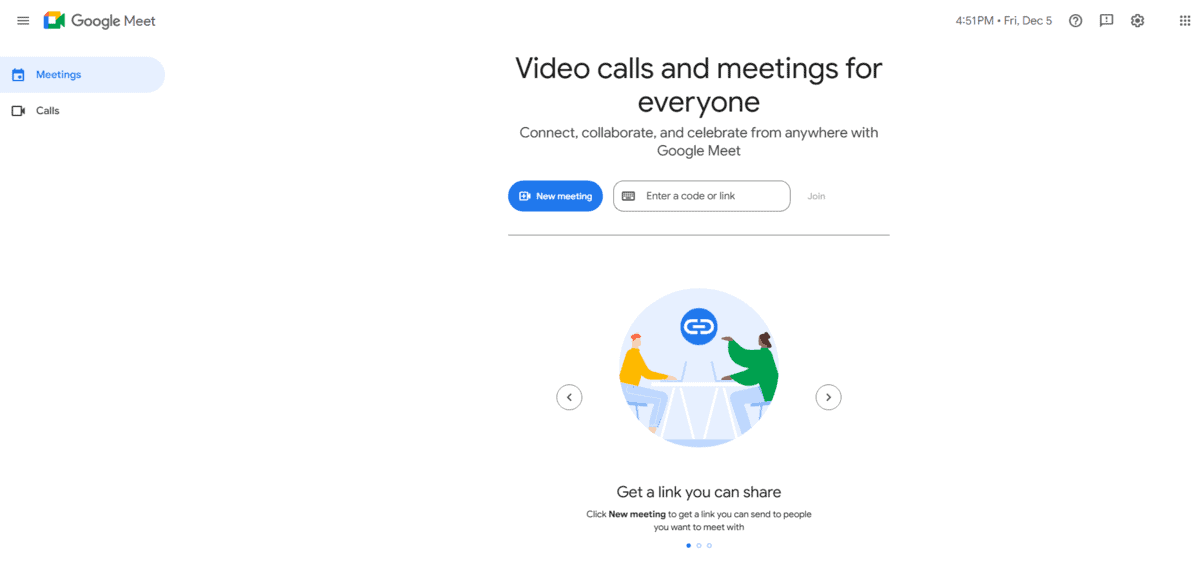
Google Meet gives you reliable video conferencing without charging you anything. If you’re already using Gmail or Google Calendar, you can start a meeting with just a few clicks. No complicated setup, no credit card required. Anyone with a Google account can host meetings with up to 100 participants for free, which is plenty for most teams.
You can see up to 49 faces at once using the grid view, which makes team discussions feel more connected. Plus, you get real-time captions that help when someone’s in a noisy environment or if anyone on your team has hearing difficulties.
- You can share your screen during presentations or when walking someone through a process, making explanations way easier than trying to describe things over text.
- You get host controls that let you mute participants when there’s background noise or remove anyone who shouldn’t be in the meeting, keeping things professional.
- You can schedule meetings directly from Google Calendar and send join links through email, so people can jump in without downloading anything.
- You can use it on your phone, tablet, or computer, so team members can join from wherever they’re working that day.
While Google Meet works great for everyday video calls, there’s a catch. Free meetings with three or more people are limited to 60 minutes, which means you’ll need to either wrap things up or restart the call.
If you want longer meetings or advanced features like recording and breakout rooms, you’ll need a paid Google Workspace subscription. Also, your call quality depends heavily on everyone’s internet connection, so spotty wifi can make things choppy.
For Enterprise Video Conferencing
Webex
When your team is scattered across different locations, gathering everyone’s ideas becomes a real challenge. Ideanote solves this by creating a central hub where ideas flow in naturally, get organised systematically, and get evaluated fairly.
This isn’t your basic video call tool. It’s built for companies that need advanced features, tight security, and the ability to handle everything from team check-ins to company-wide presentations.
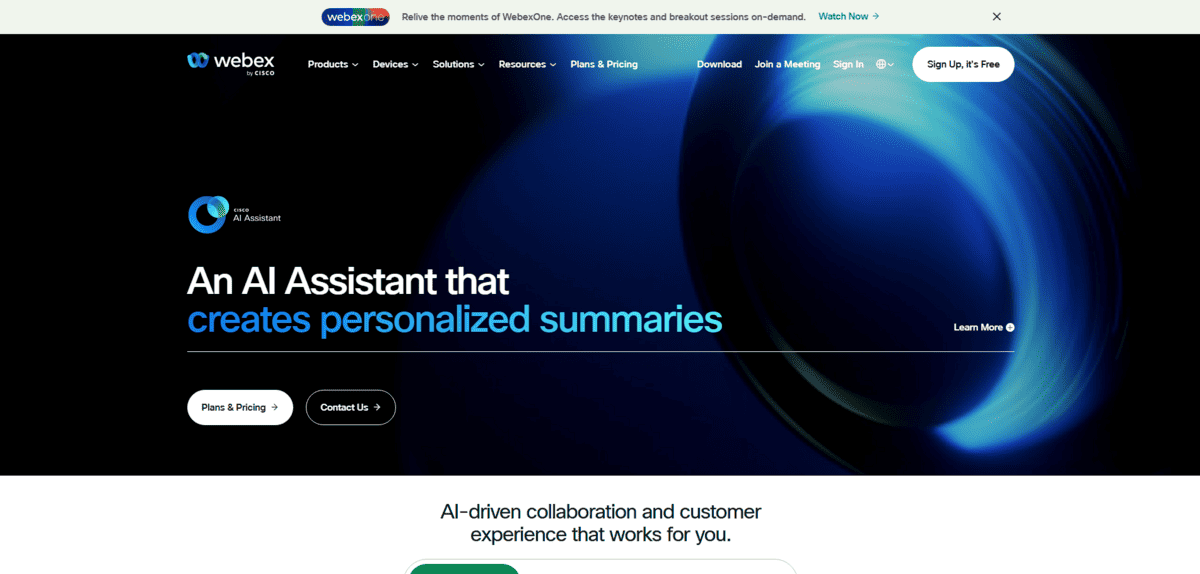
What makes Webex stand out is its AI-powered meeting assistant. After your meetings, it automatically generates summaries, pulls out action items, and creates transcripts so you don’t have to frantically take notes. Their AI Assistant streamlines communication and boosts productivity by handling these tasks for you.
The video and audio quality is top-notch, even with larger groups. You get enterprise-grade security and encryption, which matters when you’re discussing sensitive business information or client data.
- You can record meetings with transcription and AI-generated summaries, making it easy to share key takeaways with people who couldn’t attend.
- You can create breakout rooms during larger meetings to split people into smaller discussion groups, then bring everyone back together.
- You can use virtual backgrounds and noise cancellation to maintain professionalism even when working from home with distractions around you.
- You can integrate Webex with business tools you’re already using, keeping your workflow smooth across platforms.
- You get advanced security controls and compliance features that meet enterprise requirements for data protection.
Webex delivers powerful features for professional organisations, but it comes with trade-offs. The pricing can get expensive, especially for small teams or startups working with tight budgets. The interface isn’t as intuitive as consumer-focused tools like Google Meet, so new users might need some time to figure everything out. Plus, getting the advanced features set up properly often requires some technical configuration, which can be a hassle if you don’t have IT support.
For Asynchronous Video Communication
Loom
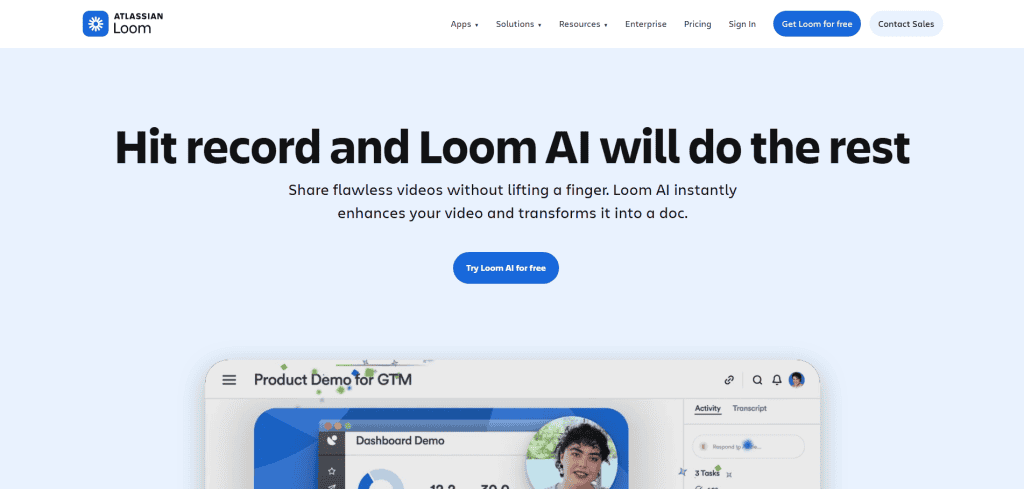
Not every conversation needs to be a live meeting. Sometimes you just need to show someone how to do something, share feedback, or explain an idea without coordinating schedules across different time zones. Loom lets you do exactly that.
Instead of booking another meeting, you record a quick video message showing your screen, your face, or both. Click record, say what you need to say, and share the link. Done. The person watches it when they have time, leaves comments at specific timestamps, and responds with their own video if needed.
Over 14 million people across 200,000 companies use it to collaborate through asynchronous video, which shows how many teams are moving away from meeting overload.
The recording process is simple. One click starts capturing your screen and camera. When you’re done, Loom automatically saves it to the cloud and creates a shareable link instantly. No uploading, no waiting, no extra steps.
- You can record your screen, camera, or both simultaneously, making it perfect for product demos, tutorials, or giving personalised feedback.
- You can get AI-powered summaries of your videos, so viewers can quickly scan what the video covers before watching.
- You can receive notifications when someone views your video and see exactly which parts they watched or skipped, giving you insight into what resonates.
- You can leave time-stamped comments and emoji reactions at specific moments in the video, making feedback more precise than generic notes.
- You can integrate Loom with Slack, Notion, and other tools you use daily, embedding videos directly where your team already works.
Loom makes async communication incredibly easy, but it’s not perfect for everything. The free plan limits how many videos you can record and how long they can be, which might feel restrictive if your team uses it heavily. Large video files can take a while to upload if your internet connection isn’t great.
While Loom reduces the need for many meetings, it’s not a complete replacement for real-time discussions when you need immediate back-and-forth collaboration or quick decision-making.
For Enterprise Team Chat
Microsoft Teams
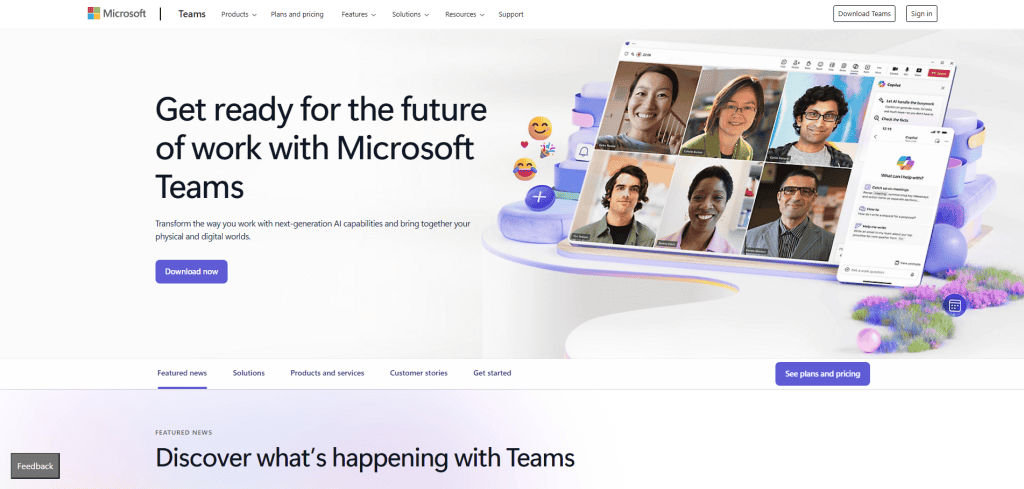
If your team already uses Microsoft 365, Teams is the natural choice for keeping everyone connected throughout the day. Unlike scheduled video calls, it’s an always-on workspace where you can chat, share files, and collaborate without switching between apps.
With over 320 million daily active users worldwide, Teams has become the go-to platform for enterprise communication. You can drop a quick message to a colleague, have a video call when things get complex, or work together on a document without leaving the platform. Everything stays organised in channels so you’re not digging through endless email threads.
- You can chat one-on-one or create group conversations that keep everyone in the loop. All your chat history is searchable, so you won’t lose track of important decisions.
- You can organise conversations by project, department, or topic using channels. Each channel has its own space for chats, files, and meetings, keeping everything related to that work together.
- You can work on Word, Excel, and PowerPoint files directly within Teams. Multiple people can edit the same document at once, and all changes save automatically to your shared workspace.
- You can add tabs for your favourite tools like Trello, Asana, or custom apps. This brings everything you need into one place instead of jumping between browser tabs all day.
Teams works great for larger companies that want everything integrated, but that same depth can feel like too much when you’re first getting started. The interface packs in a lot of options, which sometimes slows things down when you’re working with big teams or lots of active channels.
For Internal Team Communication
Slack
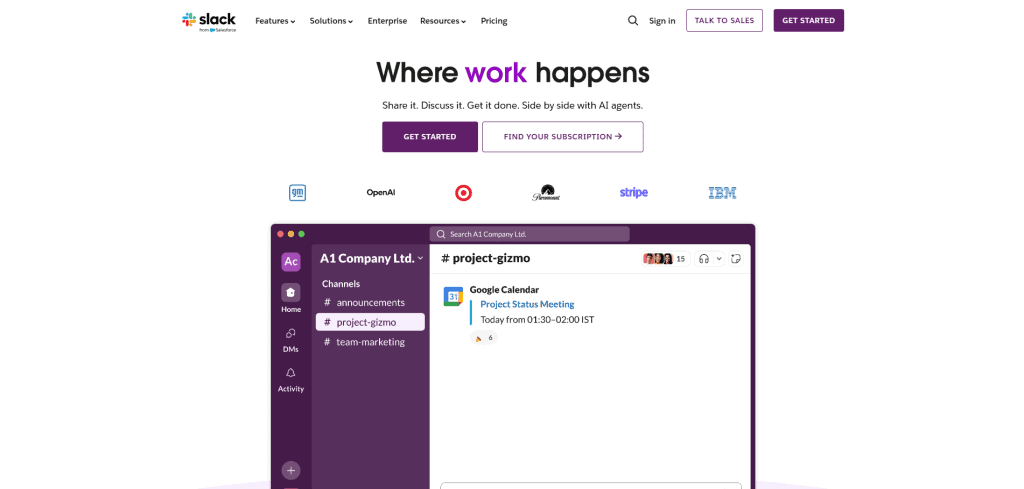
Slack helps teams move their conversations out of messy email threads and into organised channels where nothing gets lost. It’s designed for teams that want their communication to be searchable, structured, and accessible whenever they need it.
What makes Slack work is how it keeps everything findable. That decision your team made three months ago? You can search for it and pull up the exact conversation. With over 2 billion messages sent daily, it’s become the communication backbone for teams who got tired of hunting through email.
- You can create channels for different projects, teams, or topics. This keeps marketing conversations separate from engineering discussions, and everyone knows exactly where to look for what they need.
- You can send quick direct messages to teammates for things that don’t need a whole channel. These one-on-one chats are perfect for quick questions or private discussions.
- You can connect tools like Google Drive, Trello, and Asana directly to Slack. When something updates in those apps, you’ll see it in your relevant channel without switching tabs.
- You can find any past conversation, file, or decision using Slack’s search. Just type what you’re looking for, and it pulls up messages, files, and links from across your workspace.
- You can automate routine tasks with workflows, like setting up automatic reminders, creating approval processes, or collecting information from your team without manual follow-ups.
Slack excels at keeping communication organised, but that strength becomes a weakness when channels multiply. You might find yourself in 20+ channels, each pinging you throughout the day. The free version also limits your message history and file storage, so older conversations disappear unless you upgrade. It’s fantastic for active team communication; just be ready to manage notifications carefully or risk constant interruptions.
For Beautiful Feedback Collection
Typeform
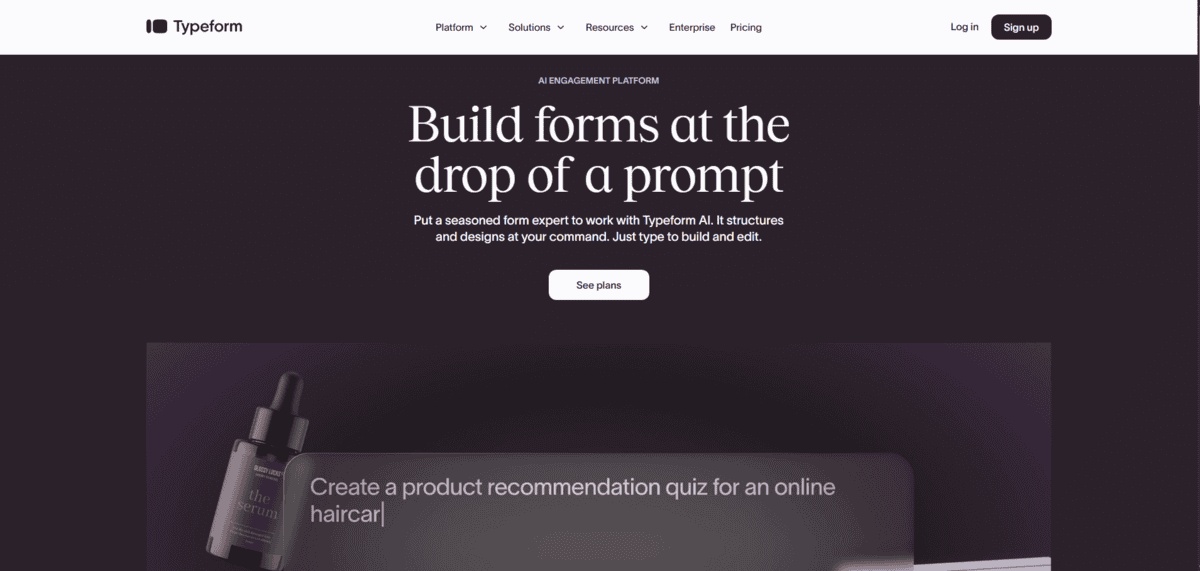
If you’re tired of boring surveys that nobody wants to complete, Typeform changes the game entirely. Unlike traditional forms that dump all questions on one page, Typeform shows one question at a time in a conversational format. This approach makes surveys feel more like a friendly chat than an interrogation.
According to Typeform’s research, their forms achieve completion rates over 47% compared to the typical 21% for standard forms. That’s a massive difference when you’re trying to collect customer feedback, run satisfaction surveys, or gather employee input. The platform is used by over 150,000 businesses because it makes data collection something people actually enjoy.
- You can create surveys that adapt based on previous answers using conditional logic. If someone says they’re unhappy with your service, the next question automatically asks why instead of moving to an irrelevant topic.
- You get AI-powered insights that analyse responses and highlight patterns, saving you hours of manually reviewing feedback.
- You can customise everything from colours and fonts to button text, making forms match your brand perfectly.
- You can integrate with CRM tools, email platforms, and analytics software to automatically send responses where you need them.
- You get access to multiple question types, including multiple choice, rating scales, file uploads, and even payment collection for event registrations.
Typeform works great for businesses wanting higher response rates and better-quality feedback. The conversational format really does make people more willing to complete surveys. That said, the free plan is quite limited, and pricing can get expensive if you need advanced features. The one-question-at-a-time approach also takes longer to complete than traditional forms, which might frustrate people taking very long surveys.
For Sales and CRM Management
HubSpot CRM
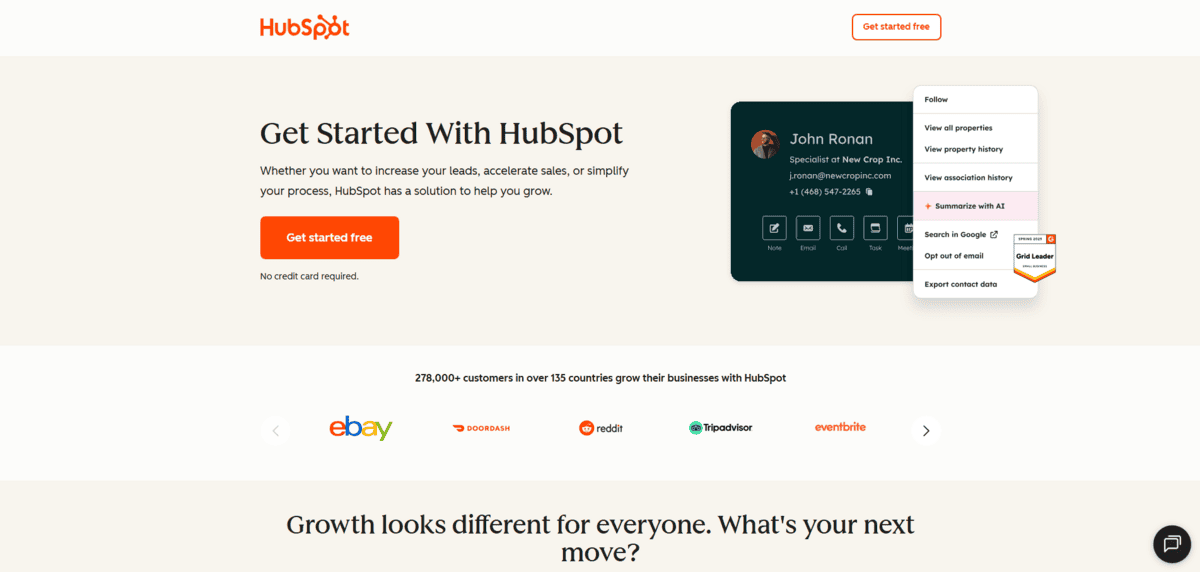
HubSpot CRM helps you keep track of every customer interaction without drowning in spreadsheets. If you’re managing leads, following up with prospects, or trying to close deals, this tool puts everything you need in one organised space. You can see each contact’s complete history, including emails, calls, meetings, and notes, so you never have to ask, “Wait, where did we leave off?” again.
What makes HubSpot stand out is how easy it is to use, even if you’ve never touched a CRM before. The interface is clean and intuitive. Plus, research shows that CRM applications can increase sales by up to 29% and boost sales productivity by 34%. That’s the kind of impact that makes the learning curve worth it.
- You can track all customer interactions in one centralised database, including contact details, communication history, and any notes or tasks related to each person.
- You get email tracking that shows when recipients open your emails or click links, so you know exactly when to follow up with interested prospects.
- You can visualise your sales pipeline with deal stages, making it easy to see which deals are close to closing and which need more attention.
- You can automate repetitive tasks like sending follow-up emails, setting reminders, and updating deal stages, freeing up time for actual selling.
- You get detailed reporting and analytics on sales performance, helping you identify what’s working and where you need to improve.
- You can integrate with marketing tools, email platforms, and other business software to create a seamless workflow.
HubSpot CRM is perfect for small to medium businesses that need sales pipeline management without complicated software. The free version offers solid features that many teams never outgrow. However, accessing advanced capabilities like custom reporting or automation requires paid subscriptions, which can add up. Also, while the basics are easy to learn, mastering all the advanced features takes time and effort.
For Professional Business Presentations
Canva
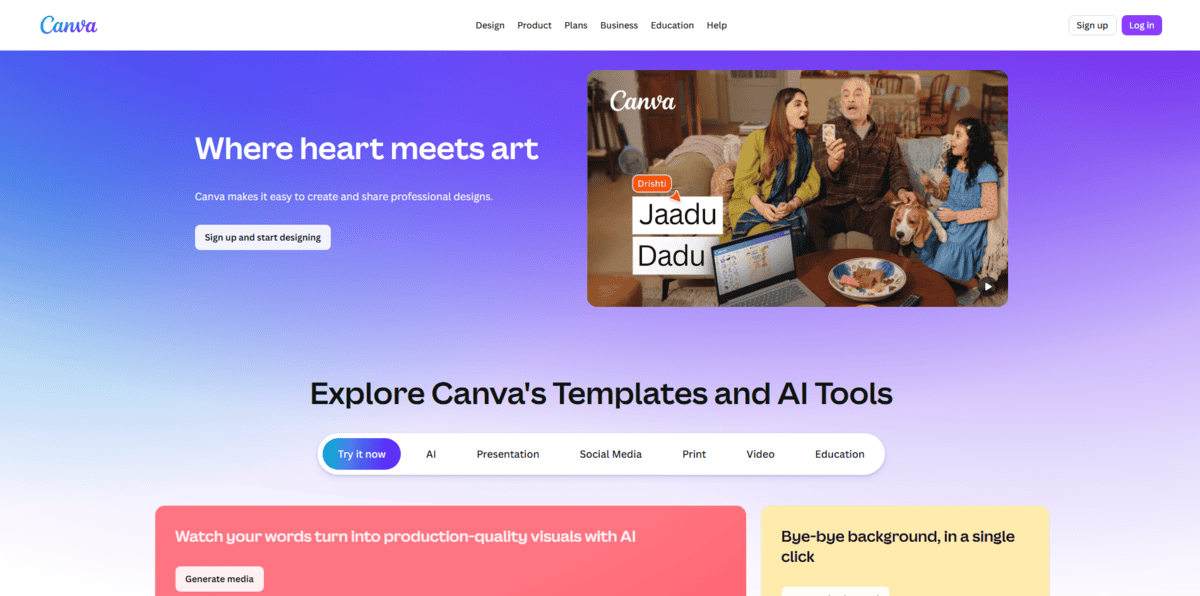
If you need to create stunning business presentations but lack design skills, Canva makes you look like a professional designer. Instead of starting from a blank slide and struggling with layouts, you get access to thousands of templates specifically designed for business presentations, pitch decks, reports, and more. Just pick a template, swap in your content, and you’re done.
The drag-and-drop editor means you don’t need to watch tutorials or take courses to create something beautiful. You can add charts, images, icons, and videos with a few clicks. Plus, Canva’s library includes millions of stock photos, illustrations, and design elements, so you’re never stuck searching for the right visual.
- You can access thousands of professionally designed presentation templates covering everything from sales pitches to quarterly reports, giving you a strong starting point every time.
- You get a Brand Kit feature where you save your logo, brand colours, and fonts in one place, making it easy to keep all your presentations consistent with your company’s visual identity.
- You can collaborate with team members in real time, leaving comments and making edits together just like you would in Google Docs.
- You can download your presentations in multiple formats, including PDF, PNG, and JPEG, or present directly from Canva with their presentation mode.
- You can drag and drop elements anywhere on your slides, resize images, change colours, and customise layouts without any design experience.
Canva is excellent for businesses that need professional-looking presentations quickly. It saves hours compared to building slides from scratch in traditional software. The trade-off is that if you need highly advanced design capabilities or offline access, Canva might feel limiting. Some premium templates and stock photos require a paid subscription. You’ll also need an internet connection to use it, which can be inconvenient when travelling.