[Reader Disclosure]Our content is reader-supported. This means we may earn a commission if you click on some of our links.
Every missed appointment costs money. Every back-and-forth email to confirm a time slot costs something too: your time, your patience, the client’s interest. If you are running a service-based business and still managing bookings manually, you are working harder than you need to.
An online booking system changes that. Clients pick a time, confirm their details, and show up. You get a notification, your calendar updates, and you move on with your day. No phone tag, no scheduling spreadsheets, no awkward “does Tuesday at 3 still work for you?” messages.
This guide walks you through everything you need to know, what an online booking system actually is, why it matters, how to build one step by step, the best tools to use, and the mistakes to avoid along the way.
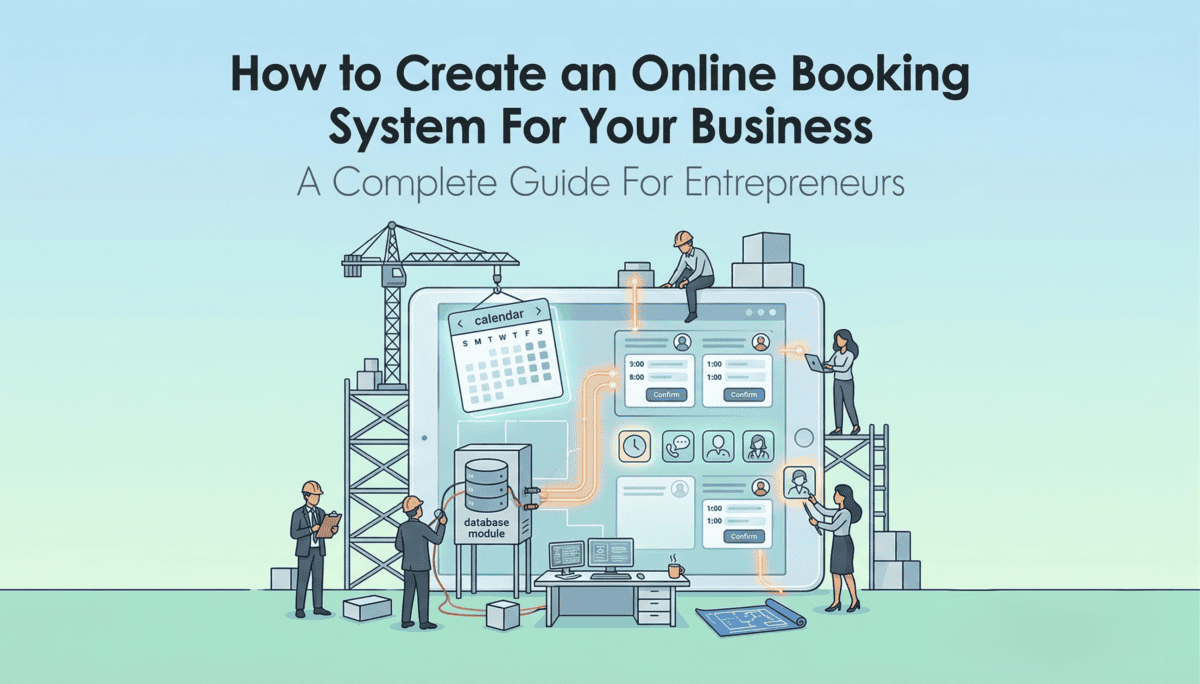
An online booking system lets your clients schedule appointments or services with you directly, without any back-and-forth communication. So instead of calling your front desk or waiting for an email reply, they visit a booking page, see your real-time availability, choose a time slot, and confirm their appointment in under a minute.
Behind the scenes, the system does more things than just that.
It checks your calendar for open slots, blocks the chosen time so no one else can book it, and sends confirmation emails to both parties. In many cases, it sets up automated reminders ahead of the appointment. Some systems also handle payments at the point of booking.
Businesses of almost every kind use them. Salons and barbershops, physiotherapy clinics, personal trainers, freelance consultants, tutors, legal professionals, and even large enterprises with complex team scheduling needs all rely on booking systems to keep things running smoothly.
Why You Need an Online Booking System
The most obvious reason is availability. Your booking page works around the clock, which means someone can schedule a session with you at midnight on a Sunday and wake up to a confirmation in their inbox. You do not need to be online for that to happen.
The second reason is professionalism. A clean, branded booking page signals that you take your business seriously. Clients form impressions quickly, and being asked to “just text me to check if I’m free” does not inspire confidence the way a smooth self-booking experience does.
There is also the matter of your own time. Every hour spent manually confirming appointments, rescheduling via email, or chasing unpaid deposits is an hour you are not spending on actual work. A booking system handles all of that for you.
And the data helps. You can see which time slots fill fastest, which services are most popular, and where your no-show rate is highest. That kind of visibility is hard to get when everything is managed through a WhatsApp thread.
How to Create an Online Booking System
Setting one up does not require a developer or a large budget. Most modern booking tools are built for non-technical users and can be configured in an afternoon. Here is how to approach it properly.
Step 1: Map Out Your Booking Needs
Before you open any tool, get clear on what your booking system actually needs to do. The more specific you are here, the easier every step after this becomes.
Ask yourself: Are you taking one-on-one appointments or group bookings? Do you have multiple team members who each need their own calendar? Do you need clients to pay upfront, or is payment handled separately? Do you offer different service types with different durations?
Also think about your calendar setup. Most booking tools connect directly to Google Calendar or Outlook, and that sync is what keeps everything accurate. If you are specifically looking for software that handles appointment scheduling with Google Calendar, it helps to understand your options before committing to a platform.
Write your answers down. Even a rough list will save you from setting up a tool and realising halfway through that it does not support what you need.
Step 2: Choose the Right Platform
There are three broad approaches to creating an online booking system: using a dedicated scheduling tool, adding a booking plugin to your existing website, or building a custom solution from scratch.
For most service businesses, a dedicated scheduling tool is the right call. They are fast to set up, affordable (many have generous free plans), and handle all the functionality you need without any technical work.
If you already have a WordPress site and want everything in one place, booking plugins like Amelia or Simply Schedule Appointments are worth considering. They sit inside your site and give you more control over the look and feel.
Custom-built systems make sense only for businesses with very specific requirements that off-the-shelf tools cannot meet. They take longer to build, cost significantly more, and require ongoing maintenance. Unless you have a strong reason to go custom, start with an existing tool.
Step 3: Set Up Your Services and Availability
Once you have chosen a platform, the first thing to configure is your service catalogue and your availability.
For services, you will typically need to define the service name, duration, price (if applicable), and any buffer time you want between appointments.
For availability, set the days and hours you are open to bookings. Most platforms also let you block out specific dates for holidays or personal commitments, and set advance notice requirements so clients cannot book one hour before a session.
If you have multiple team members, assign services to the relevant people and set individual availability for each. The system will handle the rest.
Step 4: Connect Your Calendar
This is the step that makes everything reliable. When your booking system syncs with your calendar in real time, it reads your existing events and automatically removes those time slots from your available booking windows. Someone books a session, it appears on your calendar immediately.
You add a personal appointment, your booking page blocks that time automatically.
Most tools support two-way sync with Google Calendar, Outlook, and Apple Calendar. Two-way sync is preferable to one-way, it means changes made in either place are reflected everywhere, which eliminates the risk of double bookings entirely.
If your business involves clients in different time zones, make sure your tool handles automatic time zone detection. The client should always see availability in their local time without you having to configure anything manually.
Step 5: Set Up Confirmations and Reminders
After a booking is made, three things should happen automatically: the client receives a confirmation email, you receive a notification, and a reminder is sent to the client before the appointment.
Most platforms let you customise the content of these messages. Use them. A confirmation email that simply says “Your appointment is confirmed” is fine, but one that includes what to bring, where to go, or how to join a video call is genuinely useful and reduces pre-appointment questions.
For reminders, a 24-hour reminder is standard. Some businesses also add a second reminder at the two-hour or one-hour mark for higher-stakes appointments. Test what works best for your client base.
If your system supports SMS reminders in addition to email, enable them. Open rates for text messages are significantly higher than for email, and the whole point of a reminder is that it actually gets read.
Step 6: Embed Your Booking Page and Go Live
Your booking system needs to be easy to find. Most tools give you a shareable link and an embeddable widget you can drop into your website. Use both.
Add a clear “Book Now” button to your homepage, your services page, and your contact page. If you have a Google Business profile, many platforms let you add your booking link there too. The same goes for your Instagram bio and email signature.
Before you announce anything, run a test booking yourself. Go through the entire flow as a client would, pick a time, fill in the form, check the confirmation email, then cancel or reschedule to make sure that process works too. Fix anything that feels clunky before it goes live.
When you are ready, let your existing clients know. A short email explaining that you now have online booking, and how to use it, will get most of them switched over quickly.
Best Online Booking Platforms You Can Use
There is no shortage of options. The right tool depends on your business size, budget, and how much flexibility you need. Here is a straightforward comparison of the most widely used platforms.
Tool
Best For
Free Plan
Koalendar
Freelancers, small businesses, Google, Outlook or iCal users
Yes, free forever, unlimited bookings
Calendly
Professionals and teams with complex scheduling needs
Yes, limited to 1 link
Acuity Scheduling
Service businesses needing strong payment and intake forms
No, trial only
SimplyBook.me
Salons, clinics, and multi-staff businesses
Yes, limited features
Setmore
Small teams wanting a simple multi-staff setup
Yes, up to 4 users
Common Mistakes to Avoid
Setting up the tool is only half the job. A lot of booking systems underperform not because of the software, but because of how they are configured and presented. These are the most common errors to watch for.
Not setting buffer times. Back-to-back bookings with no gap leave you rushing between clients. Always build in at least five to fifteen minutes between sessions depending on what you offer.
Skipping the test booking. The confirmation email looks fine in settings, but that does not mean it reads well in a real inbox. Always test the full flow before going live.
Making the booking page hard to find. A booking system no one can locate solves nothing. Put your booking link in your email signature, your website header, your social media bios, and your Google profile.
Using generic confirmation messages. Default confirmation emails often contain nothing more than a date and time. Add practical details, where to meet, what to prepare, how to reschedule. It reduces pre-appointment messages significantly.
Not connecting your calendar properly. If your calendar is not synced correctly, double bookings happen. Verify that two-way sync is working before you take your first real booking.
Forgetting about mobile. A large proportion of clients will book from their phones. Check that your booking page looks and works correctly on mobile before publishing it.
Best Practices for Running Your Booking System
Getting set up is a start. Running it well over time is what actually improves your business.
Review your availability settings regularly. Your schedule changes. Adjust your booking availability to reflect that, rather than letting clients book slots that no longer work for you.
Track your no-show rate. Most booking platforms provide basic analytics. If your no-show rate is consistently high, that is a signal to add an extra reminder, require a deposit, or tighten your cancellation policy.
Use intake forms. Most tools let you add custom questions to the booking form. Collecting information before the appointment means you arrive prepared, and it saves time for both you and the client.
Set a clear cancellation policy and enforce it. Display your cancellation window clearly on the booking page. If you use deposits, configure the system to handle refunds automatically based on how much notice was given.
Make rebooking easy. After a completed appointment, send a follow-up that includes a direct link back to your booking page. Clients who had a good experience will often rebook if the path back is frictionless.
Revisit your setup every few months. Services change, pricing changes, team members come and go. Treat your booking system like a living part of your business and update it accordingly. A booking system that reflects your current offering accurately is a far better sales tool than one that is six months out of date.
A startup consultant, digital marketer, traveller, and philomath. Aashish has worked with over 20 startups and successfully helped them ideate, raise money, and succeed. When not working, he can be found hiking, camping, and stargazing.
Each week I share research backed AI oriented content in my newsletter.
There are AI ideas, AI trends, tutorials, and guides.
24k entrepreneurs read it. I'd love you to join.