
Kling Video Prompt Generator
Generate a ready-to-paste Kling AI video prompt with camera moves, action, lighting and a negative line.
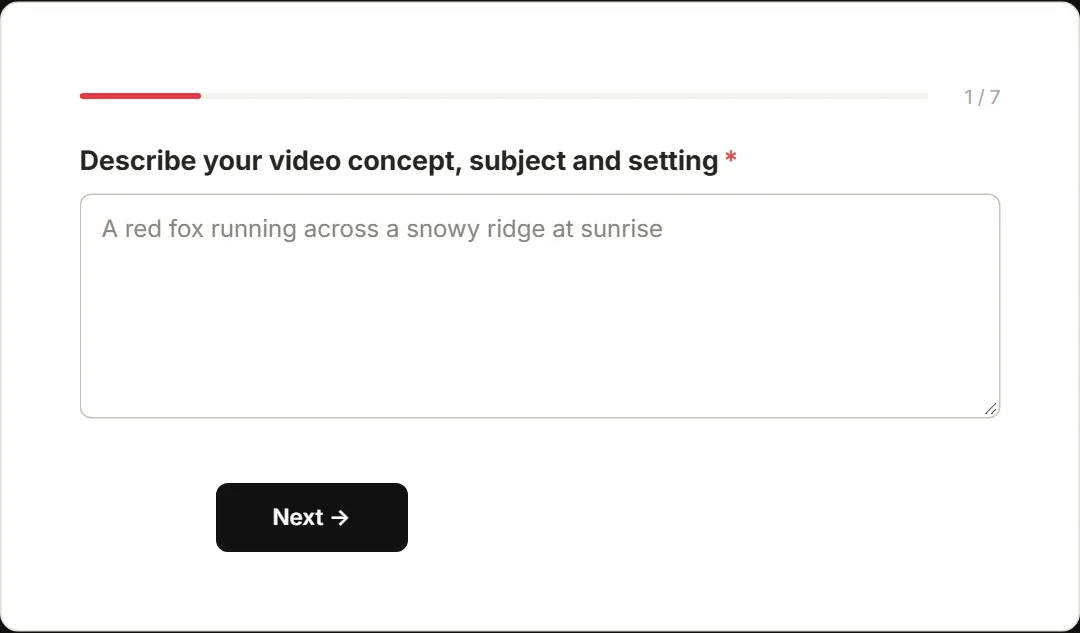
The Kling video prompt generator above is ready to use. Type your concept, meaning the subject and setting, into the first field. Then add what happens in the clip, the mood you want, and the camera move. Those four fields are all it takes.
Sound or dialogue is optional. So is the include or avoid field, where you flag anything the clip must contain or leave out.
Pick plain text or JSON as your output format. You get one ready-to-paste Kling prompt with a short negative line. Copy both into Kling and run it. A one-line concept is enough to start: “a barista pours latte art at sunrise” turns into a full scene with subject, action, lighting, camera and sound already written out.
The generator is built for Kling 4.0 and Kling 3.0. Model features change during rollout, so check Kling’s site for the current details before you plan a shot around a specific spec.
What Each Field in the Kling Video Prompt Generator Does
Before you plan that shot, each field deserves a moment. They map to the parts of a Kling prompt people most often leave out, which is usually why a first render misses.
Concept and what happens
Concept is your subject and setting in one line. Think “a barista in a small Tokyo café” rather than a full scene.
What happens is the motion, and it should be one specific physical action. “A man runs” gives the model almost nothing to hold on to. “A courier sprints across a wet rooftop, camera tracks from behind” gives it a body, a surface and a move all at once.
That split is deliberate. Kling’s guidance on its built-in prompt helper shows that the helper drafts the scene, but it leaves motion and camera direction to you. This generator asks for both up front, so neither gets skipped.
Mood, camera and sound
Mood sets light and tone: warm and calm, cold and tense, bright and playful. A few words is enough.
Camera is the one field you should always fill in, even when nothing in the frame moves. Kling’s own tips say to state camera behaviour every time, and that includes “static camera” or “locked-off shot”. Leave it blank and the model decides for you.
Sound or dialogue is optional. Only add it when the clip needs a spoken line, a sound cue or background noise. Working across models too? The Gemini video prompt generator is built on the same field-by-field approach.
Include, avoid and the negative line
Both fields are optional, and they work as a pair. “Include” holds anything the clip must show. “Avoid” holds anything it must leave out, and the generator folds that into the short negative line that comes with your prompt.
Use it for the small things that keep breaking your shots: text on screen, extra fingers, warped faces. Keep the list short and specific, so it points at real problems instead of arguing with your main description.
The Prompt Order Kling Recommends
The fields cover what goes into a prompt. The order those parts land in matters just as much. Kling publishes a recommended sequence: subject, action, setting, camera, lighting, pacing, then sound. The generator writes in that sequence every time, so the prompt you paste reads the way the model expects.
Subject to sound, in sequence
The sequence runs from what is on screen to what you hear. Subject and action come first, then the setting around them. Camera and lighting sit once the scene is fixed. Pacing and sound close it out.
Dialogue needs one extra habit. Kling asks you to describe expression, movement and tone, not just the words. So write “she leans in, half-smiling, in a low warm voice” instead of only the line she speaks. That gives the model a performance to render, not a subtitle.
Writing prompts that are not for video? The AI prompt generator covers text prompts in general.
Length and duration limits in Kling 4.0
The Kling 4.0 announcement sets out the numbers: native generation from 3 to 30 seconds, and prompts up to 8,000 tokens. That is far more room than most prompts use. Inside the 30-second window it handles multi-shot generation, plus up to 10 keyframes.
Keyframes are what let you plan a 10-second clip as beats instead of one long description. Say you want a courier crossing a wet rooftop. Beat one at zero seconds: the courier crouched at the edge. Beat two at five seconds: mid-sprint past a water tank. Beat three at ten seconds: sliding to a stop at the stairwell door. The prompt still follows subject to sound. The keyframes pin the timing.
One caveat before you build a shot around any of this. Early access to 4.0 started on 28 September 2026, with the full launch in October 2026, and features can vary while a rollout is running. Check kling.ai for what your account can do today.
Plain Text or JSON, With an Example
Once you know the fields and the order, the last choice is how the prompt comes out. Here is a thin idea rewritten as a full prompt, plus when to pick each format.
A before and after prompt
Before: girl in a neon street. That is the kind of one-liner most people start with. It names a subject and a place, and nothing else.
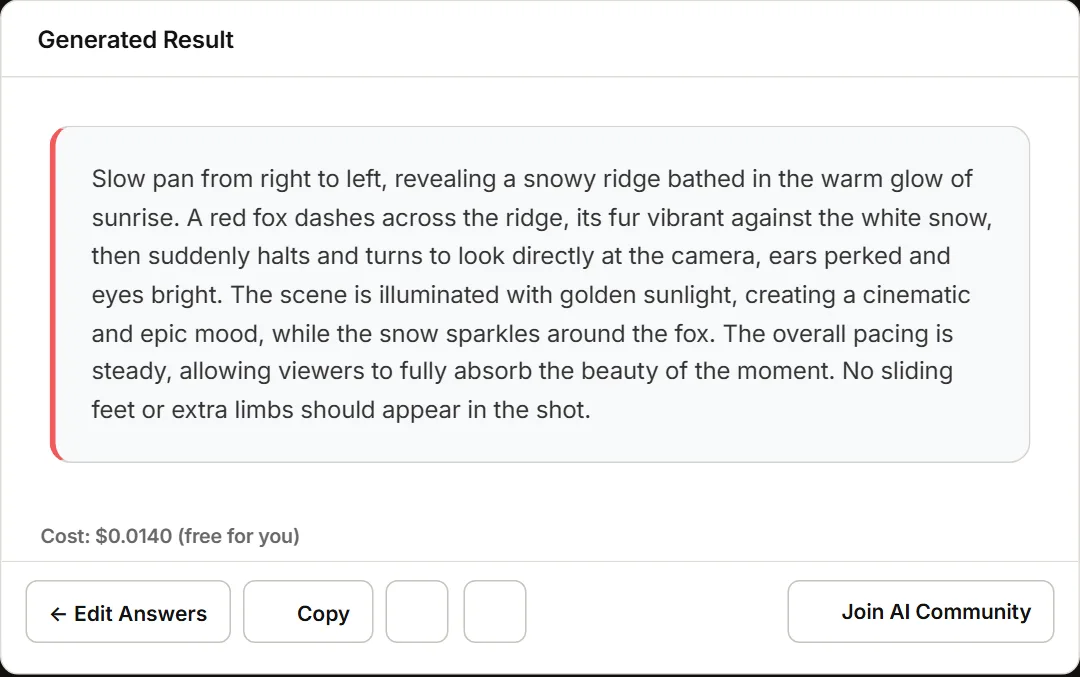
Run it through the generator and the same idea lands in order. This is an example prompt, not a claimed result:
Subject: a young woman in a denim jacket, hair still wet.
Action: she walks slowly down the street and glances up at the signs.
Setting: a narrow city street at night, neon signs reflected in puddles.
Camera: slow push-in from the front, handheld.
Lighting: pink and blue neon with a light rain haze.
Pacing: calm and unhurried.
Sound: soft rain and distant traffic.
Underneath it sits the negative line: no on-screen text, no extra fingers, no warped faces. That comes from the avoid field, so anything you flagged there stays out of the shot.
When to choose JSON
Plain text is the safe default. It copies straight into Kling’s prompt box with nothing to tidy up.
JSON keeps every field separate as a key-value pair. Pick it when you store prompts in a shot list, keep a library for later, or pass them to another tool. A batch of prompts stays readable in a file that way. The JSON prompt generator formats prompts for other models in the same structure.
Writing for Kling 3.0
The example above is shaped for Kling 3.0, which generates up to 15 seconds in a single run. The Kling Video 3.0 page also lists multi-shot generation and native audio with lip-sync.
So keep the action to one beat. About 10 seconds of one clear move is easier to hold in a prompt than 15 seconds of three things at once. If the idea needs longer, plan it as a second generation instead of stuffing everything into one prompt.
That audio support also gives the sound or dialogue field a job on 3.0 runs. The expression and tone you wrote earlier is what the lip-sync has to match.
Final Thoughts
You have the fields, the order and the format covered. All that is left is the render.
So fill the fields, generate the prompt and paste it into Kling. Then change one thing at a time. If the light is wrong, fix the mood line. If the camera drifts, rewrite the camera move. A good habit is to change one thing at a time instead of regenerating the whole video.
Regenerating from scratch resets the parts that already worked. Keep the good render, keep the line that landed, and edit the rest. That is how a rough idea turns into the shot you actually wanted.