
Here is how to add skills to Claude, in short: in the app, you upload a skill as a ZIP. In Claude Code, you drop a folder into your skills directory or install a plugin. Cowork uses the skills turned on in your Claude account.
Skills work on Free, Pro, Max, Ultra, Team and Enterprise plans, and code execution has to be on, according to the Claude skills help page. A skill is a folder with a SKILL.md file inside. The steps and screenshots below match the current Claude app and Anthropic’s docs.
How To Add Skills To Claude In The App
In the app, that means one ZIP file and a few clicks. Here are the steps.
- Turn on code execution. On individual plans, go to Settings > Capabilities. Under Code execution and file creation, turn on Run code in the cloud. On Team and Enterprise plans, an owner has to do it instead: go to Organization settings > Plugins & skills, open the Policy tab, and enable Cloud code execution and file creation and Skills.
- Zip your skill folder. The folder name must match the skill name, and the ZIP must hold the folder at its root. For example,
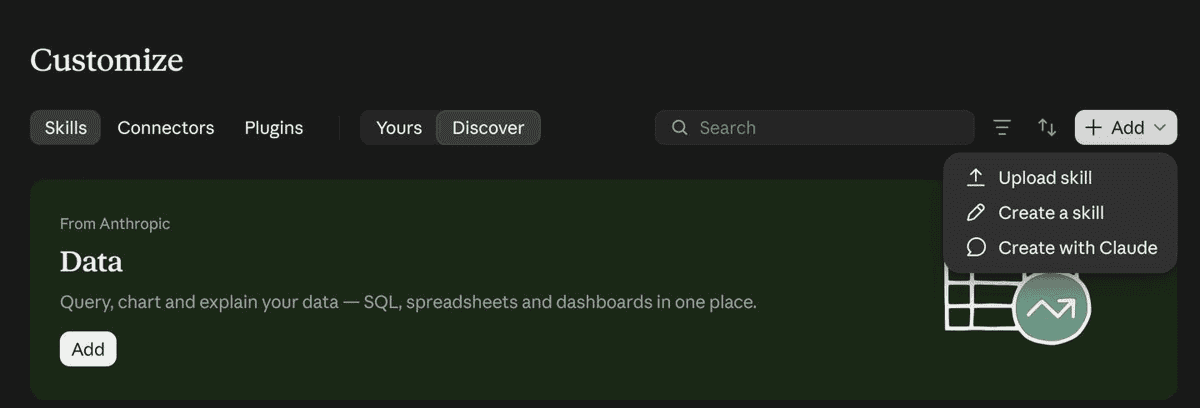
my-skill.zipcontainsmy-skill/, andmy-skill/containsSKILL.md. - Go to Customize > Skills.
- Click Add at the top right.
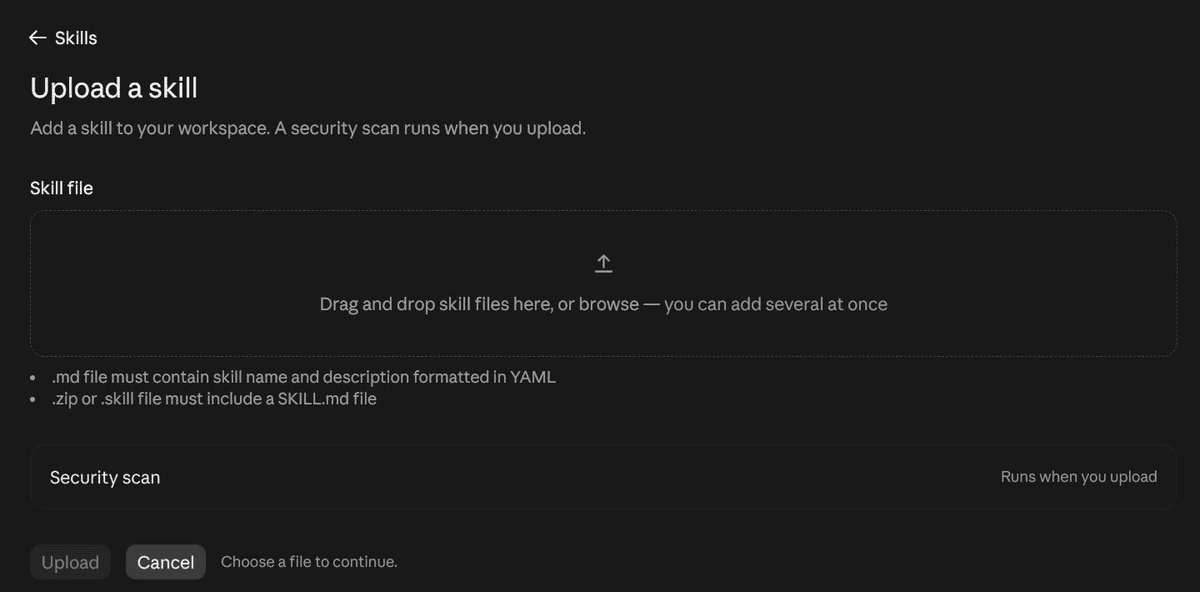
- Select Upload skill, drop in your file, and click Upload. A security scan runs when you upload.
- The skill shows up in your list. Toggle it on.

Custom skills you upload are private to your account. On Team and Enterprise plans, you can share one from the three-dot menu with Share.
The upload page also takes a single .md skill file or a .skill file, and you can add several at once. No skill to upload? The same Add menu has Create a skill and Create with Claude, and the Discover tab lists ready-made ones.

SKILL.md is the file that matters.
SKILL.md inside it.How To Add Skills In The Claude Desktop App
The desktop app splits this by tab. In Chat and Cowork, Claude uses the skills turned on in your account, so add them with the steps above. Customize sits in the left sidebar.
The Code tab works like Claude Code, because the desktop app reads the same settings files as the terminal version.
- Local sessions load your personal skills from
~/.claude/skills/, so a folder you added for Claude Code works here too. - Click the + button next to the prompt box to reach skills and plugins.
- To install a plugin, click + and select Add plugins. If the menu shows Plugins instead, select it, then Browse plugins.
- To start a skill, type
/in the prompt box.

Cloud sessions in the Code tab use the skills enabled on your Claude account instead. Details are in the Claude Code desktop docs.
How To Add Skills To Claude Code
Claude Code takes skills two ways: folders and plugins.
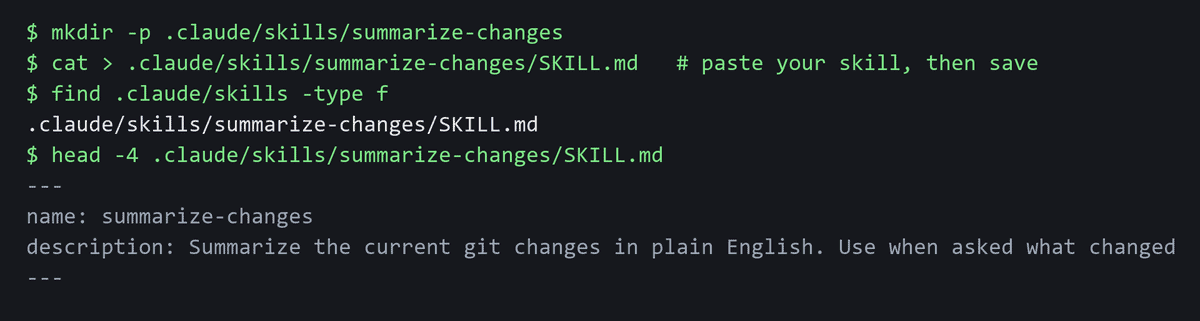
Personal skills go in ~/.claude/skills/<skill-name>/SKILL.md and work in all your projects. Project skills go in .claude/skills/<skill-name>/SKILL.md, so teammates get them through the repo. Here are the folder steps.
- Run
mkdir -p ~/.claude/skills/summarize-changes. - Save a
SKILL.mdfile in that folder. It starts with---frontmatter that includes a description line. - Start
claudeand run/summarize-changes.
Changes to skill folders are picked up in the running session. If you create a top-level skills directory that did not exist when the session started, run /reload-skills. Full details are in the Claude Code skills docs.
For plugins, run /plugin and browse the Discover tab. Or install one straight away with /plugin install <plugin>@<marketplace>, for example /plugin install commit-commands@claude-plugins-official. That opens the plugin details so you can review it and pick a scope. To add a marketplace, run /plugin marketplace add owner/repo. If the summary says Run /reload-plugins to apply, the panel does that for you. Plugin skills show up as /plugin-name:skill-name. The Discover plugins docs go further.
Not installed yet? Start with the Claude Code Mac install guide.
How To Add Skills To Claude Cowork
Cowork picks up the skills turned on in your Claude account when a session starts. It does not read ~/.claude/skills/, so a folder you added for Claude Code will not show up here.
Use the app steps above instead. Open Customize > Skills, add your skill, and toggle it on. In the Desktop app, Customize sits in the left sidebar.
On Pro, Max, Ultra and Team plans, Cowork in Claude for Mac can also record a skill. Click the + button in the composer and select Record a skill. This option is not on Free or Enterprise.
Where Claude Stores Skills
Folders land in a few fixed spots. Here are the paths you will see.
Scope | Path |
|---|---|
Personal | ~/.claude/skills/ |
Project | .claude/skills/ |
Plugin | |
Synced from your Claude account | ~/.claude/skills/synced/ |
That last row needs a note. If you are signed in with a Claude account on Claude Code v2.1.273 or later, skills from your account sync to Claude Code at session start and about every 10 minutes. The sync goes one way. Claude Code never uploads them, and any edits you make under the synced folder can be overwritten.
Skills added to the app do not reach the API. Those must be uploaded separately.
How To Start A Skill
In Claude Code, type /skill-name at the start of a message. For a plugin skill, type /plugin-name:skill-name. Run /skills to list the skills you have. Claude can also load a skill by itself when its description matches.
In the app and Cowork, Claude uses a skill automatically when it is relevant. If it does not, ask for it directly: Use my brand guidelines skill to create a presentation.
If A Skill Does Not Show Up
Most fixes are small. Check these first.
- Upload failed. The ZIP has files at its root instead of a folder, the folder name does not match the skill name, or the ZIP is over the size limit. The docs give no number for that limit.
- Not in your list. Check the toggle is on and code execution is enabled.
- Claude ignores it. Make the description more specific.
- Not in Claude Code. Run
/skills. If the folder is new, run/reload-skills.
One naming note: the docs write the filename as both SKILL.md and skill.md. Use SKILL.md, as the Claude Code docs do.
Check A Skill Before You Add It
A skill can hold instructions and code. So treat adding one like installing software. Snyk scanned 3,984 skills and found 534 with at least one critical issue, plus 76 confirmed malicious payloads.
- Check who made it.
- Read the
SKILL.mdfirst. - Look at any scripts before you add the skill.
Changed your mind? To remove a skill in the app, open it, turn off the toggle, click the three dots, choose Delete, then confirm.
Want a skill to try? Start with our list of anti AI slop skills. Skills are not the only add-on, so see what MCP is if you need Claude to reach other apps.
Now open Claude and add one small skill first.