
Here is the short answer on how to add skills to ChatGPT: open Plugins, go to the Skills tab, and create or upload one. In Codex, run $skill-installer or drop a folder into .agents/skills. Both come from OpenAI and use the open Agent Skills format, so a skill can move between them. They do not sync yet, per OpenAI Academy, so add it in each.
One note on access: per the skills in ChatGPT help page, skills are available to eligible Business, Enterprise, Healthcare and Edu users, subject to workspace settings. That page does not list Free, Plus or Pro, but the Skills tab shown below is live on a Plus account, so check your own. Plus users can also reach skills in the Codex app, where The GenAI Nerd Channel finds them under plugins.
How To Add Skills To ChatGPT
Here is the route in ChatGPT. It takes four steps, and all of them start from the sidebar.
- In the sidebar, select Plugins.
- At the top, select the Skills tab.
- Select Add at the top right.
- Pick one: Upload from your computer, Create with chat, or Create with editor.
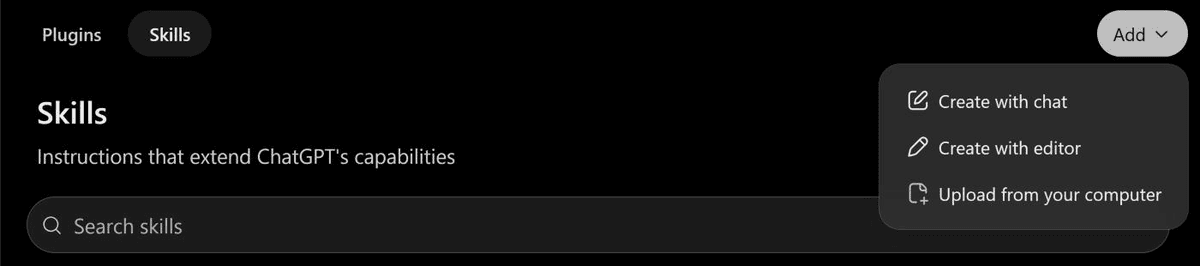
ChatGPT scans an uploaded skill before it becomes available. Most skills are available right after the scan. Some are marked Needs Review. Risky ones are marked Blocked, and you cannot use those. The scan does not replace your own review.
You can also just ask in a chat. Start with Build me a skill. ChatGPT then asks follow-up questions, shows a draft, and you click Install. This runs on the built-in skill-creator skill. For the full detail, see the OpenAI build skills docs.
Got a skill from a teammate? Open Skills, then Shared with me or Shared by your workspace. Select the three dots and choose Install.
On Enterprise and Edu, an admin must allow skills first. The permissions are Enable skills and Enable skill uploading. Ask your admin to switch both on if they are not.
How To Add Skills In The ChatGPT Desktop App
ChatGPT and Codex now live in one desktop app, with Chat and Work at the top of the window.
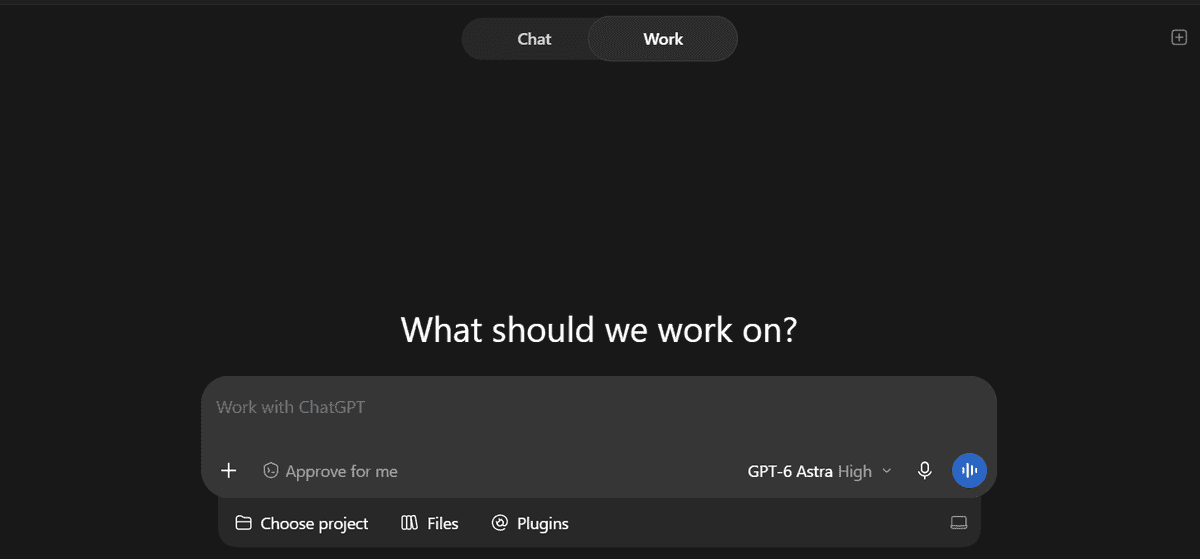
- Open Plugins or Skills in the sidebar to see your skills.
- To add one, follow the same Skills steps as above.
- To start a skill, type
@in the prompt box and pick it.
In OpenAI’s docs, standalone skills are listed for the desktop app, Codex CLI and the IDE extension. Skills inside plugins also work on the web and on mobile.
How To Add Skills To Codex
Codex gives you three routes to add a skill.
- Install a curated skill. Run
$skill-installer linear. You can also ask the installer to download from other repos. - Create one yourself. Run
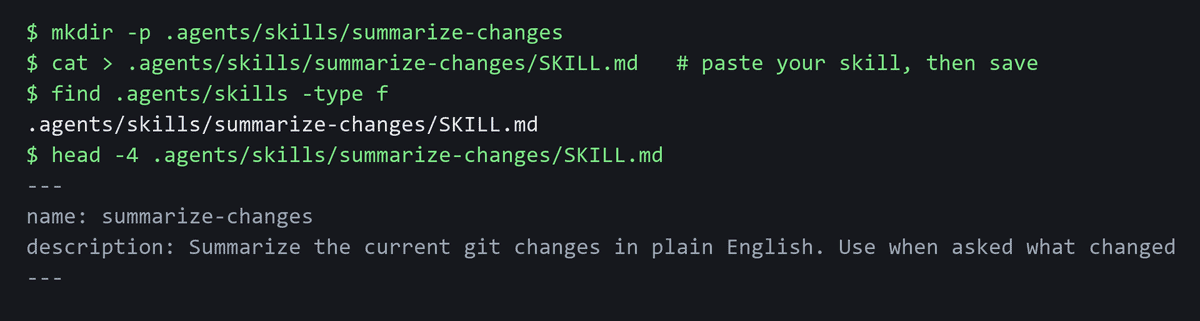
$skill-creator. - Add a folder by hand. Put a folder that holds a
SKILL.mdfile into.agents/skillsin your repo. For every project on your machine, use$HOME/.agents/skillsinstead. TheSKILL.mdmust includenameanddescription. Use the repo path when the skill is just for that project. Use the home path when you want it in all of them.
Codex finds new skills on its own. If one does not show up, restart Codex and look again. The OpenAI build skills docs cover this in more detail.
Where ChatGPT And Codex Store Skills
The ChatGPT Skills page lists your skills under Installed, Created by me, Shared with me and Shared by your workspace. In the ChatGPT desktop app, Skills is also in the sidebar.
Codex stores skills on disk. The path depends on the scope.
Scope | Path |
|---|---|
Repo | $CWD/.agents/skills, and each parent folder up to the repo root |
User | $HOME/.agents/skills |
Admin | /etc/codex/skills |
System | Bundled with Codex |
How To Start A Skill
Once a skill is in place, using it is quick. There are two ways to call one.
- In ChatGPT, type
@and pick the skill you want. - In Codex CLI or the IDE extension, run
/skills, or type$to mention a skill.
You do not always have to call it by hand. ChatGPT can use a relevant skill by itself. Codex can also pick one when the task matches its description.
If A Skill Does Not Show Up
Check these first.
- No Skills tab. Your plan or workspace settings may be why. Ask your admin, or try the Codex app if you are on Plus.
- Works in the desktop app, not on the website. OpenAI says standalone skills are available in the ChatGPT desktop app, Codex CLI and IDE extension. Skills bundled in plugins also work across ChatGPT on the web, desktop and mobile.
- Upload stuck. Look for Needs Review or Blocked.
- Missing in Codex. Restart Codex. Then check
~/.codex/config.tomland make sure it does not setenabled = falsefor that skill.
Check A Skill Before You Add It
A skill can hold instructions and code. So treat adding one like installing software. Snyk scanned 3,984 skills and found 534 with at least one critical issue, plus 76 confirmed malicious payloads, per its analysis of malicious AI agent skills.
Run these three checks before you add anything:
- See who made it.
- Read the
SKILL.md. - Look at any scripts it carries.
OpenAI says the same thing: review a skill and make sure you trust its source before you upload it, especially one downloaded from outside.
Looking for ideas? See our list of anti AI slop skills. New to this? Read what an AI agent is.
Next, open ChatGPT or Codex and add one small skill first.