
Looking up how to add skills to DeepSeek turns up one catch first. Skills work in DeepSeek Harness, DeepSeek’s open-source agent. We found no official documentation for skills in the DeepSeek chat app or on chat.deepseek.com. The chat box offers DeepThink, Search and file attach, with no skills option.
Harness is MIT licensed and published by DeepSeek, and the code is on GitHub. It reads the same SKILL.md format as Claude Code and similar tools. So if you have written one before, the shape will look familiar. If this is your first, the steps below cover it.
How To Add Skills To DeepSeek Harness
These steps come from the project README and its skills documentation.
- Install Node.js, then run
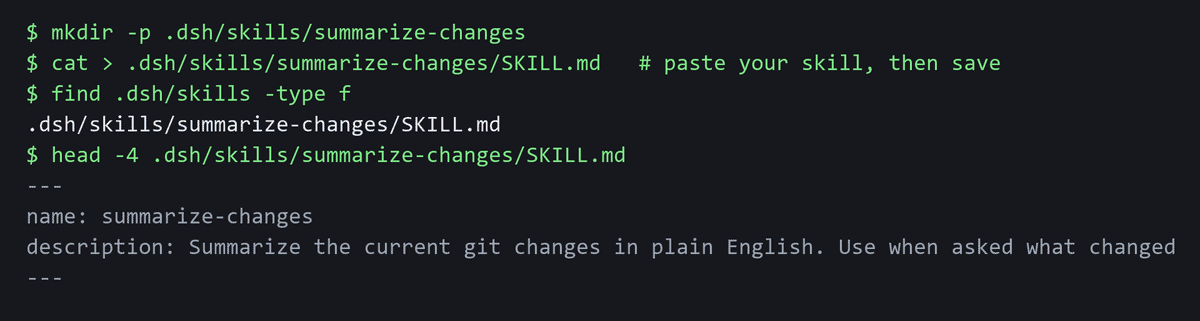
npx @deepseek-ai/dsh web. - Create a skill folder. Use
.dsh/skills/<name>/inside your project, or~/.dsh/skills/<name>/if you want the skill to work in all projects. - Add a
SKILL.mdfile in that folder. Put a name and a description at the top. Names are kebab-case, such asmy-skill. - Nothing else to run. Harness watches these folders, so new skills are picked up.
A flat <name>.md file works in place of a folder, sitting directly in the same skills folder. Keep skills at that top level, though. Ones in deeper nested subfolders are not found.
Is There A DeepSeek Desktop App For Skills?
Not one you can install from the docs. The DeepSeek Harness README covers the web interface and the dsh command line, and mentions a desktop build only in passing, with no install steps. Running npx @deepseek-ai/dsh web opens Harness in your browser at http://127.0.0.1:3080, so that is the route to use on a desktop today.
Where DeepSeek Harness Looks For Skills
Harness checks folders in a set order.
Order | Folder |
|---|---|
1 | .dsh/skills in your project |
2 | .agents/skills in your project |
3 | custom folders from your config |
4 | ~/.dsh/skills |
5 | ~/.agents/skills |
6 | bundled skills |
If two skills share a name, the higher one wins. The project root is the nearest folder with .git. With no .git folder, it is your current folder.
That .agents/skills row matters. Skills you already use with Codex, Cursor or Gemini CLI in that folder can work here too.
How To Start A Skill
Harness gives the model each skill’s name and description. That is how it decides when one matches your request. So write a description that is specific, not vague, or the model will miss it. Also, skills can be set as model-only or user-only. That means not every skill is one you start yourself.
What About Skills Named DeepSeek?
Search skills.sh and you will see skills called deepseek. Those are for calling the DeepSeek API from another agent, such as Claude Code. They do not add skills to DeepSeek itself.
Third-party browser extensions also claim to add skills to the DeepSeek website. They are not made by DeepSeek, so treat them with care.
Check A Skill Before You Add It
A skill can include instructions and code. So treat adding one like you would treat installing software. The risk is not small. Snyk scanned 3,984 skills and found 534 with at least one critical issue, and 76 confirmed malicious payloads, according to Snyk’s research on malicious AI agent skills.
Before you add anything, run these three checks:
- Who made it: look at the author and where the skill comes from.
- Read the
SKILL.md: it tells you what the skill does, so make sure that matches what you expect. - Look at any scripts: a skill can run code, so read that code before it runs.
New to this? Read what an AI agent is, or our guide on how to build an AI agent.
Then open DeepSeek Harness and add one small skill first.