
Home / AI tools / AI skill generator
AI skill generator.
Turn a job you repeat into a complete skill for Claude, ChatGPT, Codex and Cursor. Free, with no login.
The AI skill generator in the box above turns a job you keep repeating into a complete skill folder. The skill uses the open Agent Skills format, ready to add to Claude, Claude Code, ChatGPT, Codex or Cursor. Type the job, answer one or two quick questions, then add real examples: pasted text, links, screenshots or files. The AI Skill Generator writes each file as it goes and hands over the whole skill as a ZIP.
Inside that ZIP is one folder named after your skill, with SKILL.md and the files the job needs. The AI Skill Generator also shows the install steps for each of those agents. Free to use, no login, and the files usually appear in 30 to 60 seconds. Only need a job done once? A prompt from the AI Prompt Generator is enough.
How To Use The Feedough AI Skill Generator
Step 1: Describe The Job In The AI Skill Generator
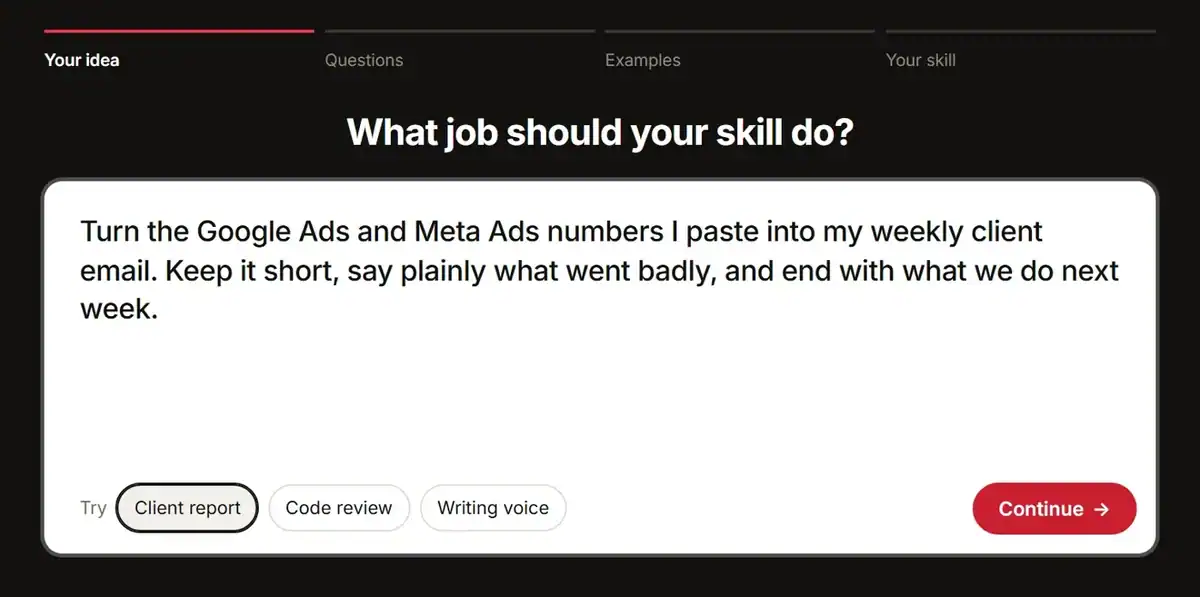
Type the job the skill should do. Say what goes in, what comes out, and who reads the result. For example: turn this week’s ad numbers into a Monday email for a client who wants the short version.
Stuck on the wording? Tap a sample like Client report, Code review, or Writing voice. Then edit the text until it matches your job.
Step 2: Answer The Follow-Up Questions
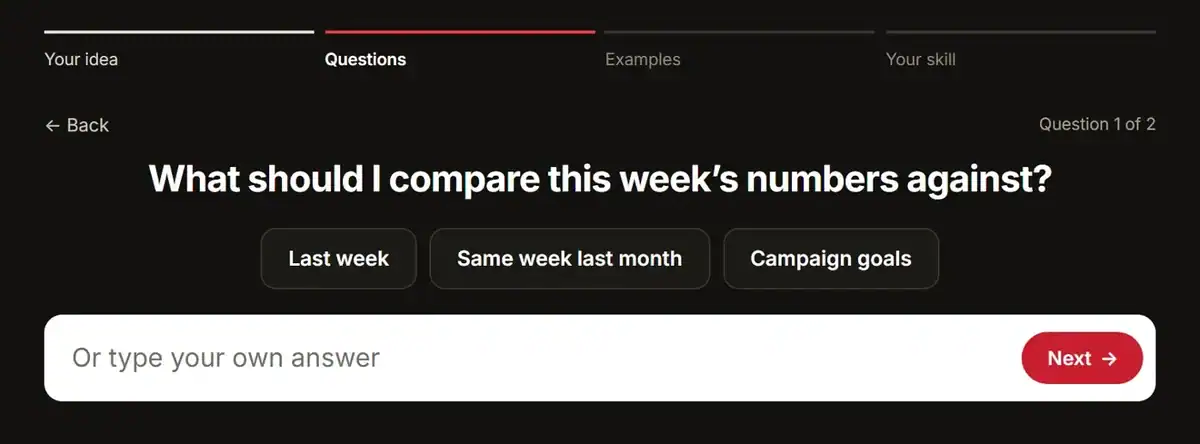
Answer the follow-up questions. The AI Skill Generator asks one or two questions about the job. It may ask who reads the result, or what to do when numbers are missing.
Tap a suggested answer, or type your own. These answers fill the gaps your job text leaves, and they shape the instructions in SKILL.md.
Step 3: Add Examples As Text, Links Or Screenshots
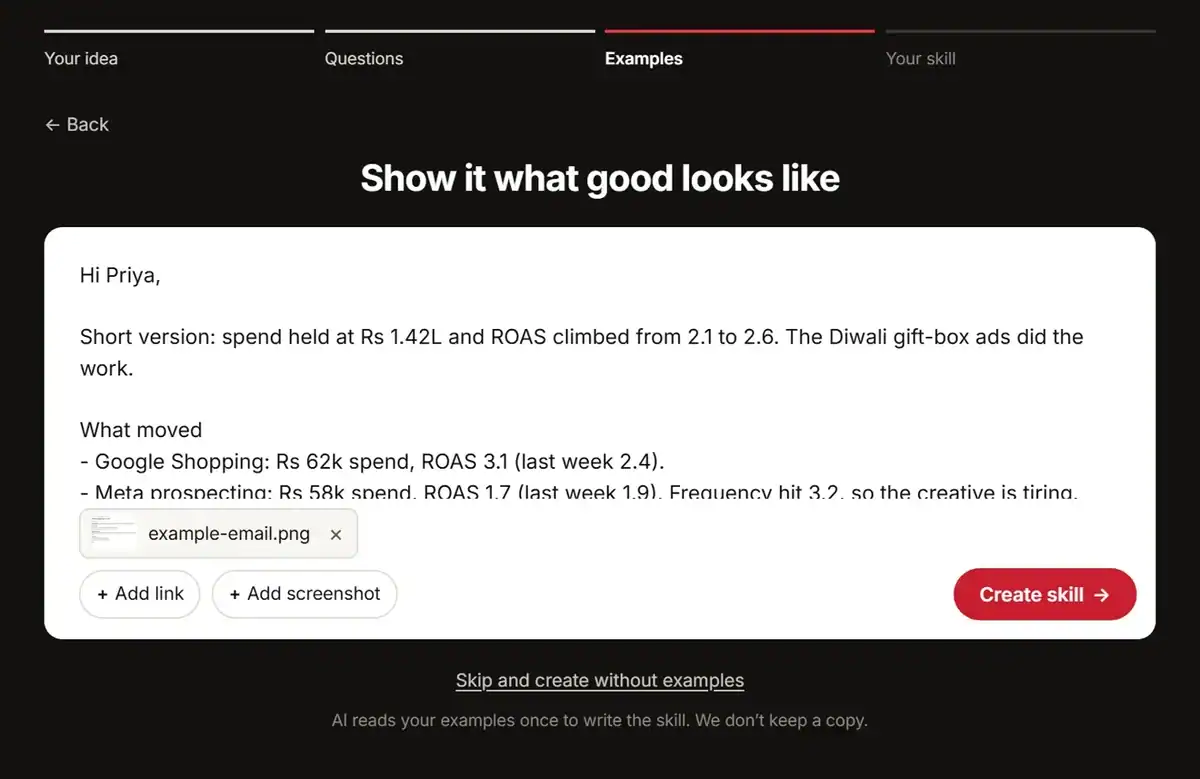
Paste a real example of the job being done. It can be the input, the output, or both.
You can also add up to 3 links, up to 3 screenshots, or text files. Paste a screenshot with Ctrl+V, or drag it in. Nothing to hand? Skip this step.
Step 4: Download The Skill ZIP
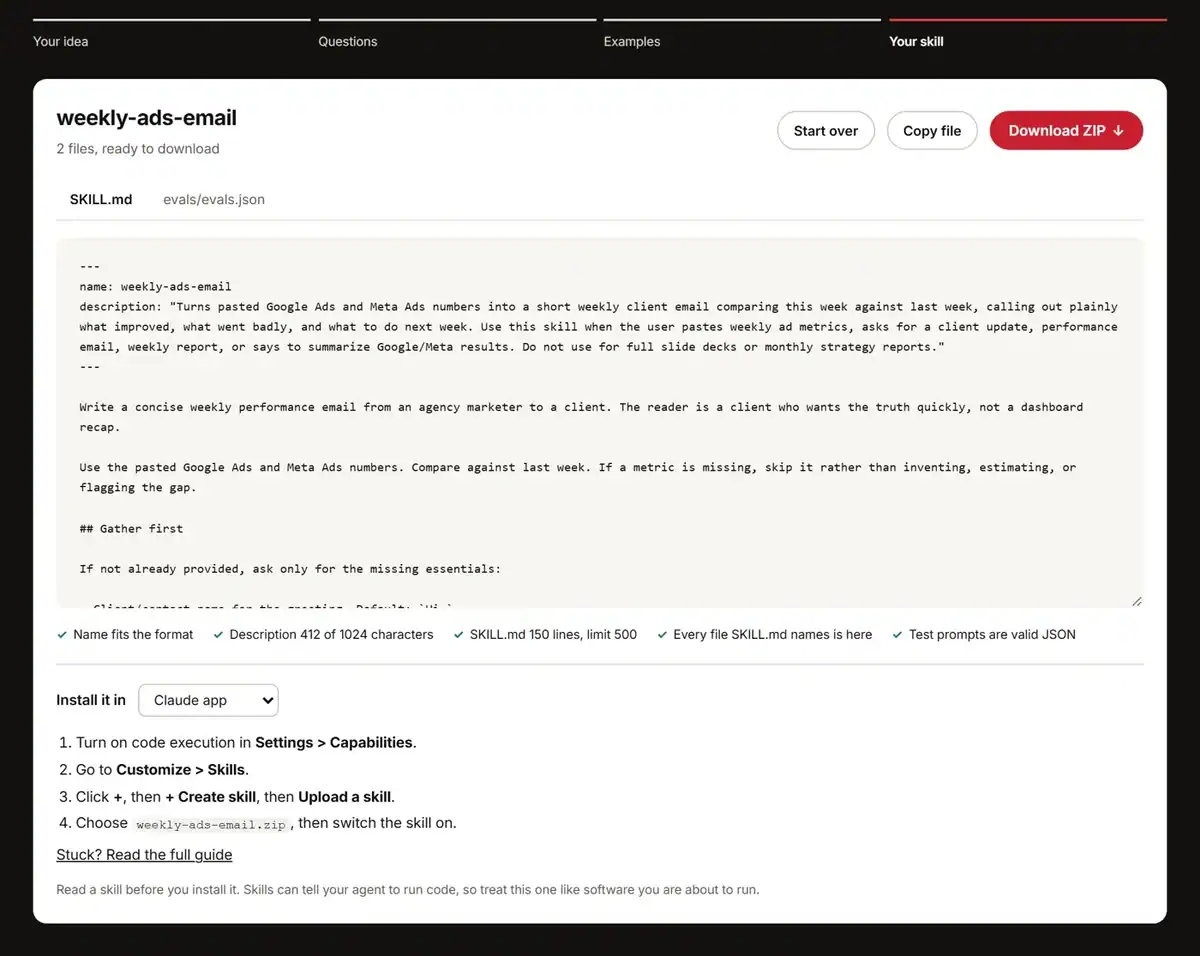
Read the files before you download. Every file opens for editing in the AI Skill Generator. Fix a line, add a step, or trim extra words.
Then select Download ZIP. The ZIP holds one folder named after your skill, with SKILL.md inside it.
How To Create A Claude Skill From Real Work Examples
Now pick two or three finished pieces of real work. That is the material that turns a generic skill into a skill Claude can follow.
The Agent Skills best-practices guide backs this up. It warns that skills written by an AI with no real material come out vague and generic. Instead, build the skill from real tasks, the corrections you made, and your input and output formats.
Strong examples for the AI Skill Generator look like this:
- Two or three finished pieces of the same job, so the pattern is clear
- A before and after, showing what came in and what went out
- The checklist you follow each time, even a rough one, or a draft from the AI SOP generator
- A past correction, like “the client wants numbers rounded, never raw”
For a weekly ads report, paste two past client emails, or add a screenshot of one. Same job, same shape, twice. That gives the AI Skill Generator real material to write from.
Which Links The AI Skill Generator Can Read
Public pages only. A GitHub file link works, because the AI Skill Generator reads it as the raw file. A private page behind a login, such as a private Notion page, cannot be read. The AI Skill Generator tells you when that happens. Paste the page text instead, or add a screenshot.
Which Screenshots To Add
A screenshot helps most when the example is an email, report or dashboard you cannot copy as text. In a November 2026 run, the AI Skill Generator read a screenshot of a client email. The email’s text then showed up in the skill’s references/examples.md file.
No examples? Skip the step. The AI Skill Generator then builds SKILL.md around an output template and does not invent a past example. Expect a more generic skill.
What Is Inside A Skill ZIP: SKILL.md, References And Test Prompts
Download the ZIP and open the folder. Not every skill needs the same files, so the AI Skill Generator adds only what the job calls for.
Open The Skill ZIP And Read The Files
File | What it does | When the AI Skill Generator adds it |
|---|---|---|
SKILL.md | Carries the skill name, the description and the instructions | Always |
references/ | Holds long material, such as full examples | When your examples are too long for SKILL.md |
scripts/ | Holds Python 3 (standard library) or Bash code for calculations, parsing and file conversion | When the job needs exact steps |
assets/ | Holds templates the skill fills in | When the job uses a template |
evals/evals.json | Holds three test prompts | Always |
Match The SKILL.md Format Rules
The Agent Skills specification sets the format rules. The name runs from 1 to 64 lowercase letters, digits and single hyphens, and it must match the folder name. The description runs up to 1,024 characters and says what the skill does and when to use it. Keep SKILL.md under 500 lines.
Agents read only the name and description at startup. The SKILL.md body loads once the skill activates. Other files load only when the job needs them. That is why the description decides whether the skill gets used. Get that line wrong and the agent may never open the skill.
Review The Checks Before You Download
Once the files are written, the AI Skill Generator checks them:
- The name matches the format rules
- The description fits within 1,024 characters
- SKILL.md stays under 500 lines
- Every file SKILL.md names sits in the folder
- The test prompts in evals/evals.json are valid JSON
One check is a warning rather than a block. The AI Skill Generator flags any script that deletes files, reads credentials or uses the network. Read those scripts yourself before you install the skill.
Scripts draw that attention because they do the exact work. One generated Python script merged invoice CSVs from three systems, then flagged a duplicate and a tax mismatch on the sample data.
Here is a real SKILL.md excerpt from weekly-ads-email, a skill the AI Skill Generator wrote.
---
name: weekly-ads-email
description: "Turns pasted Google Ads and Meta Ads numbers into a short weekly client email comparing this week against last week, calling out plainly what improved, what went badly, and what to do next week. Use this skill when the user pastes weekly ad metrics, asks for a client update, performance email, weekly report, or says to summarize Google/Meta results. Do not use for full slide decks or monthly strategy reports."
---

Write a concise weekly performance email from an agency marketer to a client. The reader is a client who wants the truth quickly, not a dashboard recap.

Use the pasted Google Ads and Meta Ads numbers. Compare against last week. If a metric is missing, skip it rather than inventing, estimating, or flagging the gap.

## Gather first

If not already provided, ask only for the missing essentials:

- Client/contact name for the greeting. Default: `Hi,`
- Sender name/signoff. Default: no signoff name if unknown.
- This week’s Google Ads and Meta Ads numbers, with last week’s comparison where available.
- Any known reason something changed, such as a tracking issue, sale, new creative, landing page change, or stock issue.
- Next-week actions, if the user has specific ones. If absent, infer practical next steps from the numbers.

Do not stall for exact dates, subject line, or every metric. Draft the email from what is available.

## Workflow

1. Read the pasted numbers and group them by channel/campaign, usually Google Search, Google Shopping, Meta prospecting, Meta retargeting, or the labels the user used.
...
How To Install A Skill In Claude, Claude Code, ChatGPT, Codex And Cursor
Pick the agent you use and add the ZIP the AI Skill Generator just handed you.
Agent | How to add the skill |
|---|---|
Claude app | Turn on code execution first. In Settings > Capabilities, switch on Code execution and file creation. Then go to Customize > Skills, select +, then + Create skill, then Upload a skill, and choose the ZIP. Anthropic lists the full path on its upload a skill in the Claude app page. |
Claude Code | Unzip into ~/.claude/skills/, so the path is ~/.claude/skills/ |
ChatGPT | Follow Feedough’s how to add skills to ChatGPT guide for the current upload steps. |
Codex | Unzip into ~/.agents/skills/. Codex also reads .agents/skills/ inside the repository. The Codex skill directories docs list every location. |
Cursor | Unzip into ~/.cursor/skills/ for all projects, or .cursor/skills/ for one project. The Cursor skill directories docs cover the rest. |
Below the files and checks, the AI Skill Generator shows install steps for eight agents. The list adds GitHub Copilot, Gemini CLI and OpenCode to the five above. Want the longer walkthroughs? Read how to add skills to Claude and how to add skills to GitHub Copilot.
How To Test A SKILL.md File Before You Rely On It
Open evals/evals.json in the skill folder. The AI Skill Generator writes three test prompts there. Each prompt is a realistic request paired with the output you should expect. The third is usually a harder edge case, such as a missing number.
That layout follows the Agent Skills guide on evaluating skill output. The guide keeps test cases in evals/evals.json and says to start with 2 or 3.
Next, paste each prompt into Claude, ChatGPT or the agent you use. Compare the output with expected_output in the file. Where the result falls short, fix SKILL.md. Edit the file in the AI Skill Generator before download, or edit SKILL.md after. Then save the edit or download the ZIP again.
Triggering needs its own test, because one good run proves little. The Agent Skills guide to skill descriptions uses about 20 requests. Half should load the skill and half should not. Each one runs about 3 times.
If the skill never loads, make the description more specific: name the job and the input. If the skill loads for the wrong jobs, add a line about what the skill is not for.
AI Skill Generator FAQ
Is The AI Skill Generator Free?
Yes. The AI Skill Generator is free and needs no login. Each visitor can write up to 15 skills a day. Every step is included: the follow-up questions, the checks and the install steps.
Does Feedough Keep The Examples, Links Or Screenshots?
No. Feedough does not store the brief, your answers, the examples, the links or the screenshots. The AI reads each one once while writing the skill. Two OpenAI models do the work. GPT-5.4 mini asks the follow-up questions, and GPT-5.5 writes the skill files.
Are Scripts In A Generated Skill Safe To Run?
Do not count on that. Read every script before you run it, because a skill can tell an agent to run code on your machine. Snyk’s ToxicSkills scan covered 3,984 public skills. It found 534 with at least one critical issue and 76 confirmed malicious payloads. The AI Skill Generator refuses skills built to steal credentials or secretly send data. It also flags risky scripts, as listed above.
How Is The AI Skill Generator Different From Anthropic’s skill-creator?
Anthropic’s skill-creator is a skill that runs inside Claude to create, improve and measure skills. You can read it in Anthropic’s public skills repo. The AI Skill Generator opens in your browser, so there is nothing to install first. It reads links and screenshots as examples, then gives one ZIP with install steps for Claude, Claude Code, ChatGPT, Codex and Cursor. Both write SKILL.md to the same Agent Skills format. Want a skill someone else already built? Start with the best Claude design skills.
Scroll back up and type the job in the AI Skill Generator to make your first skill.
More free generators
- AI Prompt GeneratorWrite a better prompt for any AI tool.
- ChatGPT Prompt GeneratorGet better answers from ChatGPT.
- AI Prompt OptimizerTighten a prompt you already have.
- Prompt CheckerFind what is weak in a prompt.