
Home / AI tools / AI Metadata Cleaner
AI Metadata Cleaner
See what a photo or document is hiding inside it, then strip it out. Nothing is uploaded.
Drop a photo or a document here
JPG, PNG, WebP, GIF, PDF, Word, Excel or PowerPoint. Your file stays in your browser and is never uploaded.
The AI Metadata Cleaner above is ready to use now. Drop in a photo or a document and it tells you what is hiding inside it, then gives you a clean copy. Nothing is uploaded. The file is read, cleaned and saved from your own browser.
It reads JPG, PNG, WebP and GIF images, PDF files, and Word, Excel and PowerPoint documents. For an image it lists the camera, the software, the date and any GPS coordinates it finds. For a document it lists the author, the company, the template and the total editing time. Then it writes a copy with all of that taken out.
If the file says it was made with AI, you get told that in its own line, along with a note about what removing that label means for you.
Free, no login, and your file stays on your machine.

How To Use The Feedough AI Metadata Cleaner
Step 1: Drop A File Into The Box
Drop a file into the box, or press Choose a file and pick one from your computer. You can add several files at once and the tool works through them one after the other. Files go up to 100 MB. Anything bigger is turned away before it is loaded, so a large video or a huge raw file cannot lock up the tab.
The file is read inside your browser with the standard file reader in the page. It is never sent to Feedough, never stored and never seen by a server. Close the tab and it is gone.
Step 2: Read The List Of What Was Found
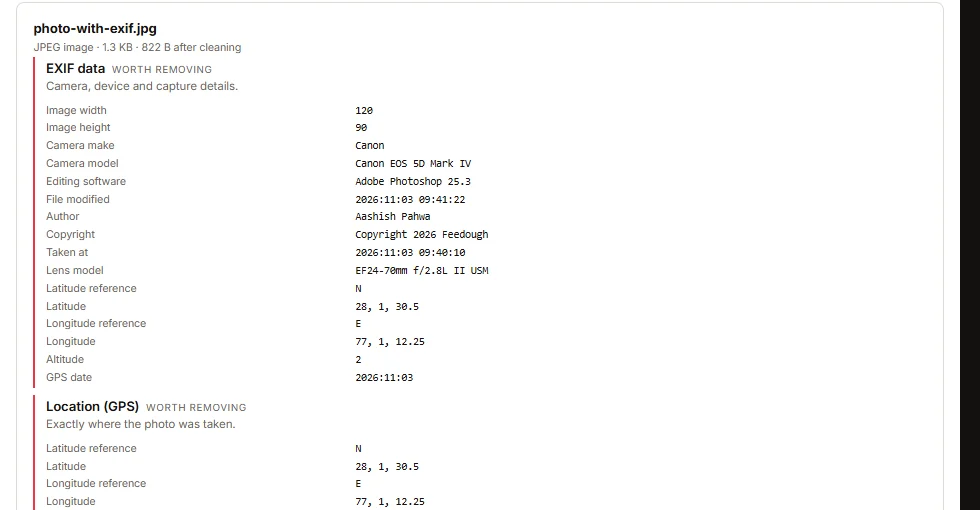
Each file gets its own box. The file name and size sit at the top, followed by the things the tool found. Every item has a name, a line about why it matters, and the actual values it read out of the file. A camera entry shows the make and model. A location entry shows the latitude and longitude. A document entry shows the author and the revision number.
Items are marked by how much they give away. Worth removing sits at the top in red, and that is where GPS coordinates, camera serials, device names, the author of a document and the editing software land. Hidden detail covers XMP packets, Photoshop data, text chunks and comments. Minor covers small leftovers.
Step 3: Download The Clean Copy
When a file has something to remove, a Download the clean file button appears under the list. The copy keeps the picture or the text exactly as it was. Only the hidden blocks go. The new file name ends in -clean and the original is left alone. A file that had nothing hidden inside it keeps its own name, so you never get a copy labelled clean when nothing was changed.
There is one option above the results, and it is worth knowing about. Leave Keep the colour profile ticked and the colour information inside the file stays. Untick it and that goes too. The file gets a little smaller and some devices will show a slight shift in colour, so leave it ticked unless you have a reason not to.
What It Finds In Each Kind Of File
Photos (JPG, PNG, WebP, GIF)
A photo from a phone or a camera is never just a picture. It carries a block of data called EXIF, and inside it sit the camera make and model, the lens, the focal length, the exposure settings, the software that saved it, the date it was taken, sometimes the camera serial number, and often where you were standing. Most phones write the coordinates straight into the file.
The tool reads all of it, shows it to you and then writes a copy with the whole block taken out. It also clears XMP packets, which hold editing history and rights information, and IPTC and Photoshop data, which hold captions, credits and the name of the program that last touched the file. In a PNG it reads and clears the text chunks, which is where tools like Lightroom and Photoshop leave a title, an author or a comment. In a GIF it clears the comment block.
Documents (Word, Excel, PowerPoint, PDF)
A Word or Excel file is a small archive, and the properties of the document sit inside it. When you press Save, Word writes down your name, the name of the company, the name of the template, how many minutes you spent on the file, how many times it was saved and when it was last changed. It also stores a small preview picture of the first page. The AI Metadata Cleaner reads those parts, lists them and rebuilds the file without them. Everything you actually typed is copied across untouched.
A PDF keeps its details in a block called the information dictionary, and often in a second block of XMP data. The tool reads the title, the author, the subject, the keywords, the program that made it and the dates, then rebuilds the file without them. The pages themselves stay exactly as they were.
One honest limit. A PDF saved in the newer format, which most software uses now, is built in a way that cannot be rewritten safely without a full PDF engine. When that happens the tool says so and leaves your file untouched. It would rather refuse than hand you a broken document.
AI Labels, And The Rules Around Them
Some files carry a mark that says they were made with AI. The C2PA Content Credentials are the best known of these. They sit in the file, signed, and name the tool that made the image. Older files use an IPTC field called trainedAlgorithmicMedia. Newer ones use an XMP marker. The AI Metadata Cleaner finds all three and tells you which one is there.
You can remove them. Before you do, know what you are doing. Article 50 of the EU AI Act asks that certain AI-generated content is marked in a machine-readable way, and there are platforms with rules of their own about it. Stripping a mark from content you did not make may break those rules. If the file is your own work, removing your own label is usually a simple matter of taste. If it belongs to someone else, that is not your call to make.
The tool does not tell you that a file is human made once the label is gone, and it does not say the removal makes anything undetectable. It only reports what is in the file and removes what you ask it to remove. That decision stays yours.
If your goal is the other way round, and you want to know whether a picture was made with AI, the AI Watermark Detector checks images, video and text. The AI Watermark Remover takes the AI labels off and clears the visible Gemini logo. The AI Text Cleaner does the same job for hidden characters in text you copied out of an AI chat.
Why Any Of This Matters
Sharing a photo straight from a phone is the easy way to give away your exact location. Sharing a document that came from work gives away the company, the template and the fact that it has been through three drafts. It is not usually a big deal on its own. It becomes a big deal when a photo of your house, your child’s school or a client’s contract is posted publicly with the details still attached.
There is also the other direction. If you are the one taking the pictures for a client, the same data tells them which camera and lens you used, where you shot it and how you edited it. Clearing it is a fair default when you hand work over.
Whatever the reason, it takes ten seconds to check what is in a file before you send it. That is what this tool is for.
AI Metadata Cleaner FAQ
Does The AI Metadata Cleaner Upload My File?
No. The file is read by the page in your browser and cleaned there. There is no upload, no server and no storage. You can turn off your connection after the page has loaded and it will still work.
Will The Clean File Still Open?
Yes. The picture data and the document content are copied across as they were, and only the hidden blocks are dropped. Each clean file has been checked by opening it again after it was written, for every format the tool handles.
Can It Remove An AI Label?
Yes. It finds C2PA Content Credentials, the IPTC trainedAlgorithmicMedia flag and XMP AI markers, and takes them out. Read the note on AI labels above first, because in some situations removing that mark is not allowed.
Does It Remove Watermarks In The Picture?
No. It works on the data around the picture, not on the picture itself. Marks hidden in the pixels, such as Google SynthID, stay where they are. The AI Watermark Remover is the tool for visible logos and AI labels, and the AI Watermark Detector is the one that looks for marks in the pixels.
Is It Free?
Yes, and there is no account to make. There is no watermark added to your file and no limit on how many you clean.
More free tools
- AI Watermark RemoverStrip AI labels and the Gemini logo from images.
- AI Watermark DetectorCheck images, video and text for AI watermarks.
- AI Text CleanerRemove hidden characters from text you copied out of AI.
- Image to Prompt GeneratorTurn any image into a prompt.
Need to clean a specific vendor’s output? The ChatGPT Watermark Remover, the Claude Watermark Remover, and the Gemini Watermark Remover handle each one.