
The Free AI Prompt Generator
Create a new prompt or enhance one you wrote, for ChatGPT, Claude, Gemini and others. Free, with no login.
Used by people at
- Microsoft
- Apple
- Meta
Getting good results from AI starts with one thing: the prompt. You might know what you want. But putting it into words the AI understands? That’s the hard part. If the prompt’s too broad, the output feels random or plagiarised. If it’s too detailed, it might miss the point.
This is where Feedough’s AI Prompt Generator helps you. It turns your rough idea into clear, effective, and well-detailed prompts that actually get better results from AI. You can use it for any task, whether it’s generating text, images, or video
What Feedough’s AI Prompt Generator Does
Feedough’s AI Prompt Generator is a free tool that turns a rough idea into a detailed, structured prompt for ChatGPT, Claude, Gemini, image models and video models. You describe the task, and you get back a prompt ready to paste into your AI tool.
- Describe what you want in plain words.
- The generator adds a role, audience, constraints and an output format.
- Copy the prompt into your AI tool.
Here is what the tool gives you:
- Three tabs: Text, Image and Video prompts.
- Three text styles: ORACLE, Feedough’s own six-part framework (Outcome, Role, Audience, Constraints, Layout, Evidence), a ChatGPT style, and a Claude style that uses XML tags.
- A Framework picker with 13 frameworks including RACE, CARE, APE, CREATE, TAG, RISE, COAST and ROSES.
- An Improve button that asks optional follow-up questions and rewrites the prompt with the answers.
- Unlimited generations, with no login or sign-up needed.
- Signed-in users can save prompts to My prompts and turn on Memory so the generator remembers their preferences.
Already have a prompt? Paste it into Feedough’s AI Prompt Generator and it works as a prompt enhancer and prompt improver, turning a rough draft into a clearer version. For a line-by-line rewrite of a finished prompt, use the AI Prompt Optimiser instead.
What Is a Prompt in AI?
A prompt is the input you give to an AI model to tell it what you want. It’s how you communicate your request, whether that’s a question, an instruction, or a description of a task.
Prompts can be short and straightforward like: “Translate this to Spanish.” Or they can be detailed: “Translate this marketing email to Spanish, keeping a professional tone and adapting idioms for a Mexican audience.” The AI uses whatever you provide to figure out what to generate.
Think of it like giving directions. If you tell someone “go downtown,” they might end up anywhere. But if you say “take Main Street to 5th, turn left at the coffee shop,” they’ll get exactly where you need them. Prompts work the same way.
More context usually means better results.
What is an AI Prompt Generator?
An AI prompt generator is a tool that turns a short idea into a detailed, structured instruction for an AI model. That instruction is called a prompt, and the model could be ChatGPT, Claude, Gemini, Midjourney or Kling.
You tell it what you’re trying to do: write a blog post, generate an image, create a video scene, plan a lesson, anything. Based on that, it creates a clear, detailed prompt you can give to the AI. The goal is to get results that are more accurate, more useful, and closer to what you had in mind.
The AI Prompt Generator uses generative AI and natural language processing (NLP) to shape your input into structured prompts. It’s trained to understand different types of tasks and suggest wording that helps the AI respond more effectively, similar to how the Zero-Shot Prompt Generator handles tasks with minimal examples.
For example, let’s say you enter: “I want to write a short story about an astronaut.”
Instead of just repeating that, the generator might produce: “You are a creative fiction writer. Write a detailed short story about an astronaut’s experience on a solo mission. Include emotional challenges, a turning point in the plot, and a meaningful ending.” If you use ChatGPT specifically, the ChatGPT Prompt Generator is tailored for tasks like this across personal, academic, and professional use cases.
The same logic applies to image and video prompts. More context, better structure, better output.
How Does Feedough’s AI Prompt Generator Work?
Now we know what the AI Prompt Generator is and what it does, but how does it actually work? Here’s how:
First, You Enter Your Input
You’ll find a text field that starts with: “Give me an AI prompt to…” This is where you describe your task. Just complete the sentence with what you want the AI to help with.
For example: “Give me an AI prompt to write a scene where two strangers meet during a power outage.”
Now here’s the key: be as specific as you can. Don’t just say “write a blog post”, say something like: “Give me an AI prompt to write a blog post for beginners explaining how compound interest works, in a friendly and casual tone.”
The more details you include- who the audience is, the tone, the topic, even the length- the better the generator can shape a useful, structured prompt. Vague inputs lead to vague outputs. But when you’re clear, you’ll get best prompts with almost no extra work.
The same applies to image and video prompts. For images, describe the subject, setting, and mood you have in mind. For videos, describe the scene, what’s happening, and the overall feel. The more specific you are, the better the output. If you’re working on visual content, tools like the Midjourney Prompt Generator, image to prompt generator or the Stable Diffusion Prompt Generator can help you craft image-focused prompts with the same ease.
The AI Prompt Generator Processes Your Input
The AI Prompt Generator begins by using Natural Language Processing (NLP) to interpret your input. NLP allows the system to understand not just the inputs but also to interpret the intent behind them and to know exactly what you want. If your task requires reasoned responses or complex logic, the AI Reasoning Prompt Generator can help you build prompts that guide AI towards deeper insights.
The AI Prompt Generator is trained on vast amounts of prompts, scenarios, concepts, ideas, and writing guides. This training helps it recognise patterns in how prompts are structured, whether that’s a text instruction for ChatGPT, a visual description for an image model, or a scene breakdown for a video generator.
Using these patterns, the tool creates prompts that are detailed and guide the AI to execute the intended tasks. This ability to understand your intent and add the right level of structure is what you’d expect from the best prompt generator, rather than a tool that simply rephrases your input.
With all the details you provide as inputs and its huge knowledge base, the tool uses generative AI to turn your input into a detailed prompt. It combines creativity with logic, ensuring the prompt aligns with your needs while adding depth.
Final Output
The output is a well-detailed and structured prompt that acts as instructions for the AI tools. These prompts are detailed enough to ensure high-quality outputs while avoiding unnecessary complexity.
You can use the prompt as it is or tweak it to better suit your style. If needed, you can refine the output by adjusting your input, adding more context, specifying the tone, or focusing on a particular theme or task, etc. The flexibility of the output allows you to refine the prompt until it perfectly matches your vision.
You can make unlimited generations until you get the desired results, with no login. If you sign in, Memory keeps your preferences: the tone, the audience, and the AI tool you use. My prompts saves your past prompts, so later prompts fit your style.
Before and After: 6 Real Prompts Visitors Rated
These are six prompts from Feedough’s AI Prompt Generator that visitors rated thumbs-up in October and November 2026. The generator does not store what people type, so each ‘Asked for’ line is a short summary of the request, and the quoted output is unedited, trimmed only for length.
Earthquake Quiz For Students
Asked for: a 25-question multiple-choice quiz on earthquakes (ORACLE style)
The generator returned: “Create a 25-item identification quiz focused on earthquakes. The quiz should consist of multiple-choice questions, each with four answer options.”
- A role as an experienced geology educator and quiz designer
- An audience of high school and college geology students and people preparing for earth-science tests
- A mix of recall and application questions at varied difficulty, with no subjective or misleading questions
- Numbered questions with the correct answers at the end
Girl Child Day Presentation
Asked for: a presentation on International Day of the Girl Child (Reasoning framework)
The generator returned: “I require a presentation on International Day of the Girl Child, focusing on its significance, themes, and relevant statistics.”
- Five sections, from introduction and history through to a call to action
- Current issues such as education, health and safety, plus key statistics and success stories
- Bullet points, images and infographics, with facts from reliable organisations and research
- Plain language for a general audience
CBSE Class 10 Question Paper
Asked for: a CBSE Class 10 question paper based on NCERT material (Claude style)
The generator returned: “You are an expert CBSE exam designer with extensive experience in creating assessment papers tailored for 10th-grade students, focusing on clarity and alignment with the NCERT curriculum.”
- Numbered instructions for the whole paper
- A 70-mark paper in three sections: Section A 20 marks multiple choice, Section B 30 marks short answer, Section C 20 marks long answer
- A sample question and answer on the Green Revolution in India
- Self-check steps at the end
Streaming Box For Old TV
Asked for: the best streaming box for an old HD TV under 6,000 rupees, available in India (ChatGPT style)
The generator returned: “# Identity You are a tech recommendation assistant.”
- The requirements: HD TV compatibility, good streaming performance, all major streaming apps, a 6,000 INR price limit and availability in India
- Three options, each with a name, short description and approximate price
- Two sample requests with sample answers
Two Dogs At A Fence
Asked for: a photo of two dogs looking through a fence (Image tab)
The generator returned: “Two loving dogs with fluffy fur look out through a green fence, surrounded by a lush, sweet background of greenery and soft colors, captured in a realistic style, Pet Photography, Medium Shot, Eye-Level, Soft Natural Light.”
- The fur and the green fence
- The background and colours
- A realistic pet-photography style
- A medium shot at eye level with soft natural light
Lion Roaring At Night
Asked for: a lion named Kilima roaring on a rock at night (Video tab)
The generator returned: “[00:00-00:05] The scene opens at a dark, serene kopje rock under a starry night sky. A silhouette of Kilima, a majestic lion, is visible as he stands poised on the rock.”
- A 15-second shot list in three timestamped beats
- The still opening shot
- The low rumbling roar with a slight camera shake
- The fade to black as the roar dies away
Benefits of Using Feedough’s AI Prompt Generator
The AI prompt generator offers several benefits aside from removing guesswork, improving clarity, and saving you time. Here’s how.
Turns Rough Ideas Into Structured Prompts
Many people know what they want but struggle with how to ask the AI. What makes this best prompt generator so effective at turning a rough idea into something AI can actually understand? It takes what you have in mind, even if it’s vague or incomplete, and turns it into a clear, structured, and detailed prompt. Whether you’re working on a text task, an image concept, or a video scene, you can start with the basic idea and let the generator handle the prompt structure.
Reduces Trial and Error
Without a proper prompt, it’s easy to get stuck in cycles of tweaking, rewording, and running the same task multiple times. By guiding you to give better input and producing more focused prompts in return, you get relevant output faster. Fewer corrections. Less time wasted.
Makes AI More Accessible for Non-Experts
Not everyone knows how to write a good image prompt or how to structure a video generation instruction. The generator simplifies this by handling the technical part of prompt-building behind the scenes. You just describe what you need in plain language.
This makes it useful for anyone: students, marketers, content creators, designers, educators, whether they’re writing a blog post, generating a product image, or creating a short video clip with an AI tool.
Adaptable to Any Use Case
The generator works across formats, modalities, and industries. Text content, image generation, video creation: it adjusts to your input and goal. It doesn’t lock you into templates. It builds the prompt around your exact need.
Model-Specific Optimisation
For text prompts, you can choose to optimise for ChatGPT or Claude. For video prompts, you can choose the exact platform you’re generating for: Kling, Seedance, or Veo 3. This means the prompt is structured the way that specific model works best, not just as a generic instruction.
Helps You Learn What Makes a Good Prompt
Every prompt you get back is a chance to learn. By reading the results, you start to see patterns in how prompts are structured and why they work: across text, image, and video. Over time, this helps you develop an intuition for better prompting, even without the tool.
Speeds Up the Creative Process
When you don’t have to think hard about how to phrase your request, you can focus on the task itself: writing, designing, creating. You spend less time setting up and more time producing.
Use the AI Prompt Generator as a Prompt Enhancer
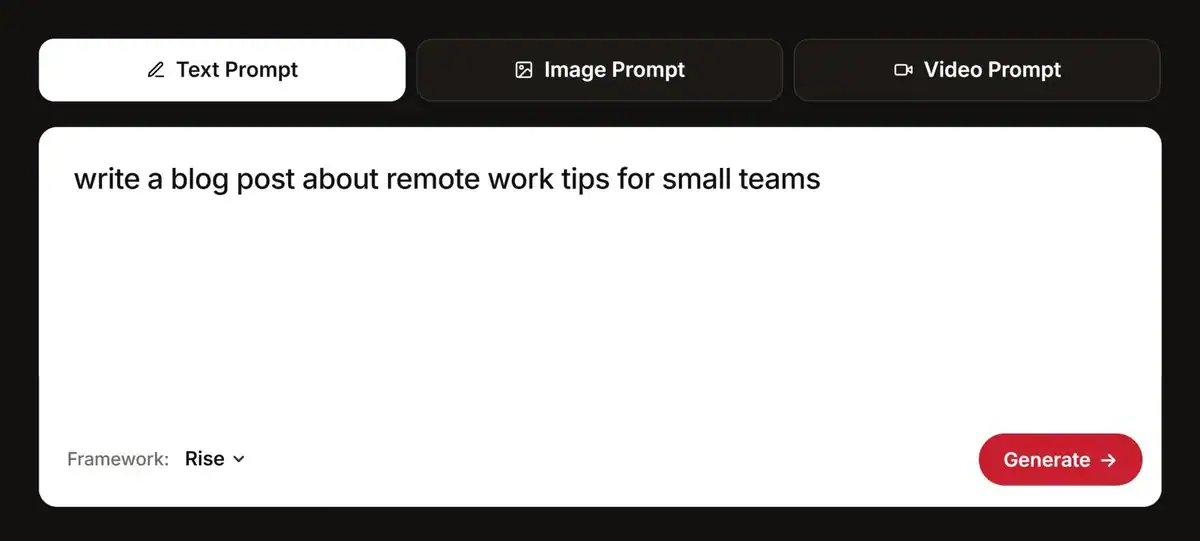
A prompt enhancer takes a short or vague prompt and adds the details an AI needs to do the job well. Feedough’s AI Prompt Generator works as one on its Text Prompt tab.
You don’t have to start with a fresh idea. If you already wrote a rough prompt, paste it into the input box and click Generate. Feedough’s AI Prompt Generator rewrites it into a full prompt you can use as it is.
Here’s a real before and after from a test run. The input was one line, “write a blog post about remote work tips for small teams”, with the RISE framework picked. What came back added all of this:
- A role: “You are an expert remote work consultant…”
- The situation: a small team struggling with productivity, communication and collaboration while working remotely
- A six-section outline: an intro, a communication protocol with Slack and Zoom and response-time expectations, goals and priorities with Trello or Asana, team collaboration, work-life balance, and team culture
- Output rules: simple, engaging language with practical examples
One vague line turned into a prompt that ChatGPT, Claude or Gemini can follow. That is the job of an AI prompt enhancer: keep your idea and fill in what was missing. It’s free and needs no login or sign-up.
Use the Framework Picker as a Prompt Builder
An AI prompt builder gives you a structure to fill instead of a blank box. Rather than guessing what to write, you pick a shape for the prompt, and Feedough’s AI Prompt Generator fills it with your task.
The Framework dropdown has 13 options: Standard, Reasoning, RACE, CARE, APE, CREATE, TAG, CREO, RISE, PAIN, COAST, ROSES and RESEE. You don’t need to learn all of them. Three handle most jobs.
- RISE (Role, Input, Steps, Execution): use it for step-by-step tasks, like planning a workflow, writing a how-to or breaking a project into stages.
- CARE (Context, Action, Result, Example): use it when you want a real-world answer. Give it one example of what “good” looks like and the output lands much closer to it.
- TAG (Task, Action, Goal): use it for quick, focused tasks where you only need a clear result, like a subject line or a summary.
Pick Standard and a Style dropdown appears. It offers ORACLE (Feedough’s own framework: Outcome, Role, Audience, Constraints, Layout, Evidence), ChatGPT Optimized and Claude Optimized. ORACLE works with any model, while the other two tune the wording for ChatGPT and Claude.
The Image Prompt and Video Prompt tabs work as a prompt builder too. Choose the style, shot type, camera angle, mood or video platform, and the generator builds the prompt around those choices.
Prompt Creator vs Prompt Improver: Which to Use
Feedough’s AI Prompt Generator can act as a prompt creator, building something new from a rough idea, or as a prompt improver, reworking a prompt you already have. The difference is where you start.
Use the prompt creator when you have an idea but no prompt yet. Type it into the text field and click Generate, and Feedough’s AI Prompt Generator writes the full prompt.
Use the prompt improver after a result lands. Click the Improve this prompt button and the Improve Prompt window opens with three follow-up questions written for that exact prompt, such as “What specific challenges does your 6-person design agency face with remote work?” Each question has an answer box plus Quick Picks you can click instead of typing. Under them sits the Your Additional Improvements box for anything else you want changed.
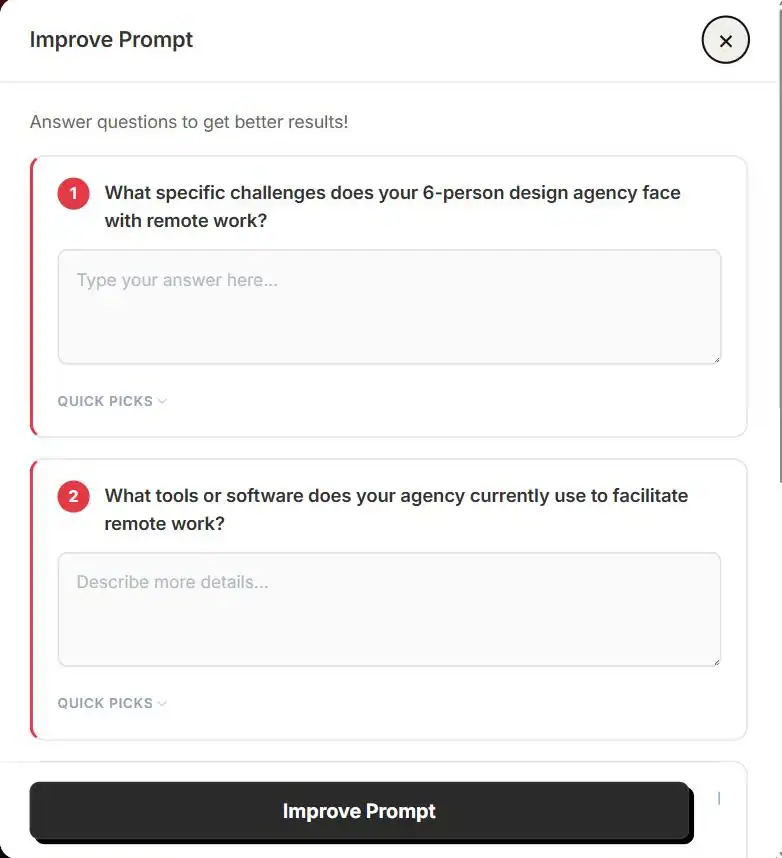
Nothing gets lost along the way. Version History under the result keeps every version, each with Copy and Restore buttons, so a step in the wrong direction is one click from undo.
Mode | Start with | Best for | Button |
|---|---|---|---|
Prompt creator | A rough idea | New prompts | Generate |
Prompt enhancer | A prompt you wrote | Clearer, fuller wording | Generate |
Prompt improver | A generated result | Fine-tuning with answers | Improve this prompt |
Writing for one model only? Feedough also has a ChatGPT Prompt Generator, a Claude Prompt Generator and a Gemini Prompt Generator, each tuned to how that model reads instructions.
AI Image Prompt Generator
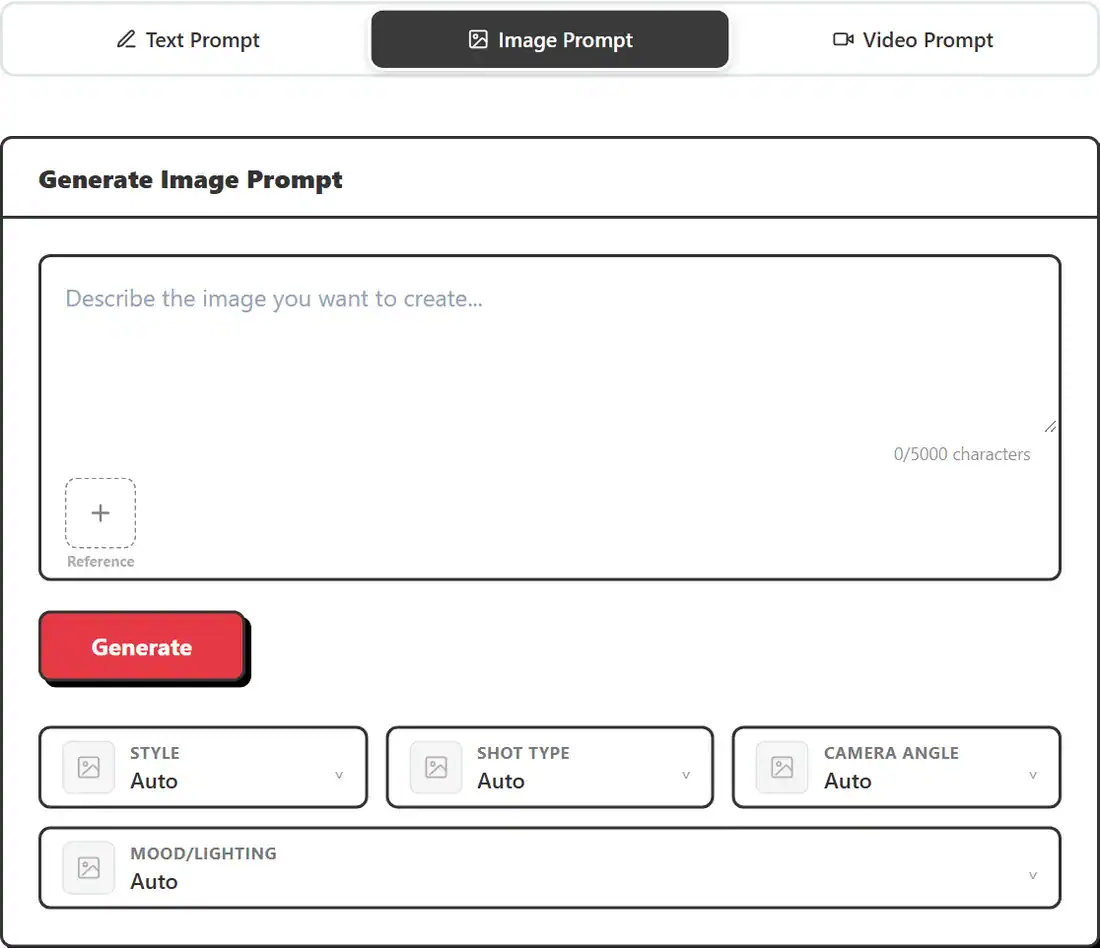
An image prompt generator turns “a cat on a windowsill” into something a model can actually render well. The Image Prompt tab takes your short description and expands it with style language, composition, lighting, and mood. Controls for Style, Shot Type, Camera Angle, and Mood/Lighting all sit on Auto by default, so you can leave them there or steer them yourself. The result pastes straight into Midjourney, Stable Diffusion, Flux, or ChatGPT.
Here’s the thing: a plain description gives you weak images. The model fills in the gaps on its own, and what it picks rarely matches the picture in your head. Whether you make art, run ads, or just want a specific look, this gets you closer without learning prompt craft from scratch.
AI Video Prompt Generator
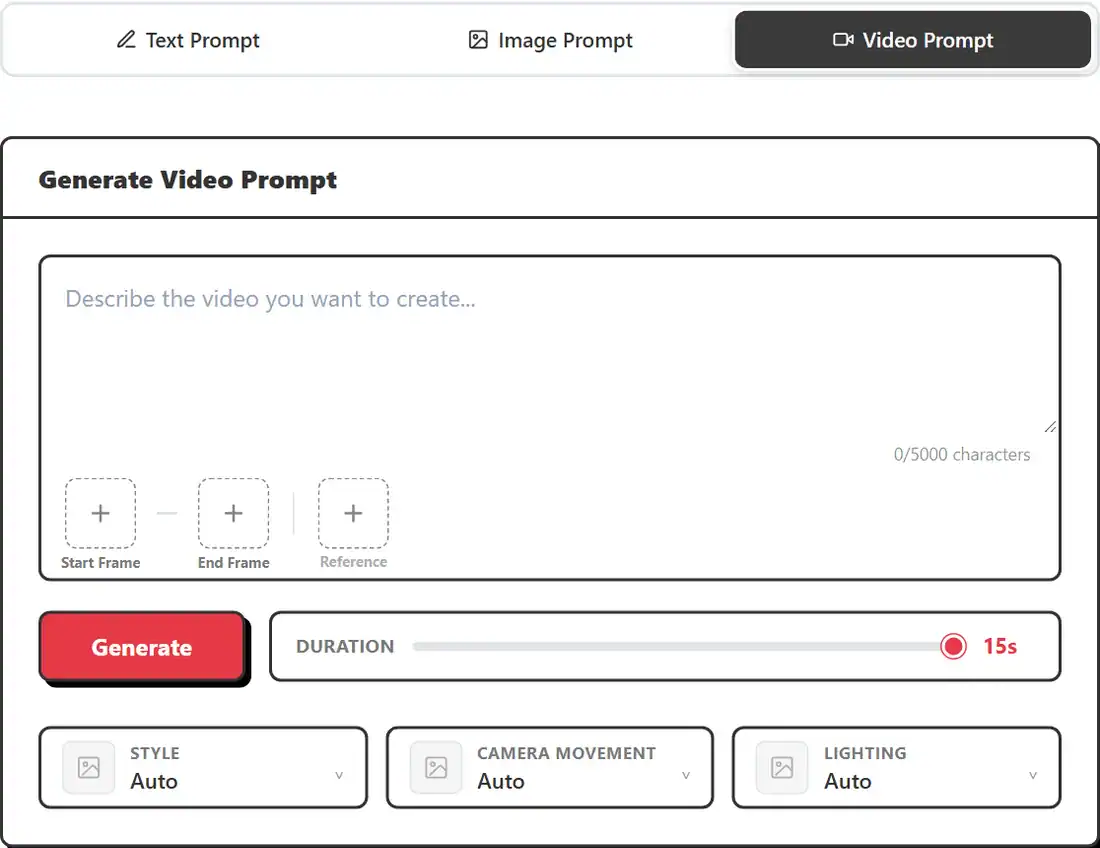
This video prompt generator sits in the Video Prompt tab at the top of this page. It takes a plain scene idea and turns it into a structured prompt that covers the scene itself, motion direction, visual style, and pacing.
There is also a Video Style dropdown with four options: Standard, Kling, Seedance, and Veo 3 / Gemini Omni. Each video model reads prompts a little differently, so picking the right one keeps your output closer to what you pictured.
Who is this for? Anyone writing prompts for AI video tools and tired of flat results. Here is the thing: a video prompt has to describe movement, not just how a scene looks. A still image can get by with lighting and composition. Video cannot. The camera, the subject, the pacing, all of it needs direction.
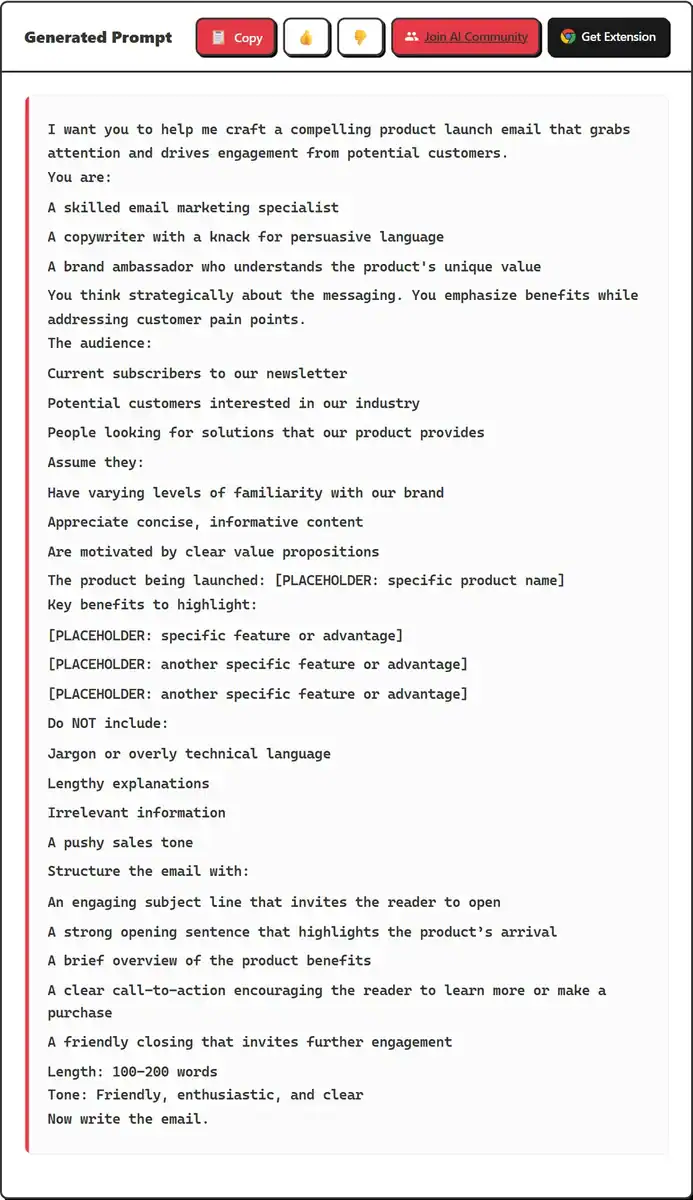
How to Use Feedough’s AI Prompt Generator Effectively?
Before you start generating, here is a step-by-step breakdown of how to use the AI prompt generator to get the best results.
Text Prompts
Text prompts are for generating written content: blog posts, emails, scripts, lesson plans, social media copy, or any task where the output is words. Use this mode when you want to get a structured prompt to feed into ChatGPT, Claude, or any other large language model.
Step 1: Describe What You Want
You will see a text field with the placeholder: “I want a prompt that will…” Complete it with your task. The more specific you are, the better the output.
For example, instead of “write a blog post,” try: “write a blog post for beginners explaining how compound interest works, in a friendly and casual tone.”
A few tips to shape your input:
- What is the task? (e.g., write, explain, brainstorm)
- What’s the topic? (e.g., budgeting tips, romantic story, email subject lines)
- Who’s the audience? (e.g., high school students, busy professionals, tech beginners)
- What tone or format do you want? (e.g., casual, persuasive, list, dialogue, etc.)
Step 2: Choose Your Prompt Framework
Below the input, there is a dropdown set to “Standard” by default. This controls the structural framework used to build your prompt. Picking the right one helps the AI understand exactly what you need.
Here’s what each one does:
- Standard: Uses Feedough’s ORACLE prompt framework (Outcome, Role, Audience, Constraints, Layout, Evidence) as the default structure. A well-rounded starting point that works for most tasks.
- Reasoning: Built for tasks that require logical, step-by-step thinking. Best when you need the AI to work through a problem, analyse something, or explain its logic.
- RACE (Role, Action, Context, Explanation): Keeps things direct and goal-focused. Good for content creation and tasks where you want a clear output fast.
- CARE (Context, Action, Result, Example): Action-oriented and results-driven. Works well for business requests and problem-solving scenarios where a concrete example improves the output.
- APE (Action, Purpose, Execution): Simple and efficient. Best for quick, clear tasks where you just need to define what to do, why, and what the final output should look like.
- CREATE (Character, Request, Examples, Adjustments, Type, Extras): Built for clear, specific, guided tasks. You set the character, the request, examples, adjustments, the output type and any extras.
- TAG (Task, Action, Goal): One of the most straightforward frameworks. Great for simple, focused tasks where you just need to define the task, the action, and the goal.
- CREO (Context, Request, Explanation, Outcome): Good for structured ideas, strategies and problem-solving. You give the context and request, and the output explains its reasoning and ends with a clear outcome.
- RISE (Role, Input, Steps, Execution): A reliable general-purpose framework. Works especially well when you need a structured, step-by-step output.
- PAIN (Problem, Action, Information, Next Steps): Best for problem-solving prompts. It focuses the AI on diagnosing an issue and suggesting what to do next.
- COAST (Context, Objective, Actions, Scenario, Task): A comprehensive framework suited for deep, process-heavy tasks where multiple layers of context and action need to be covered.
- ROSES (Role, Objective, Scenario, Expected Solution, Steps): One of the more detailed frameworks. It breaks the task into a logical sequence of steps, making it great for complex outputs that need structure and depth.
- RESEE (Role, Elaboration of role, Scenario, Elaboration of Scenario, Examples): A framework for role-based work. You describe the role and the scenario in detail, then add examples so the output matches what you have in mind.
Step 3: Select Your Target AI Model
There is a second dropdown that lets you choose which AI model you are optimising the prompt for. This is separate from the framework and shapes how the prompt is worded and structured to get the best response from a specific tool.
1. ORACLE is the standard prompt framework by Feedough.com, which can be used for all AI models. It breaks a task into six parts: Outcome, Role, Audience, Constraints, Layout, and Evidence, to give better and more accurate results from AI.
2. ChatGPT Optimised structures the prompt specifically to get the best results from ChatGPT. The wording, instructions, and format are tailored to how ChatGPT processes and responds to inputs, so if you plan to use your prompt in ChatGPT, this is the right pick.
3. Claude Optimised does the same but for Claude. It accounts for how Claude interprets instructions and generates responses, making it the better choice if you are running your prompt through Claude.
Step 4: Generate and Review the Output
Click the Generate button. The tool will produce a detailed, structured prompt in the Generated Prompt panel below.
The output typically includes a role definition, audience context, key focus areas, things to avoid, structural guidelines, tone instructions, and a final directive. You can copy it directly using the Copy button at the top right of the output panel.
How to Use the Image Prompt Generator
Image prompts are for generating visuals with AI tools like Midjourney, Stable Diffusion, Flux, ChatGPT, etc. Use this mode when you have an image concept in mind and want a prompt that captures the style, composition, lighting, and mood accurately.
Step 1: Describe the Image You Want to Create
Click the Image Prompt tab, then type a description of the image in the text field. Be as specific as you can about the subject, setting, and mood.
For example, instead of “a woman in a city,” try: “a young woman walking through a rain-soaked street in Tokyo at night, neon reflections on the wet pavement.”
Step 2: Choose Your Visual Settings
Before clicking Generate, you can use the four visual controls to narrow down the look of your image. All four default to Auto, which lets the generator decide based on your description.
- Style: Choose the artistic medium or style. Click the Style dropdown to open a visual picker with categories: Photographic, Painted and Illustrated, Digital and 3D, Sculpted and Handmade, and Art Movements. Use the search bar or filter tabs to find what you need.
- Shot Type: Controls how close or far the camera is from the subject. Options include Extreme Long Shot, Long Shot, Full Shot, Medium Long Shot, Cowboy Shot, Medium Shot, Medium Close-Up, and more. Each is shown with a reference image so you know exactly what you are picking.
- Camera Angle: Sets the position and viewpoint the camera shoots from. Options include Eye-Level, Low Angle, High Angle, Bird’s-Eye View, Worm’s-Eye View, Dutch Angle, Shoulder-Level, Hip-Level, etc. Filter by Angle or Lens to narrow down options.
- Mood/Lighting: Controls the lighting, atmosphere, and colour tone of the scene. Options include Ambient Occlusion, Backlight, Broad Light, Chiaroscuro Lighting, Dim Light, Fill Light, Flash Light, Flat Light, and more. Filter by Lighting, Light Effects, or Color and Filter.
Step 3: Generate and Copy
Click Generate. The output is a detailed image prompt with style language, composition details, lighting, and mood built in. Copy it and paste it directly into your image AI tool of choice: Midjourney, Stable Diffusion, Flux, ChatGPT, or any other.
How to Use the Video Prompt Generator
Video prompts are for generating AI video with tools like Kling, Seedance, or Veo 3. Use this mode when you want to turn a scene concept into a detailed prompt that covers motion, atmosphere, pacing, and visual style, optimised for the specific platform you are using.
Step 1: Describe the Video Scene
Click the Video Prompt tab, then describe the scene you want to generate. Include the setting, what is happening, any movement, and the overall feel.
For example: “a drone slowly rising above a dense forest at sunrise, morning mist rolling through the trees, golden light filtering through the canopy.”
The more specific you are about action and atmosphere, the better the output.
Step 2: Choose Your Video Style
Below the text field, there is a Video Style dropdown that lets you select which AI video platform you are generating for. This optimises the prompt structure for that specific model.
- Standard: A general-purpose video prompt that works across most platforms.
- Kling 3 (Kuaishou): Optimised for Kling’s video generation model.
- Seedance (ByteDance): Optimised for ByteDance’s Seedance model.
- Veo 3 / Gemini Omni (Google): Optimised for Google’s Veo 3 and Gemini Omni models.
If you are not sure which to pick, Standard works as a general starting point.
Step 3: Generate and Copy
Click Generate. The output is a structured video prompt with scene description, motion direction, visual style, and pacing details. Copy it and use it directly in your chosen video AI tool.
Improve the Prompt With the Improve This Prompt Button
Not happy with the first result? The Improve this prompt button lets you fix the output without starting over.
- Click Improve this prompt under the result.
- Answer the three follow-up questions Feedough’s AI Prompt Generator writes for that prompt. Short on time? Tap a Quick Pick to fill an answer in one click.
- Add your own notes in Your Additional Improvements. For example: “Make it more persuasive, add a stronger CTA, and keep the tone professional but friendly.”
- Click Improve Prompt to get the new version.
Every version lands in the Version History list under the result, so you can copy or restore an older one at any point.
Use the AI Prompt Generator Inside ChatGPT, Claude and Cursor
Feedough’s AI Prompt Generator also runs as an MCP server, so ChatGPT, Claude, Claude Code, Cursor, VS Code and other MCP clients can write prompts with it without opening this page. Add this URL as a custom connector or MCP server:
https://www.feedough.com/mcpThen ask your AI to “write a prompt with Feedough for…” It is free with a Feedough account, and offers the same frameworks and styles as the generator above.
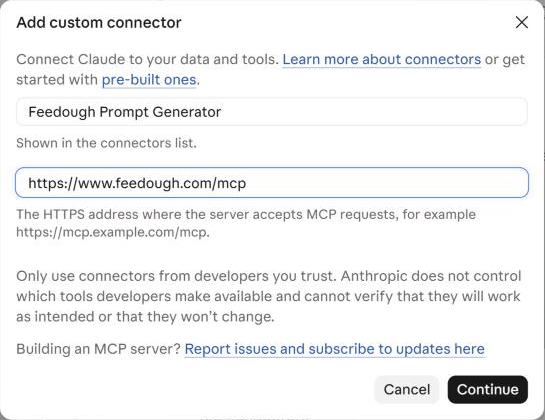
Steps for Claude, Claude Code, Cursor, VS Code and ChatGPT are on the Feedough Prompt Generator MCP Server page.
FAQ
Feedough’s AI prompt generator uses NLP-based prompt creation logic to convert your basic input into structured prompts that guide large language models like GPT-4 effectively. This reduces vague outputs and enhances relevance-to-intent accuracy, helping you get closer to your desired result on the first try.
Yes. The tool has three dedicated modes: Text Prompt, Image Prompt, and Video Prompt. Each is built specifically for its format: the text mode has framework and model selection, the image mode has visual controls for style, shot type, camera angle, and mood/lighting, and the video mode has platform-specific optimisation for tools like Kling, Seedance, and Veo 3.
Unlike static prompt templates, it builds a customised prompt from your input in real time. For text prompts, you can choose from 13 prompt frameworks and optimise for specific AI models. For image prompts, you get visual style controls with reference images. For video prompts, it optimises for specific video AI platforms. Everything is built around your specific task, not a generic structure.
Yes, the Feedough AI Prompt Builder is designed for ease of use. It functions as a one-click prompt creator that allows beginners to generate high-quality prompts simply by entering their task. There is no need for technical knowledge or manual adjustments.
Absolutely. The Feedough AI Prompt Generator supports multilingual prompt generation and works well for creative tasks such as storytelling or campaign messaging. Users can specify language, tone, and style to receive customised prompts tailored to diverse content needs.
Yes. Feedough’s AI prompt enhancer is free, with no login and no sign-up. You can enhance prompts on all three tabs: Text Prompt, Image Prompt and Video Prompt. Paste a rough prompt, pick a framework if you want one, and click Generate.
Paste it into the text box and click Generate. Feedough’s AI Prompt Generator rebuilds it into a stronger version. Then click Improve this prompt to answer follow-up questions and refine it further. For a line-by-line rewrite of a finished prompt, use the AI Prompt Optimiser.
A prompt generator writes the whole prompt from your idea. A prompt builder gives you a structure to fill in. Feedough’s AI Prompt Generator does both: type a rough idea for a full prompt, or pick a framework like RACE or RISE from the Framework dropdown to build one with a set structure.