I’ve been looking at AI-generated images all year, and the ones that actually look professional aren’t raw output. Someone ran them through an enhancer before you ever saw them.
That step makes or breaks the result, and most tools just sharpen what’s already there and add ugly artifacts.
The AI image enhancer market has grown to $2.83 billion this year according to The Business Research Company, so I’ve had to sort through the hype to find the ones that actually deliver for you.
I’ve been burned before by enhancers that promised 8x upscaling and delivered mush. So I spent this year narrowing it down to the eight that actually improve your photos instead of just making them look sharper.
These are the 8 AI image enhancers I’d actually trust with your photos in 2026.
The Rundown
- Refine Real Photos in Chat: ChatGPT, “Upload a faded scan, describe the fix in plain language, and keep refining the same image in one conversation.”
- Keep Faces Consistent Across Edits: Gemini Nano Banana, “Swap backgrounds and adjust colors on real photos while faces, jewelry, and clothing patterns stay identical through every edit.”
- Sharpen AI Art Without Losing It: Krea, “Set the resemblance slider high to sharpen Midjourney and Flux renders without erasing the detail you liked.”
- Fix a Phone Snap in One Click: Picsart, “Upload and let the AI handle noise, blur, and lighting automatically, though free downloads stay low resolution.”
- Enlarge for Print on Your Machine: Topaz Gigapixel, “Scale images up to 6x locally, with per-face recovery built for portraits heading to print.”
- Invent Detail the Source Never Had: Magnific AI, “Push the Creativity slider to generate fabric weave, skin pores, and foliage depth missing from the original.”
- Upscale Without Signing Up: Upscale.media, “Drop a photo in your browser for a free 2x or 4x pass, watermark-free, with no account needed.”
- Keep Every Upscale on Your GPU: Upscayl, “Run open-source upscaling entirely on your own hardware, with no account, no watermark, and nothing sent to a cloud.”
The Best Ai Image Enhancers
ChatGPT
Pricing | Free with limits; paid tiers add capacity |
Best For | Conversational cleanup and refinement of real photos |
Ease of Use | Low, with no learning curve |
Supported Models | GPT Image 2.x family (Images 2.0, 2.5) |
Platforms | Web, desktop, mobile |
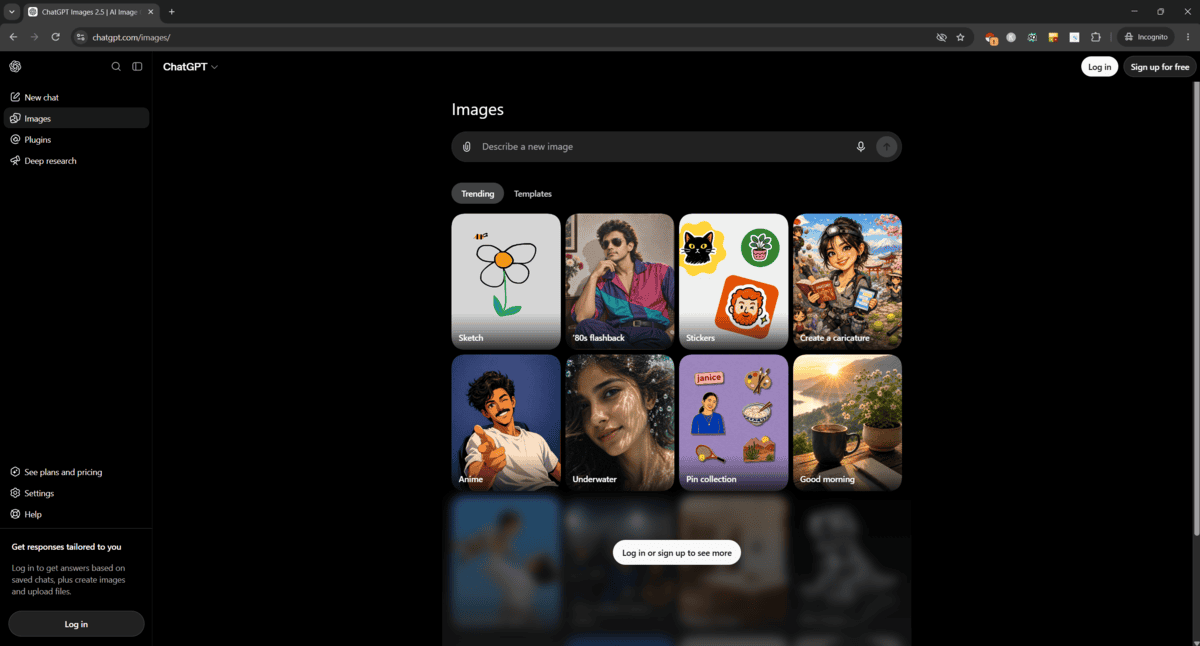
The workflow is the whole pitch. Upload a photo, type what you want fixed, keep refining in the same conversation. In a June 2026 hands-on, photographer Harry Guinness at Zapier called it the best and easiest-to-use AI image generator available, describing the editing surface as three moves: chat refinement, upload-as-reference, and select-and-replace.
I tested it on a faded family scan using the prompt that keeps circulating in photography communities: “Restore this old photo to look like a modern camera image. Deblur, denoise, sharpen.” A DPReview photographer posted the same one-shot result framed as a miracle. For light damage, it genuinely holds up.
One honest limit. ChatGPT reconstructs pixels rather than preserving them. Output caps around 2K, so large prints need a dedicated upscaler. On badly blurry faces it invents detail and airbrushes skin. The 2026 workaround: bake preservation constraints into the prompt, such as “keep every face exactly as it is.”
OpenAI reports Images 2.5 cuts latency by up to 50% and keeps edits consistent across longer chats. That claim is vendor-reported. Generation waits on paid plans still reach 10 to 30 minutes at times.
If your workflow already lives in a chat window and you want cleanup rather than forensic restoration, this is the pick. If you need pixel-perfect preservation or huge output, look at dedicated upscalers instead.
Gemini Nano Banana
Best for | Editing uploaded photos with subject consistency |
What it is | Nano Banana 2, Google’s Feb 2026 image model |
Output resolution | 512px up to 4K |
Subject consistency | Up to 5 characters, 14 objects per workflow |
Pricing | Free daily allowance; paid plans reported near $5/mo; API per image |
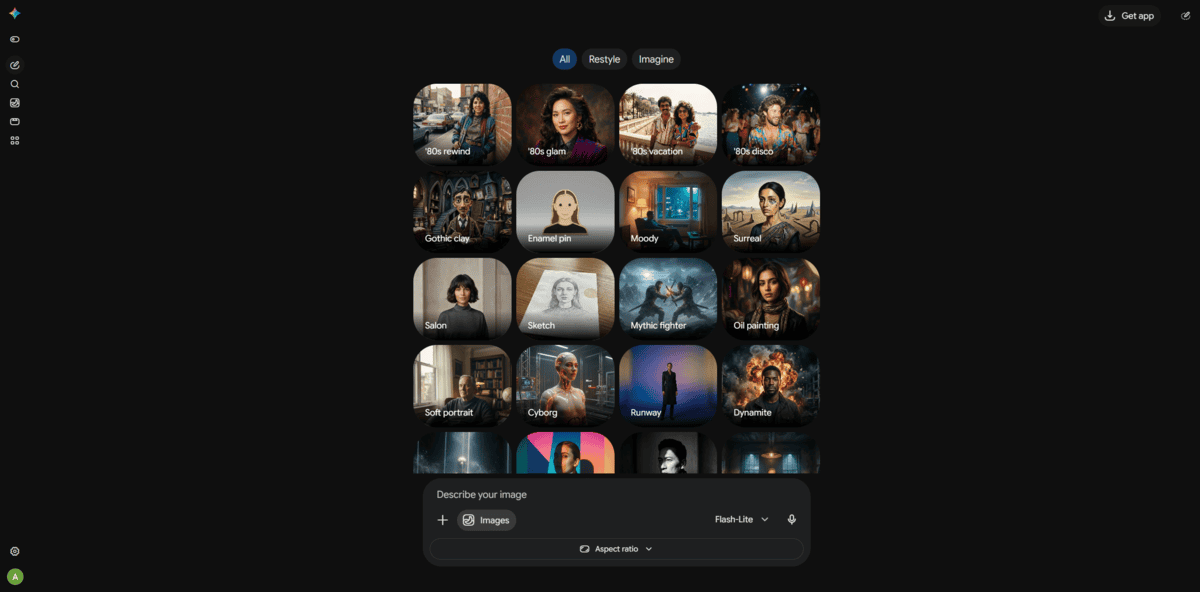
The name has moved around. Here’s the 2026 map. TechCrunch’s launch report covers the Feb 26, 2026 launch of Nano Banana 2, which is technically Gemini 3.1 Flash Image. It became the default image model in the Gemini app, Search AI Mode, and Flow, and it outputs 512px up to 4K while holding up to five characters and 14 objects consistent. Pro is still around, kept behind the AI Pro and Ultra paywall. A cheaper, faster Lite version turned up mid-year as the budget tier.
I uploaded product shots and portraits and asked for background swaps, color tweaks, and people removed. The face stayed put. Clothing patterns, jewelry, and details I never even mentioned survived the edit. That consistency is why I’d pick it over a generic image generator.
One habit matters more than any prompt trick: start a fresh chat for every edit. Keep piling changes into one thread and quality starts to slip.
There’s a catch. If the face is famous, it can ignore your photo and paint what it thinks the person looks like. It’s widely reported in the Gemini community. Three fixes work. Anonymize the prompt so the subject reads as an unknown private individual. Open with explicit identity-lock language telling the model to use only your image. Edit in a clean chat.
I’ll be honest: as an enhancer, it has a ceiling. There’s no batch processing. In an independent June 2026 shootout of web upscalers, Take Better Photos ranked Gemini third, behind Topaz and Magnific. The same tester found quality remarkably close to both, at a fraction of the price. Gemini actually beat Magnific on the most damaged, heavily cropped photos. You give up fine texture detail on fur and skin, and any bulk workflow.
Pricing stays friendly. There’s a free daily allowance in the Gemini app. Paid consumer plans are reported around five dollars a month, though sources differ. API costs run to pennies per image. I’d reach for it when you’re editing an existing photo and the subject has to stay recognizable. If you need pixel-level control or real batch upscaling, this isn’t your tool.
Krea
Best For | AI-generated image enhancement and upscaling |
Standout Feature | Resemblance slider keeps AI-art detail faithful while sharpening |
Free Tier | $0, 100 compute units/day, no signup, upscaling capped around 2K |
Paid Plans | Pro $35/mo, Max $105/mo, Business $200/mo |
What To Watch | Credit burn and billing complaints show up in user reviews |
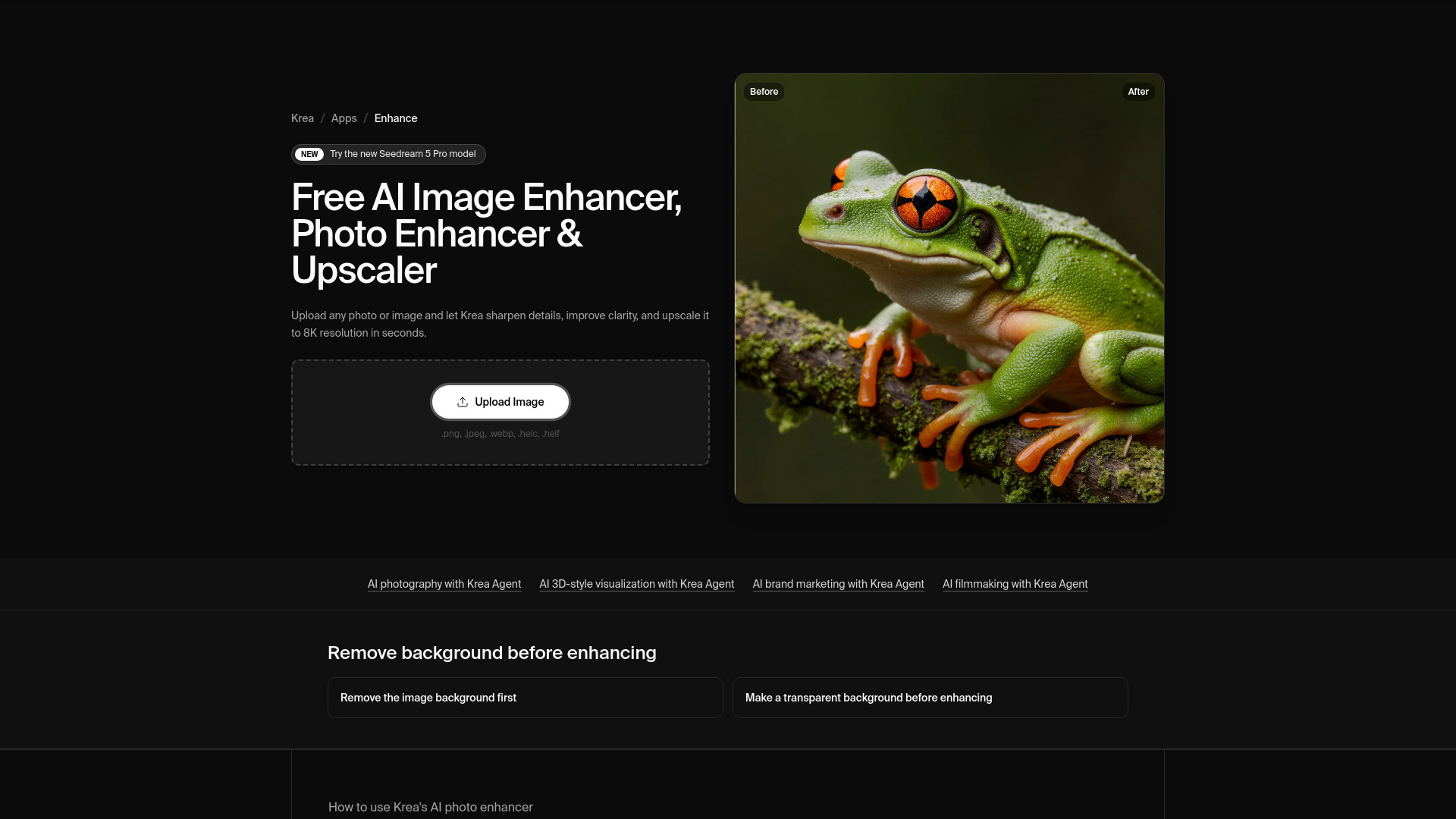
If you generate AI art in Midjourney or Flux and the render comes out soft, this is where I’d start. Upload the image, set your target resolution, and Krea rebuilds the detail.
The resemblance slider is the control I kept returning to. Keep it high and the output stays faithful to your original while sharpening. AI strength decides how assertively the model invents detail. Clarity adds edge contrast, so raise it slowly. Push it too far and you get halos and crunchy noise.
Krea says you can upscale to 8K in seconds, with free use and no signup. That is the company’s own claim, not a benchmark I ran. An independent designer review puts the free ceiling around 2K, and it roughly matched my own runs. Paid tiers are Pro $35/mo, Max $105/mo and Business $200/mo, with annual billing around 40% off and Pro near $21/mo effective. Promos appear, so check the live page.
For AI-generated images this is my pick, because invented detail is exactly what a stylized render wants. Not for everything. A practitioner test on r/upscaling found Topaz and Photoshop still set the bar when fidelity has to survive, while generative tools can invent detail the original never held. Those sources were search snippets, so treat that as directional rather than verified. If likeness must hold, keep resemblance high.
My main issue is consistency. On Trustpilot, Krea sits at 3.6/5 across 158 reviews, a polarized split with credit burn and billing friction complaints, plus praise for speed and color accuracy. Krea 2, the in-house model, ships as open weights with ComfyUI support, but community testers report seam artifacts in tiled workflows outside Krea’s own enhancer UI. The independent designer review calls it a divergence engine rather than a delivery tool, with no vector export. For portfolio, print and billboard delivery I’d still recommend it, as long as you tune resemblance and AI strength yourself.
Picsart
Best for | Quick social media fixes, casual photographers, small business owners |
One-click flow | Upload, AI auto-analyzes, download. No sliders required |
Free tier | Low-resolution downloads only; high-res needs a paid plan |
Pricing | Pro $10.50/mo billed yearly (list $15), per Picsart’s own site |
Watch out for | Upscale caps at 4x/4096px per Picsart’s stated limit; strongest features sit behind the paywall |
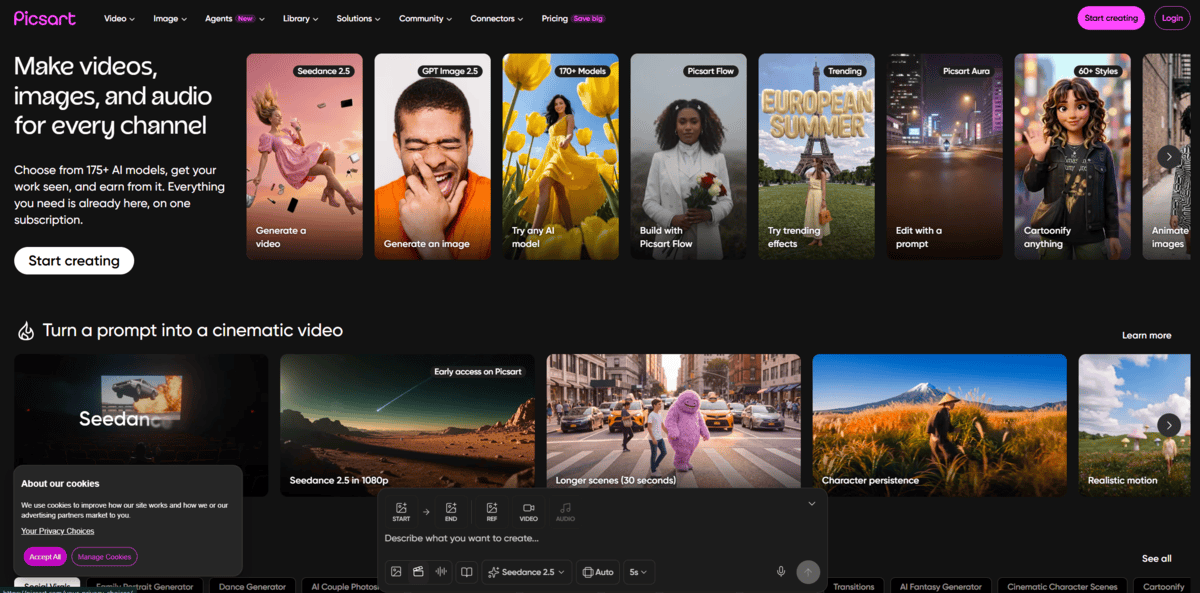
Speed is the entire point of this one. You upload, the AI analyzes automatically, and you download. No sliders, no manual sharpening radius, no guessing. Picsart’s own description says its enhancer is trained to identify and correct noise, blurriness, and low contrast on its own, fixing lighting and color automatically. Treat that as their claim. Independent testing is narrower.
Digital Photography School ran a six-tool sharpening test and found Picsart applies x2 or x4 upscaling automatically alongside sharpening, with jagged lines becoming smoother and edges more defined. It’s not built for camera RAW files. I found that fine for phone snaps, but worth knowing if you shoot on a proper camera.
For heavy repair work there’s a clearer split. One 2026 Reddit comparison concluded that Canva and Picsart both work well when speed matters, while Topaz was the clear pick when blur, noise, or missing detail is the real problem. I’d add my own caveat: if you need broken edges and noise cleaned up in a single pass, you will probably want something stronger. Quick social posts, yes. Damaged files, not really.
The catch is the free tier. Free downloads come out low-resolution only, high-res sits behind a paid plan, and the strongest editing features are paid features. User reviews are broadly positive on ease and tool breadth. The recurring complaints are subscriptions and billing, not the enhancer’s output.
One thing I keep in mind before I hit publish: AI enhancement reconstructs plausible detail. It doesn’t recover what the camera never captured. For a fast fix on a phone snap, that’s plenty. Don’t expect miracles.
Topaz Gigapixel
Pricing | About $149/year annual, $29/month month-to-month, $399/year Studio bundle |
Best For | Print-ready enlargement up to 6x, face work, rescue of compressed files |
Processing | Runs locally on your own computer, with cloud available for the heaviest models |
Hardware | 16GB RAM baseline, a powerful GPU recommended for large jobs |
2026 Models | Wonder 3 (generative), High Fidelity 3 (faithful), Face Recovery 3 (per-face) |
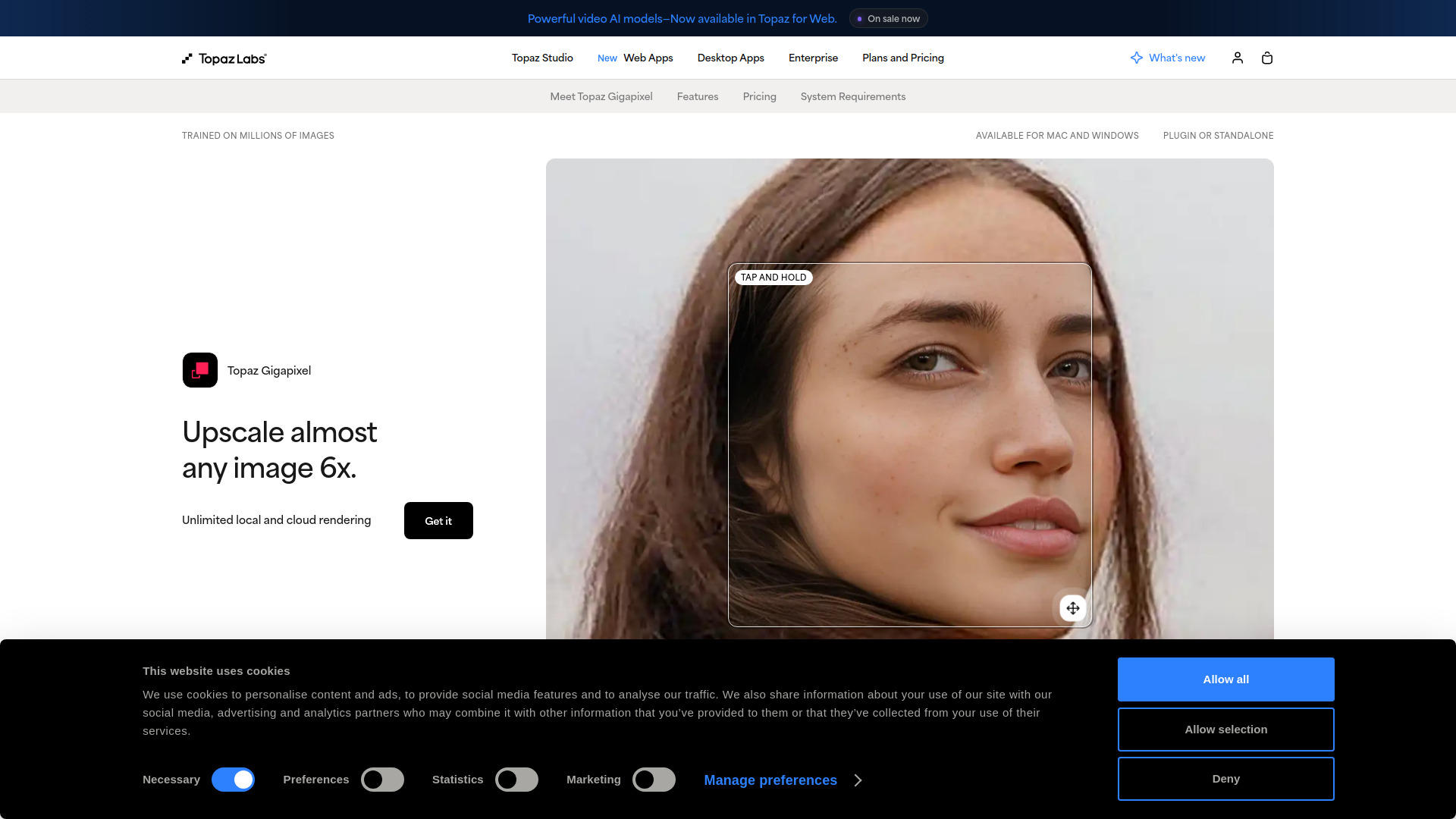
What stood out to me first had nothing to do with model names. Your files stay on your own machine. Gigapixel runs locally and scales images up to 6x, restoring detail, reducing noise, and fixing compression artifacts. That matters if you handle confidential client material, or you simply don’t like uploading originals. The 2026 lineup pushes even the big generative work onto consumer hardware.
I watched a 4x landscape job render locally in about four minutes. The same job in the cloud finished in under a minute, according to a May 2026 demo on The Joy of Editing (the presenter is a Topaz affiliate, disclosed). Local is slower. That is the trade you’re making for files that never leave the machine.
Model choice matters more than the sliders. High Fidelity 3 enlarges images that already have detail. Wonder 3 rebuilds small or damaged sources. Face Recovery 3 works face by face. My main issue: face recovery defaults to strength 100. In a DPReview comparison thread, one tester showed it distorting eyes, nose, lips and teeth at that setting. Dropping it to around 30 cut the distortion right down. I’d start at 30 to 50 and judge from there.
Quality respect is still high. An independent 2026 review scored it 4/5 and called it the gold standard for pure image upscaling. I agree with the direction. Compressed file rescue is where it beats fancier generative tools. It can over-smooth abstract textures, though, and there is no region-selective processing. The whole image gets the same treatment.
Adobe has noticed. Lightroom 9.2 and Photoshop 2026 now embed Gigapixel technology, but those in-app routes are cloud and credit based, as outlined in this walkthrough of the Lightroom 9.2 update. If local processing is your reason for buying, the standalone app stays the pick.
The pricing shift is the objection I keep running into. Perpetual licences ended in October 2025, and that same review puts standalone Gigapixel at around $149 a year. In an r/AskPhotography pricing thread, one commenter argued Topaz now produces weird artifacts and glitchy upscales compared with newer tools. That is the sceptical minority. The hardware demands are real too: 16GB RAM is a practical baseline, and large jobs eat memory.
If you enlarge for print, work heavily with faces, or need to rescue compressed files, Gigapixel earns the subscription. Run your worst file through the demo first and let the result decide.
Magnific AI
Standout control | Creativity + Resemblance sliders, prompt-guided detail |
Pricing (checked Aug 2026) | Premium $20/mo, $14.50 annual, ~240K credits/yr |
Free plan | None on the pricing page |
Watch out for | High Creativity drifts faces, geometry, text |
Processing time | 2x in 2-4 min; 4x or larger, 5+ min |
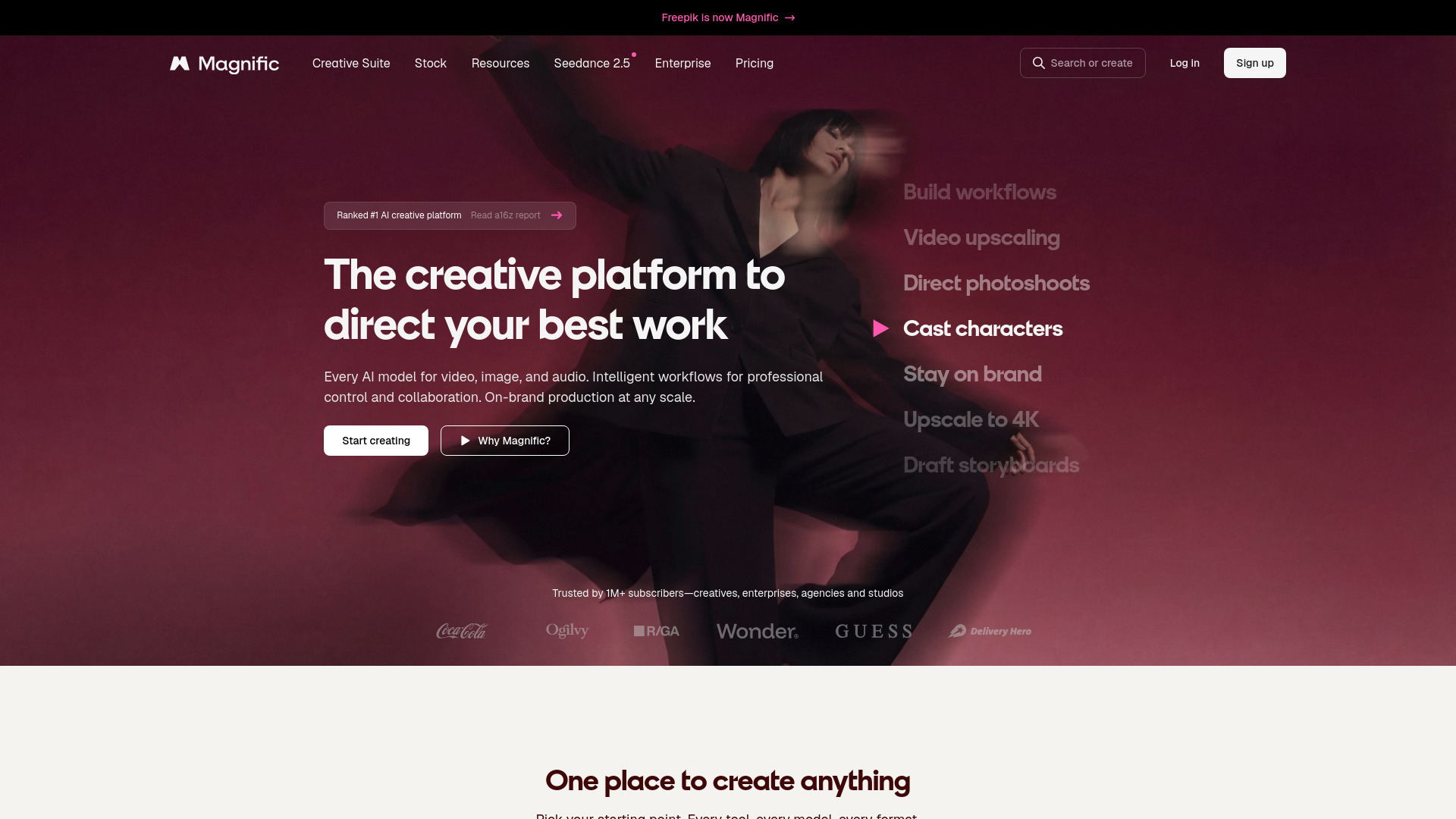
Magnific is a generative upscaler. Instead of stretching pixels, it invents fabric weave, skin pores, light depth, and foliage. I liked it most on Midjourney and Flux generations, which often look smooth and slightly fake.
The Creativity slider is the whole game. At 0 you get a sharper version of the input. At 10 you get a new image that vaguely remembers the input was once there. The reviewer’s 2026 editor’s note confirms Freepik’s April rebrand to magnific.com; magnific.ai is legacy-only now. I run Creativity 4 with Resemblance 6 for hero images. For a near-identical upscale, drop to -10 and push Resemblance to +10. Always add a prompt when Creativity climbs; that keeps invented buildings out of your tree line.
Precision mode is the fallback when the source must stay true. Curious Refuge’s benchmark scored it 7.9/10 overall, including 9.1 for preserving the original, keeping pores, freckles, and fur intact. It sharpens what is there instead of repairing what is broken, so a malformed face stays malformed, just crisper.
What annoyed me: heavily cropped, noisy photos come out worse. Magnific amplifies compression artifacts instead of cleaning them. Slider tuning burns credits fast, and high Creativity drifts faces, geometry, and text.
Pricing is credit-based. When I checked, Premium ran $20/mo or $14.50/mo billed annually, roughly 240,000 credits a year. No free plan appears on the pricing page, so treat the first month as a paid trial. Numbers move, so verify before committing.
Topaz usually wins on photo fidelity, with Krea sitting between the two. For added detail, Magnific is still the first tool I’d open.
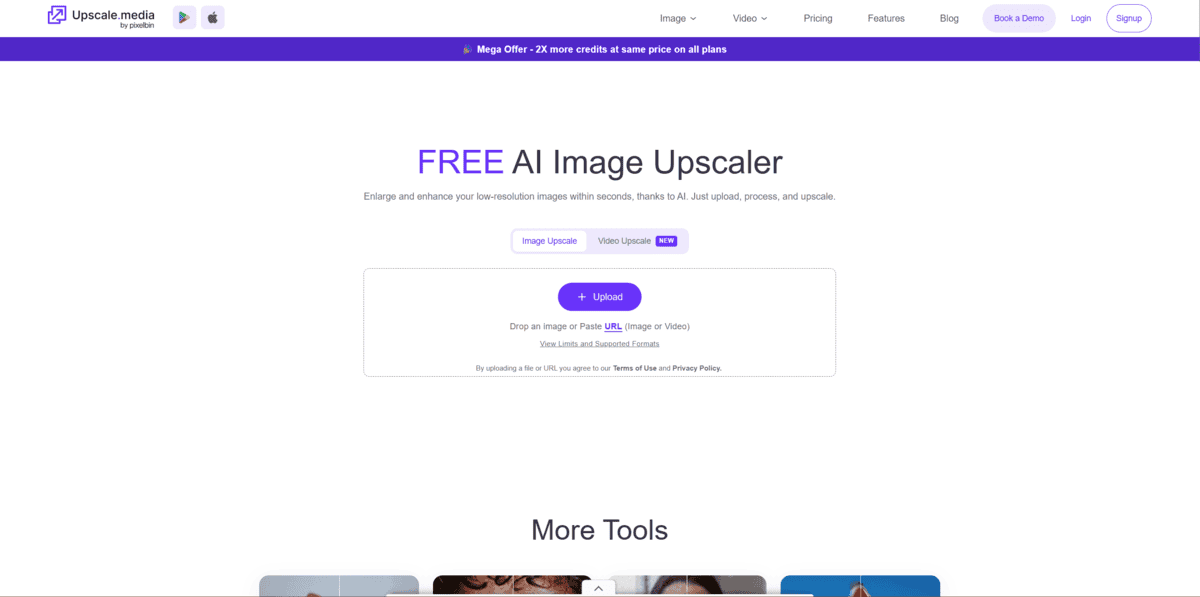
Upscale.media
Best for | Quick, free browser-based 2x/4x enhancement jobs |
Max upscale | 8x (paid tier); free covers 2x/4x |
Free tier | 3 credits and 3 downloads per month, or 1 image/day without signing up |
Paid options | $69.99/year subscription or one-time credit packs from $5.99 to $54.99 |
User rating | 4.9/5 on Product Hunt from 67 reviews |
If you need an image fixed in the next five minutes and you don’t want to hand over a credit card, Upscale.media is the tool I’d reach for. You drop a photo in the browser, pick 2x or 4x, and it comes back sharpened with the blur pulled out. HEIC files straight from an iPhone work fine, transparent PNGs keep their transparency, and the output has no watermark stamped on it.
The free tier is where this tool makes sense. You get 3 credits and 3 downloads per month, and you can even upscale one image a day without creating an account at all. On top of the upscaling you get sharpen, retouch, enhance face, deblur, dehaze, remove motion blur, restore and colourise tools in the same place, so a tired old scan can get revived without jumping between three different websites. Face enhancement is included on every plan, not just paid ones.
What I liked most: real people use it for exactly these jobs. Product Hunt reviewers describe rescuing blurry book scans, cleaning up game-engine textures and batch-fixing dozens of personal art pieces in minutes, and the site holds 4.9/5 from 67 reviews there. One reviewer even said the output beat Photoshop resizing at zero cost, which is the comparison I think matters for casual users.
My main issue: it isn’t flawless. Reviewers consistently report that text inside images turns blurry or wavy after upscaling, so screenshots and documents are the wrong use case. There’s also a June 2026 Trustpilot complaint about a paid upscale returning with stripe artifacts and slow, chatbot-only support, though that 2.7/5 score rests on just 4 reviews, so I wouldn’t read too much into it.
For context on the 2026 market: Magnific, the brand everyone else benchmarks against, is now the whole Freepik platform since April 2026, and an independent hands-on test prices the paid field at $19/month for Topaz and around $20/month for Magnific. I’d recommend Upscale.media for anyone upscaling a handful of images a month, who just needs 2x or 4x and a cleaner face, not invented detail.

Upscayl
Pricing | Free desktop app (AGPL-3.0 open source) |
Best For | Local upscaling of screenshots, logos, illustrations, documents |
Platforms | Windows 10+, macOS 12+, Linux |
Hardware | Vulkan-compatible GPU required; most iGPUs unsupported |
Max Scale | Up to 16x via chained 4x passes (Double Upscayl) |
The first thing I noticed was how little the app asks of me. No account, no watermark, nothing leaves my machine. It runs entirely offline on my own hardware. For images I would rather not hand to a cloud service, that alone earns it a spot on my list.
One caveat before you download anything. The project’s own FAQ is blunt about it. You need a Vulkan-compatible GPU, and most integrated graphics will not work. It also cannot de-blur or rescue an out-of-focus shot. If your problem image is blurry, look elsewhere.
Still, on supported hardware it moves fast. Dedoimedo’s July 2026 re-review measured VRAM use at 1.2 to 1.3 GB, and the reviewer estimated processing at 10 to 20 percent quicker than before, though he noted that might partly come from updated graphics drivers. I also like the new Lite model, which lets me preview a result before committing to a long render. He summed the tool up as “a prime example of quality, usefulness and privacy.”
Model choice changes everything. Remacri and High Fidelity are the all-rounders I keep coming back to. Ultrasharp is aggressive and can mangle faces and painted art, which matches Andriy Mikhailovich Tech’s eight-image test across every model. Digital Art suits anime and illustration. Ultramix handles architecture beautifully, but expect a long wait.
About that 16x headline. Each AI pass is 4x. Reaching 16x means chaining two passes with Double Upscayl, which multiplies render time and file size. For extreme low-res sources it earns its keep. Otherwise I start at 2x and judge the result myself.
Against Topaz Gigapixel or Magnific, Upscayl is the free, local alternative that stays faithful to the original. Paid tools still win on faces, fine texture and noisy sources. If that is your everyday work, pay for it. If it is not, Upscayl does the job without asking for a card.