AI Image Prompt Generator
Describe the picture you want and get a ready-to-paste prompt for Nano Banana, ChatGPT, Midjourney, FLUX or any image AI. Free, no login.
A good AI image prompt generator turns your description into a prompt written for your image model. Type what you picture, choose a few settings, and pick your image model. It’s free, and no login is needed. Signing in only saves your prompts to My prompts.
A vague prompt gives a vague image. Type “a cat on a sofa” and you’ll get a flat, stock-looking result. The generator adds the details you forget: style, shot type, camera angle and lighting. Below you’ll also find a real output, how each model reads prompts, and the mistakes to avoid.
How to Use the AI Image Prompt Generator
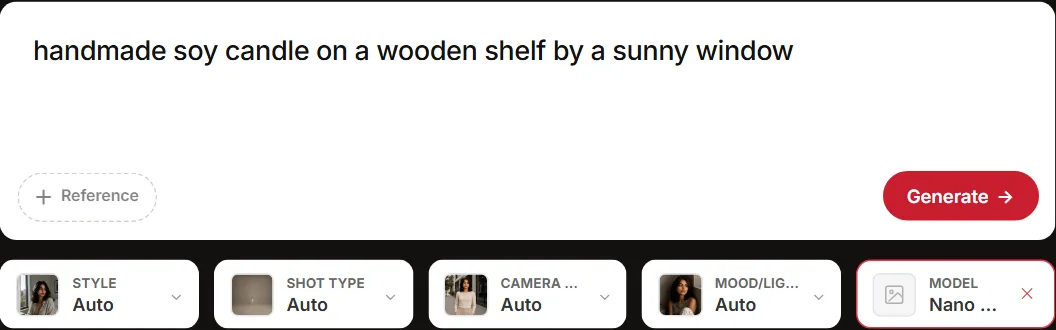
The form sits right above this guide. Four short moves and you have a prompt ready to paste.
Step 1: Describe the Image (and Add a Reference if You Have One)
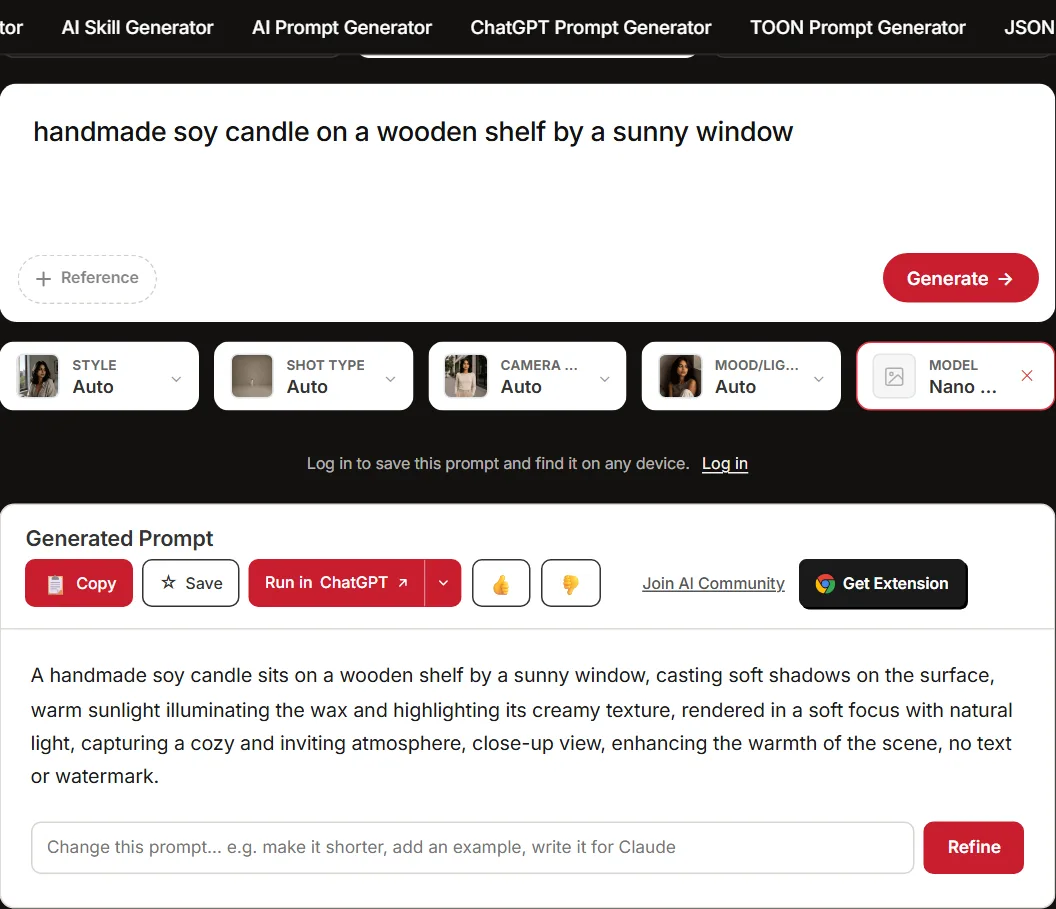
Write what you want to see. Name the subject, what it is doing, and where it sits. A small-business owner might type “handmade soy candle on a wooden shelf”. Got a photo the prompt should match? Upload it as a reference image. That upload is optional.
Step 2: Set Style, Shot Type, Camera Angle and Mood
Style, Shot type, Camera angle and Mood/lighting all start on Auto. Change only the ones you have an opinion on. For the candle photo, set Shot type to close-up and leave the rest. Auto is a fine default for every dropdown. A field earns its place when you already know what you want.
Step 3: Choose Your Image Model
The Model picker lists Auto, Nano Banana, ChatGPT Images, Midjourney, FLUX, Stable Diffusion, Leonardo, Adobe Firefly, Ideogram and Seedream. Pick the one you will paste the prompt into, because the prompt gets written for that model. Not decided yet? Leave it on Auto and choose later.
Step 4: Generate, Then Copy, Improve or Run It
Click Generate. Your prompt appears with three buttons. Copy takes it to your image tool. Improve refines the prompt. Run in ChatGPT or Gemini opens it in that chatbot. The tool is free and needs no login. Sign in only if you want prompts saved to My prompts.
Example: A Real Prompt From the Generator
What Went In
Two runs from the Image tab, both on 12 November 2026. Every dropdown stayed on Auto.
- Nano Banana: “a cozy bookstore cafe in Kolkata on a rainy evening, a girl reading by the window”
- Midjourney: “a red sports shoe floating above a puddle with a splash”
What Came Out
Nano Banana returned one full sentence:
A girl sits reading by the window of a cozy bookstore cafe in Kolkata on a rainy evening, raindrops trickling down the glass, warm light spilling from vintage lamps, shelves filled with books surrounding her, the scent of coffee in the air, captured in Soft Focus Photography, Medium Shot, Eye-Level, Warm Ambient Light.
Midjourney got short phrases, with an aspect ratio flag at the end:
a red sports shoe floating above a puddle with a splash, vibrant colors, dynamic composition, detailed reflections, high contrast, Digital Art, Full Shot, Eye-Level, Bright Daylight –ar 16:9
Both prompts open with the scene, then add details. The style, shot, angle and lighting labels come from the Auto picks. A short line in, a model-ready prompt out.
How Nano Banana, ChatGPT Images and FLUX Want Prompts Written
One prompt rarely fits every model. Google, OpenAI and Black Forest Labs each publish prompt guides for their image tools. They agree on the basics: describe the scene in order of importance. The fine print differs, which is why the generator asks for a target model.
Take one idea, a chai stall at dusk. Each guide would phrase it differently. These lines are written as illustration, not tool output:
- Nano Banana: “A chai stall at dusk on a busy Mumbai street, low angle, cinematic style.”
- ChatGPT Images: “Scene: a chai stall at dusk. Subject: a vendor pouring tea. Details: steam, warm lamps. Photorealistic.”
- FLUX: “A chai stall at dusk, a vendor pouring chai, photorealistic, warm lamps, busy street.”
Nano Banana (Gemini)
Google’s Nano Banana prompting guide gives a formula: Subject + Action + Location/context + Composition + Style. Steer the camera with words like “low angle” or “aerial view”. Google offers it as Nano Banana 2 (Gemini 3.1 Flash Image) and Nano Banana Pro (Gemini 3 Pro Image). Refine results with follow-up prompts. For prompts built for this model, use the Nano Banana prompt generator.
ChatGPT Images
OpenAI’s GPT Image prompting guide splits a complex prompt into scene, subject, details and constraints. Ask for “photorealistic” if you want photos. Give each reference image a numbered role, like “Image 1: the product”. Quality and size are settings, not prompt words. Prompts shaped this way come from the ChatGPT image prompt generator.
FLUX
Black Forest Labs’ FLUX.2 guide orders prompts as Subject + Action + Style + Context. FLUX.2 weights earlier words more, so lead with what matters. 10 to 30 words suit quick tests. 30 to 80 is usually ideal. Past 80 words fits complex scenes. Name hex colours next to the object they colour. FLUX.2 takes no negative prompts, so say what you want. Prompts in this order come from the FLUX prompt generator.
Midjourney and Stable Diffusion
Midjourney settings, such as aspect ratio, usually sit after the prompt as parameters. Stable Diffusion setups often use short comma-separated keywords plus a separate negative prompt box. The Midjourney prompt generator and Stable Diffusion prompt generator write prompts in each style.
Common AI Image Prompting Mistakes
Changing Five Things at Once
A Diwali post goes wrong after you change the background, outfit and lighting together. You can’t tell which edit broke it. Fix: change one thing per round. For edits, write “change only the background” and “keep everything else the same”, as OpenAI’s prompting cookbook advises.
Leaving On-Image Text Unquoted
Models guess at text left loose in the description. Put the exact words in quotes or ALL CAPS. Then add font, size, colour and placement. Example: a YouTube thumbnail with “5 Budget Phones” in bold yellow at top left.
Not Saying What the Image Is For
A prompt without a use gives a generic picture. Say whether it is an ad, a thumbnail, an infographic, a product listing or a festival post. The layout and crop follow the job.
Writing What You Don’t Want Instead of What You Do
“No cars” can still bring you cars. Ask for “an empty street” instead. OpenAI’s cookbook does suggest stating short exclusions like “no watermark”. But FLUX.2 takes no negative prompts at all, and Google’s Nano Banana guide asks for positive framing. Positive wording is safer across models.
AI Image Prompt Generator vs Asking ChatGPT Directly
The generator | Typing into ChatGPT | |
|---|---|---|
Starting point | Dropdowns for style, shot, angle and lighting | A blank box |
Model targeting | Model picker | You name the model yourself |
Vocabulary | Shot, angle and lighting offered as options | You must know the terms |
Cost | Free, no login | Depends on your plan |
A chatbot is fine if you already know camera and lighting terms. It also keeps context across many rounds, which the generator does not. So a long back-and-forth over one image is easier in a chat window.
The generator suits a student making a college fest poster with no design background. Click Run in ChatGPT or Gemini and the finished prompt opens in that chatbot. The two work together. If you want ready-made prompts instead of writing one at all, start with the AI image prompt library.
FAQ
Yes. The generator is free to use and needs no login. Sign in only when you want prompts saved to your My prompts list.
There is no single rule for length. FLUX’s own guide calls 30 to 80 words usually ideal.
Yes. Upload the picture as a reference image in the form. If you want a prompt written from the picture itself, use the image to prompt generator instead.
Yes. Product shots, YouTube thumbnails and Diwali posts all work. Name the job in the description, like “product listing photo for a handmade candle”.
Pick the model you will paste the prompt into. Not decided yet? Leave the picker on Auto and choose your model later.