
AI Video Prompt Generator
Describe your clip and get a ready-to-paste prompt for Gemini, Kling, Runway or any video AI. Free, no login.
AI video tools are now part of everyday creator work. An Adobe Express survey of US creators shows how common they are. 71% of the 384 creators had used AI for video generation or editing.
But a good clip starts with a good prompt. A weak one burns time and credits.
The AI video prompt generator above turns your plain description into a ready-to-paste prompt. You pick the target video model, from Gemini Omni to Kling, Runway and Wan. The form also sets duration, style, camera movement and lighting for you. Then copy the prompt into your video tool. It is free and needs no login.
How to Use the AI Video Prompt Generator
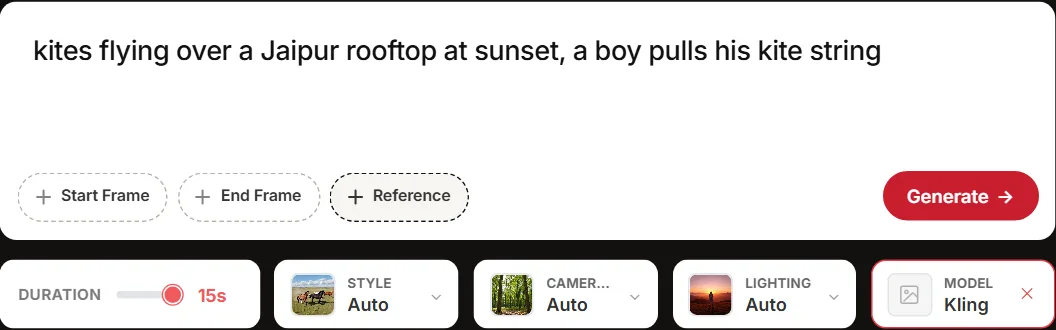
The form sits above this guide. Fill it once, top to bottom, and the prompt is ready. Here is what each control does.
Step 1: Describe the Video
Tell the tool who or what is on screen, what happens, and where. Plain words work fine. Try: “a chai seller pouring tea at a roadside stall in the morning rush”. One clear subject and one clear action beat a long, crowded description.
Step 2: Add a Start Frame, End Frame or Reference Image
These uploads are optional. A start frame fixes the opening shot. An end frame sets where the clip should land. A reference image guides the look or subject.
Per OpenAI’s archived Sora 2 prompting guide, an input image sets the first frame and the prompt describes what happens next. So with a start frame, focus on what moves. A sneaker photo as the start frame? Describe the spin and the light, not the shoe.
Step 3: Set Duration, Style, Camera Movement and Lighting
Duration is a slider, set to 15 seconds by default. It decides how much action fits in one clip. Style, Camera movement and Lighting shape the look. Lighting starts on Auto.
OpenAI sets duration as a setting, not prompt text, which is why it is a slider here and not something you type.
Step 4: Pick a Model and Generate
The model list covers Auto, Gemini Omni / Veo, Kling, Seedance, Runway, Wan, Higgsfield, Pika, Luma and Hailuo. Pick the tool you will paste into. Choose Auto if you are unsure. Then hit Generate.
Step 5: Copy or Improve the Prompt
Copy puts the prompt on your clipboard, ready for your video tool. Improve lets you ask for changes to the prompt. Say what to add or cut, and get a new version back.
What a Generated Video Prompt Looks Like
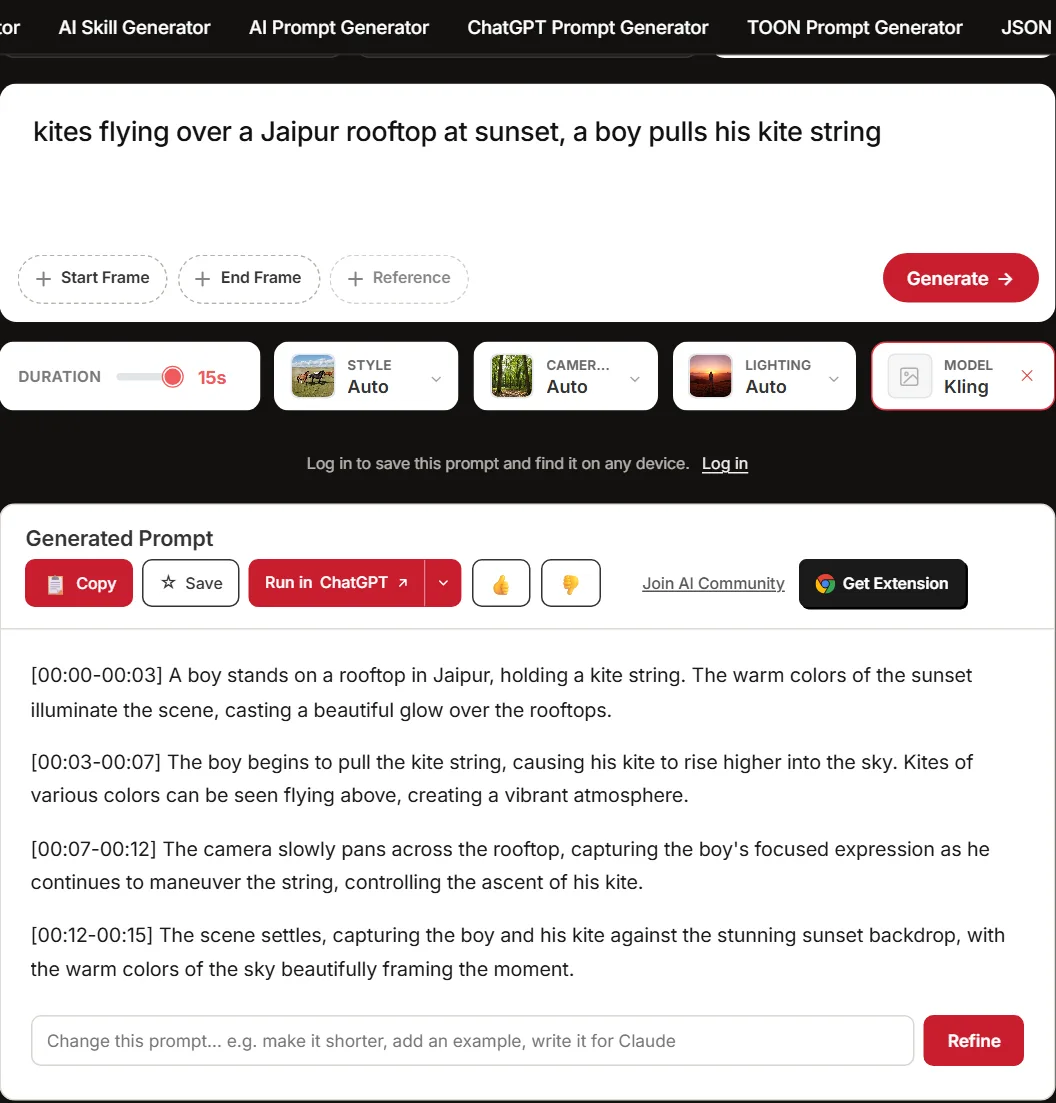
Below is one real run of the tool, from 12 Nov 2026. Some phrases are trimmed with dots for length.
Settings used: Video tab, Model set to Kling, Duration left at 15 seconds. Description: “kites flying over a Jaipur rooftop at sunset during Makar Sankranti, a boy pulls his kite string”.
The prompt it returned:
[00:00-00:03] A boy stands on a rooftop in Jaipur, holding a kite string, with colorful kites soaring above him against a … sunset sky during Makar Sankranti. [00:03-00:07] The boy pulls the kite string with excitement … [00:07-00:10] The camera pans slowly to capture the panorama of kites fluttering against the sunset backdrop … [00:10-00:15] … the sunset casts a golden hue over the entire landscape, solidifying the festive mood.
Parts of it trace straight back to the form. The beats run 00:00 to 00:15, so they fill the length the Duration slider set. The boy pulling the string is your description, turned into an action beat. Camera movement was left on Auto, so the tool chose the slow pan in the third beat itself.
How Gemini Omni, Kling and Wan Want Prompts Written
The Model picker matters more than it looks. Google, OpenAI, Kling and Alibaba each publish a prompt guide, and the differences change the clip you get.
Gemini Omni (Formerly Veo)
Google’s current official guide lists these building blocks: subject, action, scene or context, camera angle, camera movement, lens effects, style, pacing and audio. Pacing here means things like slow motion. You do not need every element in every prompt. Google’s guides differ on quote marks around dialogue. If spoken words show up as on-screen text, drop the quotes and write the speaker, a colon, then the line. The Gemini video prompt generator writes prompts for this model.
What About Sora?
OpenAI closed the Sora app in April 2026 and shut down the Sora 2 API in September 2026, so Sora is no longer an option. Its archived prompt guide still teaches good habits for any video model: one camera move and one action per shot, and short clips over long ones.
Kling
Kling’s official prompt guide, dated 7 Aug 2026, calls prompts clear scene direction, not secret formulas. It uses six elements: subject, action, scene, camera, lighting and mood. Name a camera move, like a slow push-in, only when it serves the story. For multiple shots, label them, such as [Shot 1: Wide shot]. For native audio, keep each speaker’s name, line and delivery together. The Kling video prompt generator writes prompts for Kling.
Wan
Alibaba’s Wan prompt guide, updated 11 Oct 2026, starts with a simple formula. It is entity + scene + motion. Add lighting, shot size, camera angle, lens and camera movement for more control. For image-to-video, the image already gives subject, scene and style. So the prompt should cover motion and camera movement only. Ask for a fixed camera to keep a product photo still. The Wan prompt generator writes prompts for Wan.
Seedance, Runway and the Other Models
No official prompt guide could be verified for Seedance, Runway, Higgsfield, Pika, Luma or Hailuo. Their prompts still work best with the same basics: subject, action, scene, camera and lighting. The Seedance prompt generator and Runway prompt generator go deeper.
Common AI Video Prompt Mistakes
Even the right model format fails on a few avoidable errors.
- Too much action for the clip length. Asking one 15-second clip to show cooking, plating and eating fails. Fix: choose one main action, or split the story across clips.
- Describing a still picture. A prompt with no motion words gives you a frozen shot. Fix: say what moves and how.
- Writing “no” or “don’t.” Google’s video prompt guide says to list the unwanted things instead. Rewrite “no people in the background” as “empty street, empty pavement”. Its own exclusion example is “wall, frame”.
- Mixing sound into the visuals. The same guide says to state whether you want audio at all. Keep audio in separate sentences from the visuals.
- Re-describing a start frame. The uploaded image already gives the subject and the look. Fix: write only what moves in it.
- Asking for readable on-screen text or real people by name. Wan’s guide lists both as things to avoid.
AI Video Prompt Generator vs Asking ChatGPT
A general chatbot is good at brainstorming. Ask one for three ad ideas for a small bakery. It will sketch stories, shots and lines fast.
Turning an idea into a working prompt takes more typing. You have to state the target model, duration, camera, lighting and style yourself. Every single time.
This generator turns those choices into form fields. It shapes the prompt for the model you pick. Start and end frame uploads sit in the same place.
General chatbot | This generator | |
|---|---|---|
Setup | Type the full brief in each message | Fill the form fields once |
Model formatting | You write the model rules yourself | Prompt is shaped for the model you pick |
Best for | Finding the story | A ready-to-paste prompt with frames |
So brainstorm in the chatbot. Build the chosen idea here.
FAQs
Yes. It is free to use, and you do not need an account. Open it, fill the form and copy your prompt.
No. It writes the prompt only. Paste that prompt into the video tool you use, like Kling or Runway. The clip is generated there.
Pick the tool you already have access to. If you are unsure, leave the picker on Auto. Our best AI video generators comparison helps you choose one.
Upload the same reference image for every clip. Kling’s prompt guide advises high-quality reference images for characters, products and props. Keep the subject description steady across prompts too.
Check the mistakes list above first. Then cut the action down to fit your duration. Use Improve to ask for changes to the prompt, and generate again.