
Suno Prompt Generator
Describe your song idea and get a Suno-ready style line, title and full lyrics with section tags. Free, no login.
Suno’s free plan gives you 50 credits a day and only the v6-mini model. Each generation spends 10 credits and returns two songs. A vague prompt can burn half your day on junk.
The Suno prompt generator above fixes that. One line about your song turns into three things: a song title, a Style of Music line, and full lyrics with section tags like [Verse] and [Chorus]. Those tags are common practice for guiding song structure, not an official Suno rule.
It is free, and there is no login. Just describe the song and paste the parts into Suno’s Custom mode.
How to Use the Suno Prompt Generator
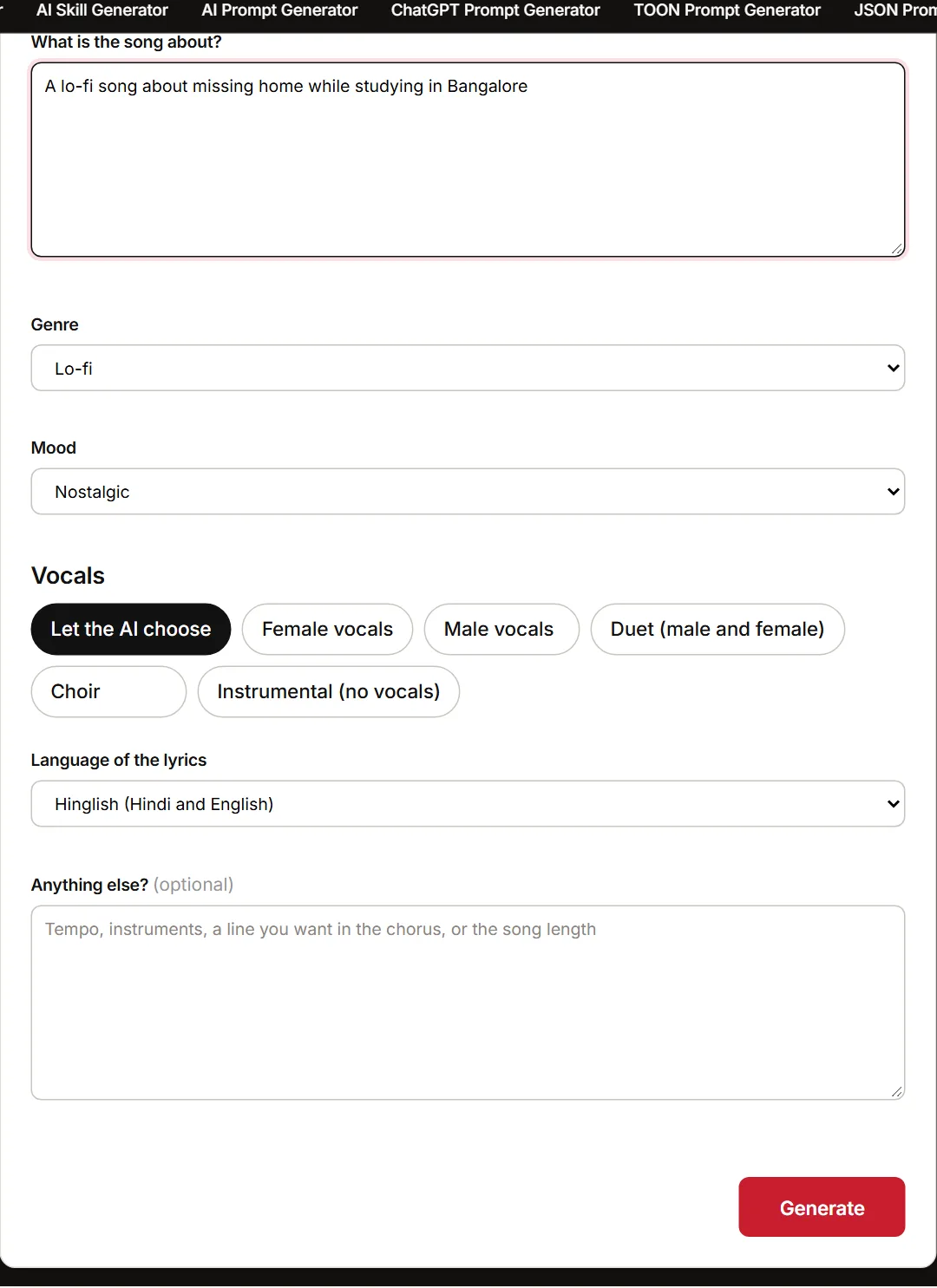
The form has four fields. Only the first one is required.
Step 1: Say What the Song Is About
Start with the “What is the song about?” box. A feeling, a story or a moment works. One or two plain sentences are enough. Try: “a road trip with college friends before everyone moves to different cities”.
Step 2: Pick Genre, Mood and Vocals
Three dropdowns shape the sound: Genre, Mood and Vocals. The Genre and Mood picks land in the Style of Music line. Vocals offers male, female, duet, choir or instrumental. Pick instrumental and the lyrics come out as section tags with sound cues only.
Step 3: Choose the Language
Language defaults to English. Hindi, Hinglish, Punjabi, Tamil, Spanish and others are in the list. Pick the one your song needs, and the tool writes the lyrics in it.
Step 4: Add Anything Else (Optional)
The “Anything else?” box takes the extras. Tempo in BPM, instruments, or a sound reference written without artist names. For example: “90 BPM, acoustic guitar and soft claps”.
Then open Suno’s Create page. The model dropdown sits at the top right of the form. Free users get v6-mini there, since v6-mini is available on every plan.
Where Each Part Goes in Suno
Open suno.com/create and switch to Custom mode at the top. It adds separate fields for title, style and lyrics.
Output part | Suno field | What it controls |
|---|---|---|
Song title | Title | Name shown on the track |
Style of Music | Style of Music box | Genre, mood, tempo and vocals |
Lyrics | Lyrics box | Words and song structure |
Song Title
Paste the first line of the output into the title field. It only names the track. It does not shape the sound.
Style of Music Box
The Style of Music line goes straight into the style box. It holds genre, mood, tempo in BPM, two to four instruments, vocal type, and one production detail. The tool keeps it under 200 characters. That is our own limit, not a Suno rule. No artist names go in it.
Lyrics Box
Everything under “Lyrics” goes into the lyrics box, section tags included. Tags like [Verse] and [Chorus] mark the structure. They are common practice, not official Suno syntax.
You can also set the singer’s gender under Advanced Options, with Male or Female. Voice words like “gritty” or “soft” belong in the style field instead. That is why the tool writes the vocal type there. Suno’s own example reads “blues rock with gritty male vocal”.
Real Suno Prompts From the Generator
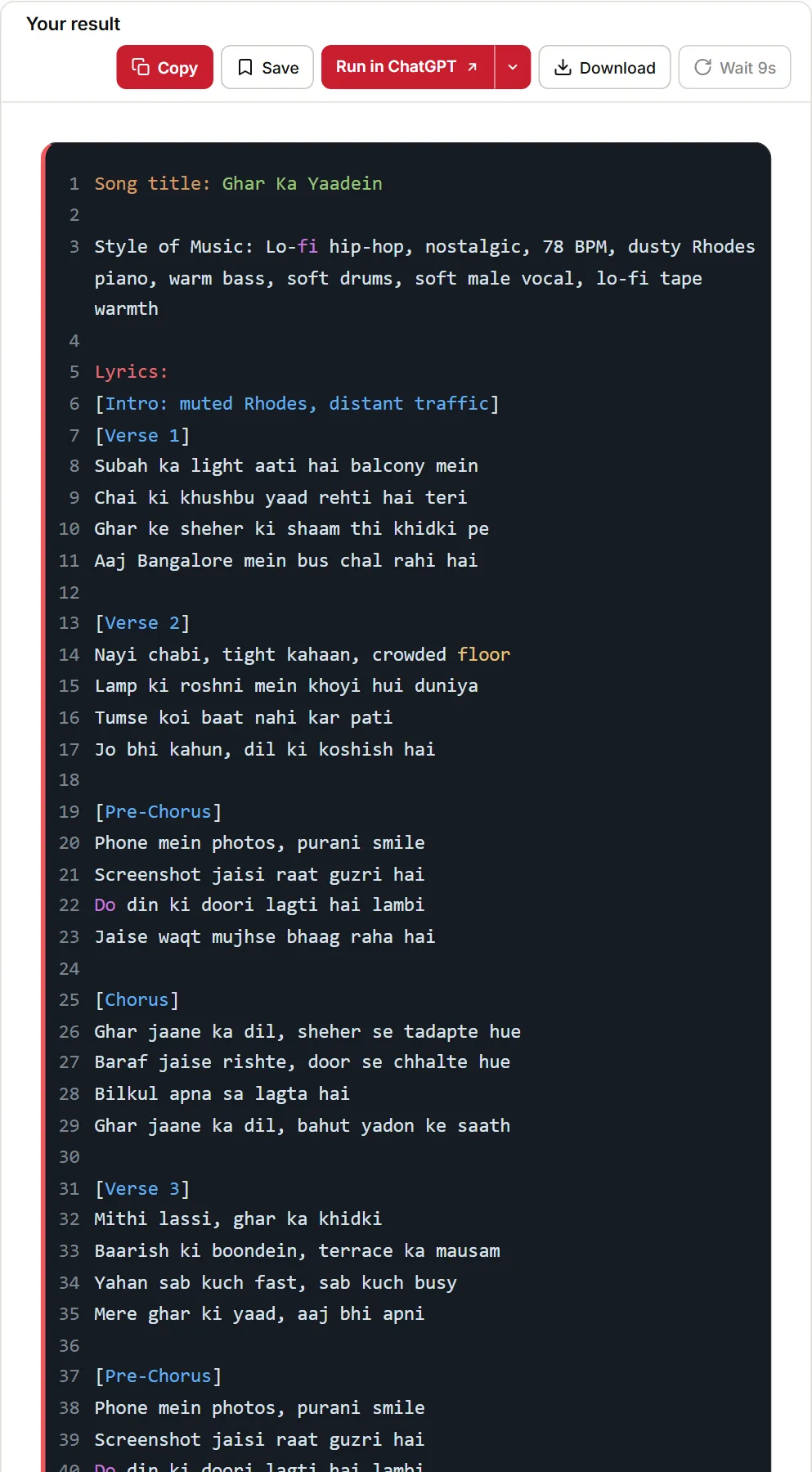
Two real outputs follow, straight from the tool. One has sung lyrics, one is instrumental. Both show what you paste.
Example 1: A Hinglish Lo-Fi Song About Missing Home
The inputs: “A lo-fi song about missing home while studying in Bangalore”, plus Lo-fi, Nostalgic, Female vocals, Hinglish. This is the output.
Song title: Ghar Ki Yaad
Style of Music: lo-fi hip hop, nostalgic, mellow, 75 BPM, soft piano, vinyl crackle, mellow guitar, lo-fi tape warmth, female vocals, hazy bedroom production
Lyrics:
[Verse 1]
Hostel ki khidki se dekhun …
Phone pe ghar, bas do ghante baat
[Pre-Chorus]
Alarm bajta hai, subah ki class
Coffee ke cup mein ghar ka ehsaas
[Chorus]
Ghar ki yaad, ho ho
Dil mein chalti hai woh sadak wali gali
Ghar ki yaad, ho ho
Maa ki dua, meri silent lullaby
The style line carries the sound details. It names the tempo (75 BPM). It lists the instruments (soft piano, vinyl crackle, mellow guitar) and the vocal type. The lyrics are in Roman script, and the [Chorus] holds the hook you want repeated.
Example 2: An Instrumental Lo-Fi Track
The inputs here: “rain at night in Mumbai”, Lo-fi, Chill, Instrumental, plus “for study”.
Song title: Midnight Monsoon
Style of Music: Lo-fi chill, rainy-night mood, 72 BPM, muted electric piano, warm synth pads, soft vinyl crackle, instrumental, gentle rain ambience
Lyrics:
[Intro: soft piano with distant rain]
[Verse 1: muted bass enters, slow vinyl texture]
[Chorus: warm synth pads swell with filtered rain]
[Bridge: piano and rain ambience]
[Outro: gradual fade into rain]
No sung words here. Each tag is only a sound cue. These tags use structure terms from Suno’s music glossary. The glossary covers Intro, Verse, Pre-Chorus, Chorus, Bridge and Outro.
For cover art to match the track, a free AI art prompt generator can write the image prompt.
How Suno Reads Your Prompt
What Suno v6 Understands
Suno shipped v6 on 9 September 2026 in three variants. v6 and v6-wild sit on Pro and Premier. v6-mini is for everyone, free users included. Older models are being retired, according to Suno’s v6 announcement.
That post says v6 follows more musical language. Vocals, instrumentation, structure, mood and sound references all register. Suno publishes no special prompt syntax for any of it. Plain musical words do the work, which is why the tool writes the style line as a normal sentence.
Section Tags and Style Length Are Common Practice
Bracket tags like [Verse] and [Chorus] are a widely used way to mark sections. Suno’s help pages do not present them as a rule. They nudge the structure along. They do not guarantee it.
Suno publishes no style-box character limit either. Third-party character limit guides report figures from 200 to about 1,000 characters. They differ by model and by guide, and none comes from Suno. So the tool keeps the style line under 200 characters. It fits every figure in circulation. If you add your own words, check the counter on the Create page.
Making Songs in Hindi, Hinglish and Punjabi
Pick the language in the form before you generate. For Hindi, Hinglish and Punjabi, the tool writes lyrics in Roman script. You get “dil”, not Devanagari or Gurmukhi. That is quick to read, edit and paste.
Check the Style of Music line next. It should name the language or vocal style you want. If it does not, add that in the “Anything else?” box.
Suno lets you combine genres and name instruments. Blends like Punjabi bhangra-pop with dhol, or Hindi lo-fi with sitar and soft rain sounds, are fair to ask for.
Play the first take and respell any word Suno sings wrong. Change nothing else in the prompt. Then generate again and compare.
Common Mistakes When Prompting Suno
Putting Style Words in the Lyrics Box
Anything you type in the lyrics box can get sung. Words like “lo-fi” or “90 BPM” belong in the style box, where they shape the sound. Keep the lyrics box for words and section tags.
Naming an Artist Instead of Describing the Sound
The generator leaves artist names out by design. Suno publishes no rule against them, so this is our choice. Describe the sound instead: era, genre, texture, tempo. Try “late-90s Hindi film ballad, soft strings, warm male vocal”.
Changing Everything Between Tries
One generation costs 10 credits and returns two songs. Change a single element between tries, or you will not know what worked. And if Suno keeps rewriting your style words, set the Variety slider to 0.
Asking the Prompt to Remove Sounds
Instead of writing “no drums” in the style box, try the Exclude field. Custom mode’s Advanced Options has an Exclude field for sounds you do not want. Use it to drop drums from a quiet lo-fi track.
Writing Your Own Lyrics vs Suno’s Auto Lyrics
The words are a separate choice from the sound. In Simple mode, you give Suno a short description and it writes the lyrics. That is the fastest route, but the story, the sections and the language stay Suno’s call.
Custom mode turns that around. You paste lyrics into the Lyrics field and decide every line. Suno confirms you can use your own lyrics there, and the rights to words you wrote yourself stay yours.
The generator sits between the two. It writes tagged lyrics, and you can edit them before pasting. A birthday song that must use a friend’s name and an inside joke needs your own lines. Write those in, keep the tags, and paste.
Suno Prompt Generator FAQs
Yes. The generator is free and needs no login. Suno’s free credits refill once a day on a UTC schedule, which lands at 5:30 am IST.
Not on the free plan. It gives you no commercial rights. Pro costs $10 a month, or $8 billed yearly, and includes those rights.
Yes. Paste them into the Lyrics box in Custom mode, then add section tags. The tags only guide structure; they are not an official rule. For prompts aimed at other AI tools, use the free AI prompt generator.
All three v6 variants make up to 8 minutes per generation. That covers free users on v6-mini as well.
Partly. Simple mode takes one short description, so the style line plus your topic works there. To use the generated lyrics, switch to Custom mode.