
Gemini Video Prompt Generator
Describe your clip and get a ready-to-paste video prompt for Gemini Omni, the model that replaced Veo 3. Free, no login.
More AI prompt generators
Chat models


Image models


Music

Coding tools


By technique


Google shut down the Veo 3.1 Preview API models on 22 October 2026, and Gemini Omni replaced Veo 3.1 in the Gemini app. If you searched for a “Veo 3 prompt generator”, you want the same thing. You need a prompt that works with Google’s current video model.
The Gemini video prompt generator above does that job. Type a few details into the form and it writes one ready-to-paste video prompt for Gemini Omni. It is free and needs no login. People still search for Veo 3, and these prompts do the same job.
The guide below covers the form and real outputs. It also covers how Gemini reads prompts, common mistakes, and how Omni compares with other video models.
How to Use the Gemini Video Prompt Generator
The form has five parts. Fill them in order and you get one ready-to-paste prompt in a single pass.
Step 1: Describe the Concept, Subject and Setting
The first box is required. Name one subject and one place. For example, a home baker in Pune filming a cake-cutting clip for Instagram.
Step 2: Say What Happens in the Clip
The second box is required too. Describe one action that fits about 8 to 10 seconds. Cutting the cake works. Adding baking and serving does not.
Step 3: Pick a Mood and a Camera Move
Two dropdowns come next. The tool turns your picks into lighting, style and camera wording. Choose the closest match and keep going.
Step 4: Add Sound, Dialogue and Things to Avoid
Sound or dialogue is optional. Type spoken words exactly as they should be said. The include or avoid box is optional too. Each thing you want left out becomes a “Do not …” sentence in the prompt.
Step 5: Choose Plain Text or JSON, Then Paste It Into Gemini
Last, pick plain text or JSON as the output format. Copy the prompt. Open Create video in the Gemini app, paste it and generate.
To generate videos in the Gemini app from a personal account, you need a Google AI plan. The feature is not available if you are under 18, and each clip takes a few minutes.
The prompt ends with 9:16 or 16:9. Write “vertical” or “reel” in your inputs when you want 9:16.
What a Generated Gemini Video Prompt Looks Like
Each generated prompt is one paragraph of roughly 80 to 180 words, sized for an 8 to 10 second clip. It opens with “In a single continuous shot”, then covers the camera, the subject, the action, the setting, the lighting, the style and one line of sound. The camera wording follows Google DeepMind’s Gemini Omni prompt guide, which lists close-up, push in, static and one continuous shot.
Plain Text: A Tokyo Street Vendor in the Rain
The inputs were “a street vendor in Tokyo at night, steam rising from her food stall”, the Nostalgic and Warm mood, a Slow push in, the sound “Soft rain and distant traffic”, and “No on-screen text” to avoid.
In a single continuous shot, a slow push in moves from a medium shot toward a close-up of a woman in her fifties running a small Tokyo food stall at night, wearing a faded apron over a cardigan, her sleeves rolled up. She lifts a steaming ceramic cup from the counter with both hands, brings it near her chest, then tilts her head up as the first drops of rain begin to fall, and a gentle, crinkling smile spreads across her face. The stall is a narrow wooden counter lit by warm hanging bulbs, with skewers, a ladle, and a pot sending thick ribbons of steam into the cool air; wet pavement reflects red and yellow signs in blurred Japanese characters behind her. The lighting is warm amber against cool blue night tones, giving a nostalgic, tender mood, with raindrops catching the bulbs. The visual style is 35mm film with soft grain and shallow depth of field. The audio is soft rain pattering on the awning, distant traffic humming, low chatter, and quiet sizzling from the pot. Do not show any on-screen text. Aspect ratio 16:9.
Two sentences carry most of the load. “A slow push in moves from a medium shot toward a close-up” sets the whole camera path. The sound line packs rain, traffic, chatter and sizzling into the audio.
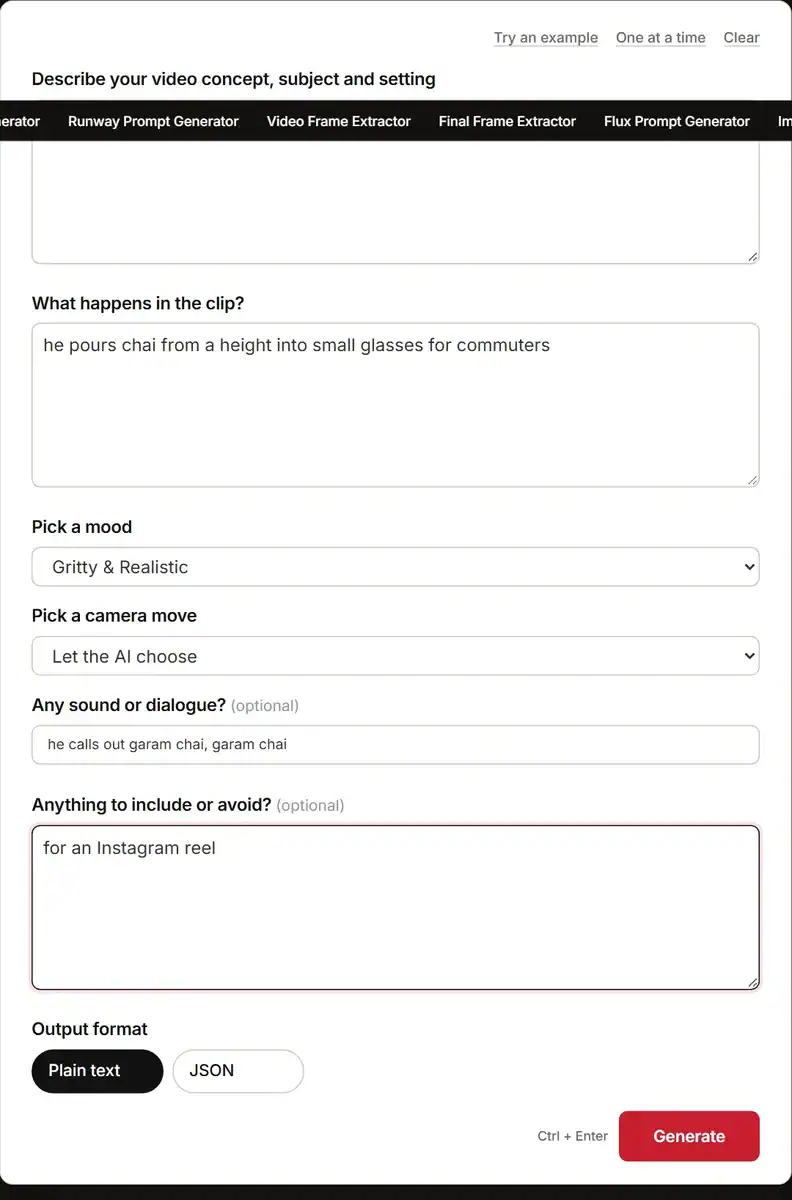
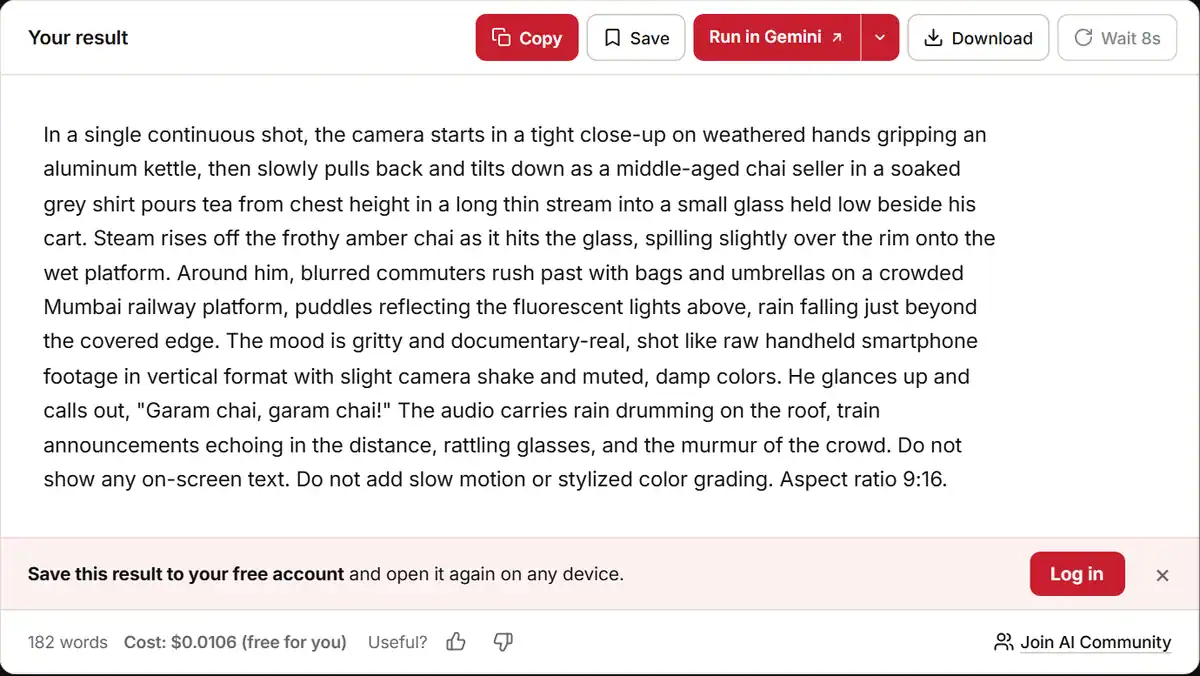
With Dialogue: A Mumbai Chai Seller Reel in 9:16
For this one the dialogue input was “garam chai, garam chai”. The tool writes spoken words in double quotes and keeps the rest of the sound separate. It closes with 9:16.
In a single continuous shot, the camera tracks slowly along a rain-soaked platform at Mumbai railway station, moving from commuters' umbrellas to a weathered chai stall in a vertical 9:16 Instagram reel composition. A middle-aged Indian chai seller in a faded blue shirt, with rain beads on his face and a dark towel around his shoulders, raises a steel kettle and pours steaming chai from a height into several small glass tumblers, the amber liquid splashing vigorously. He calls out, "garam chai, garam chai!" as he hands a glass to a commuter holding a black umbrella. Wet concrete reflects yellow bulbs, passing train lights, and sheets of monsoon rain. Gritty realistic documentary style, natural colors, handheld camera, shallow depth of field, close details of water droplets, steam, and moving crowds. Background sound: rumbling trains, rain on metal roofing, and distant station announcements, with the sharp hiss of pouring chai. Do not show any on-screen text. 9:16.
That quoted line, “garam chai, garam chai!”, is the only speech in the clip. Everything else about sound sits in plain description.
JSON: A Puppy in a Diwali-Lit Room
The JSON format splits the same content into keys: shot, subject, action, setting, lighting, style, audio, avoid and aspect_ratio. Here is the opening key from a handheld puppy clip.
"shot": "In a single continuous handheld shot, the camera follows a golden retriever puppy at low floor level..."
JSON is the pick when you want to change one field, say the lighting, and run the prompt again. It also keeps a batch of prompts tidy. For other structured prompts, use a free JSON prompt generator.
How Gemini Reads Video Prompts
Every prompt the generator writes draws on Google’s own docs. Each part earns its place.
One Scene in a Single Continuous Shot
For one scene, the Gemini API docs for Omni say to write “In a single continuous shot” and “No scene cuts”. That is why every generated prompt opens that way. It tells the model to plan one camera path and skip cuts.
Sound and Dialogue
Omni produces native, synced audio. So the prompt describes sound in one sentence: rain, traffic, a kettle, chatter. Spoken lines go in double quotes, the Gemini API convention. For example: He calls out, “garam chai, garam chai!”
Quotes can backfire. Google Cloud’s video best practices warn that quotation marks can turn speech into on-screen text. If captions show up, change the format. Use the speaker’s action, then a colon, then the words. Like this: The vendor calls out: garam chai. Then run the prompt again.
“Do Not” Sentences Instead of a Negative Prompt
There is no separate negative prompt field. The docs say to write exclusions inside the prompt as “Do not …” sentences. That is what the tool’s avoid box produces. Name each thing plainly: “Do not show on-screen text” reads clearer than “Do not make it look fake”.
Clip Length and Aspect Ratio
The tool writes for 8 to 10 seconds, which fits both places you can generate. The Gemini app runs clips of 3 to 10 seconds, or up to 15 on AI Ultra. Through Gemini Omni on the API, one generation runs 3 to 15 seconds, with 10 as the default.
Aspect ratio is 9:16 or 16:9, and the API defaults to 16:9. Text-only prompts in the Gemini app default to landscape too. An uploaded image or video sets the ratio instead. Naming 9:16 in the prompt removes that guesswork.
Common Gemini Video Prompt Mistakes
Even a well-built prompt can return the wrong clip. Five errors cause most of it.
Packing Several Events Into One Clip
A wedding sangeet dance sequence crammed into one clip turns muddy fast. Give it one action per 8 to 10 seconds. Split a longer story into separate clips.
Asking for What Omni Still Struggles With
Google’s Gemini Omni 1.2 Flash announcement names its weak spots. Fast sports action, rapid script changes and complex physics all make the list. A cricket six sits right in that group. Show the batter’s stance and the swing instead. Skip the ball’s full flight.
Changing the Character Between Clips
Tweak a character’s description between clips and the face and clothes drift. Google’s video best practices list this mistake. Copy the same subject sentence into every clip, word for word. Change only the action.
Writing “Make It Move” for a Photo
Say “make it move” about a kurta product photo. The motion becomes a lottery. Describe the motion itself: the fabric sways as the model turns. Skip what the photo already shows.
Forgetting the Vertical Format
A reel without the format line can come back landscape. End the prompt with 9:16. In the form, type “vertical” or “reel” and it lands there.
How Gemini Omni Compares With Other Video Models
Google’s Gemini Omni launch post says Omni takes text, images, audio and video as input, and you edit clips by conversation. Every clip carries a SynthID watermark. It runs in the Gemini app and Flow, and free on YouTube Shorts and YouTube Create.
Sora is gone. OpenAI closed the Sora app in April 2026 and shut down the Sora 2 models and the Videos API in September 2026. Prompts written for Sora need a new home.
These prompts are plain English scene descriptions, so one can be pasted into another video model. The single-shot opener and “Do not” lines are tuned for Gemini. For Kling, use our Kling video prompt generator. For any other model, use the AI video prompt generator.
FAQ
Yes, it is free and needs no login. Prompts are written for Gemini Omni, the model that replaced Veo 3 in Gemini. If you searched for a Veo 3 prompt generator, this is the current one.
The tool writes 80 to 160 words per prompt. Google DeepMind’s Omni guide says Omni needs less prescriptive prompts than Veo. A clear short prompt is enough for most clips.
Yes. Ask Gemini chat to brainstorm or expand the prompt before you generate. For text prompts aimed at Gemini chat itself, use our Gemini prompt generator.
Yes. Omni can extend a video in 10-second steps. Keep the subject sentence the same in each step.
The Gemini API docs list English as fully supported. Other languages may work, but results vary. A safe test: write the scene in English and keep only the spoken line in Hindi.